This section describes the operation of the "PoE" screen.
Here, you can check and edit the configuration status of PoE on each interface, reset ports, and initialize settings.
Click [System Settings] > [PoE] on the side menu to open the "PoE" screen.
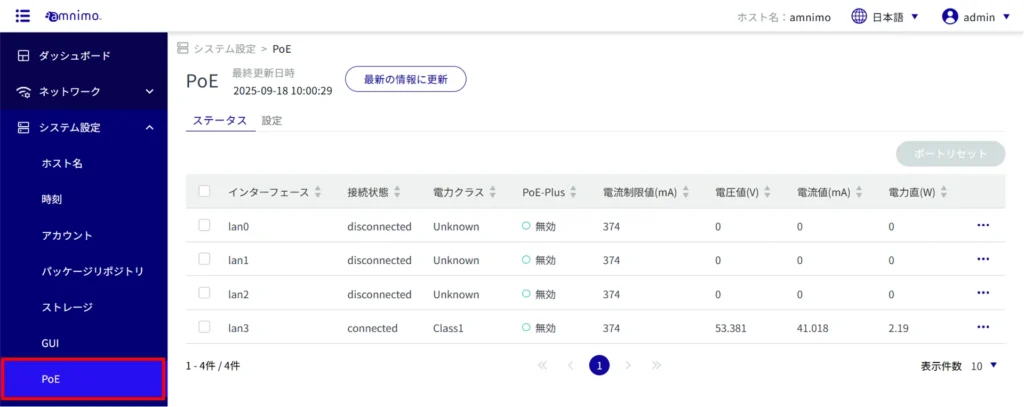
Sensor Connection Gateway Specification B, IoT Router Indoor Version (AR10), Compact Router Indoor Version (AC10), Compact Router with Wireless LAN Indoor Version (AC15) do not have PoE function.
The interfaces displayed on models with PoE functionality are as follows
- AI Edge Gateway: lan0 to lan3
- Sensor connection gateway Specification A: lan1
- Edge gateway: lan0 to lan3
- IoT Router Outdoor version (AR20): eth0, eth1
- Compact router with wireless LAN outdoor version (AC25): lan1
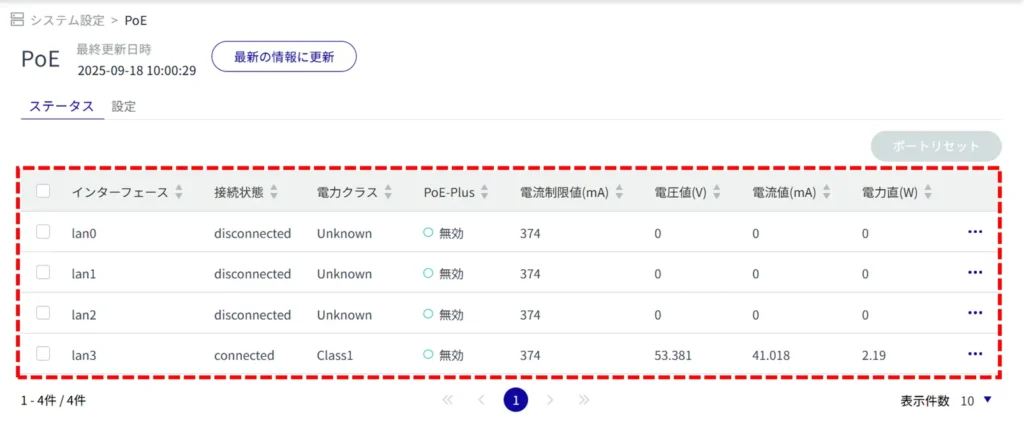
Display a list of PoE
The "PoE" screen opens to display a list of PoEs.
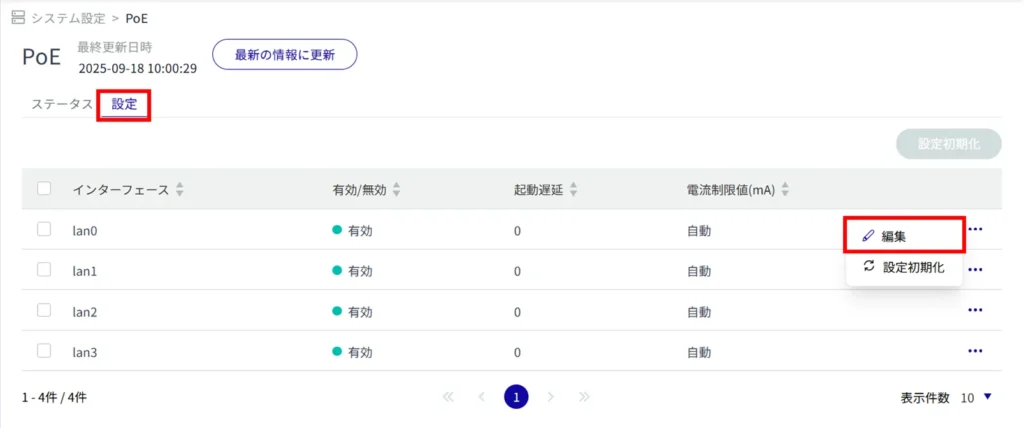
By clicking on the tabs, you can switch between the list of statuses and settings.
Edit PoE settings
Edit the registered PoE settings.
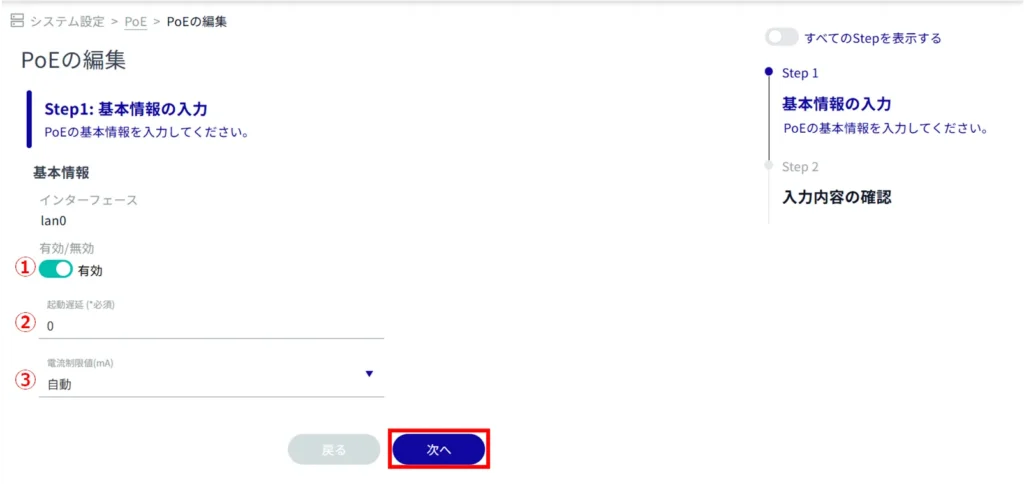
The "Edit PoE Settings" window opens.
Click the toggle and select Enable/Disable.
(2) Specify the delay time (in seconds) from 0 to 3600 at startup.
(3) Set the current limit of the PoE port.
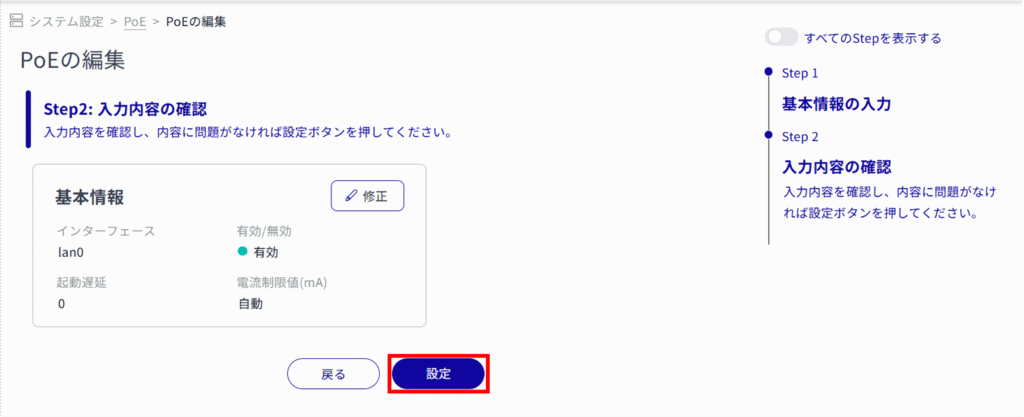
Editing of PoE settings is completed.
Reset PoE port
There are two ways to reset PoE ports: individually or by selecting multiple targets and resetting them all together.
Reset PoE ports individually
This method is to select Port Reset from the PoE operation menu.
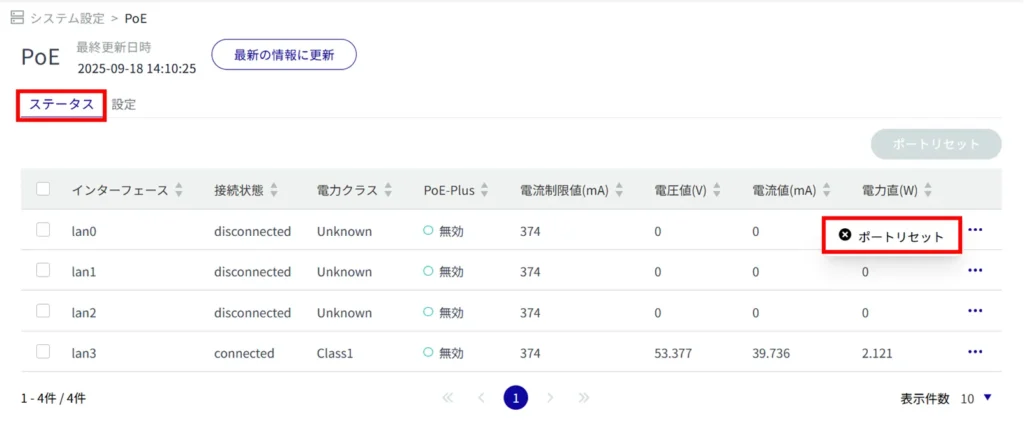

The PoE port reset is completed.
Select and reset multiple PoEs
This is a method of port resetting after checking the PoEs to be reset. This is useful for port resetting multiple PoEs at once.
You can also select only one PoE to port reset.
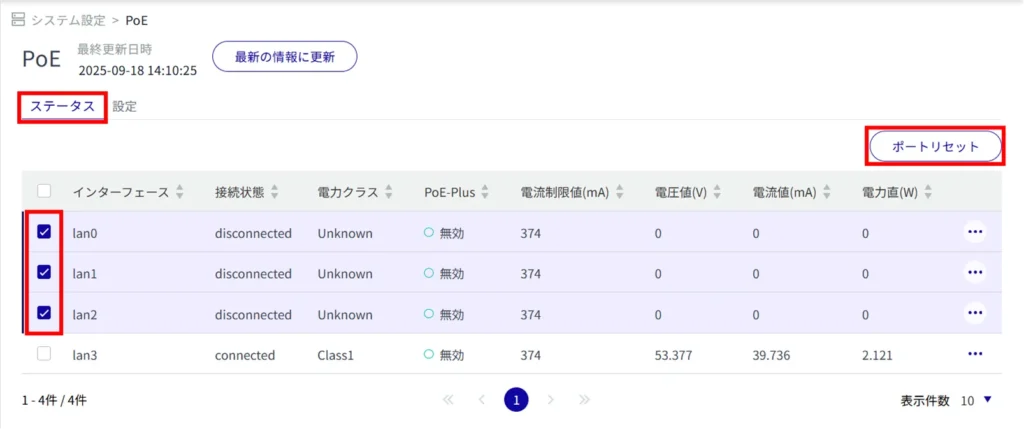
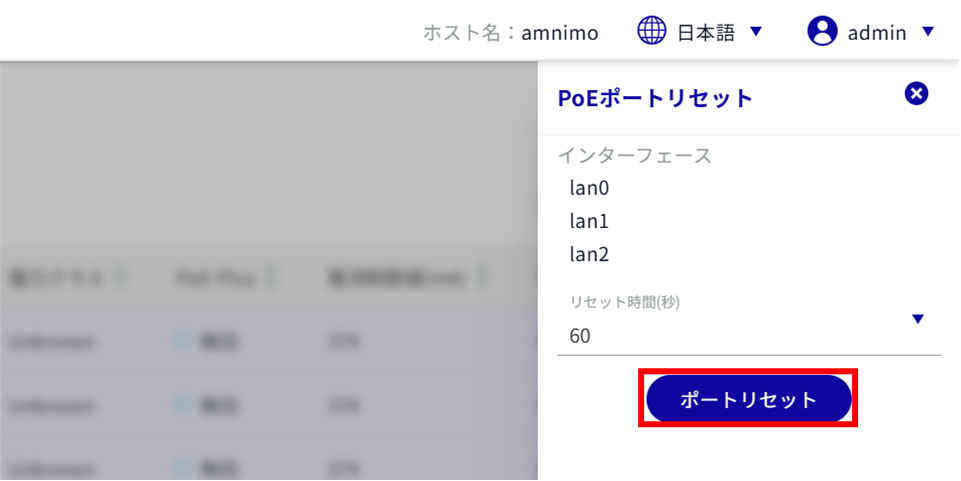
The PoE port reset is completed.
Initialize PoE settings
There are two ways to initialize the PoE settings: by initializing each PoE individually from the PoE operation menu, or by selecting all the PoEs whose settings you want to initialize and then initializing them.
Initialize PoE settings individually
This method is to select initialization of settings from the PoE operation menu.
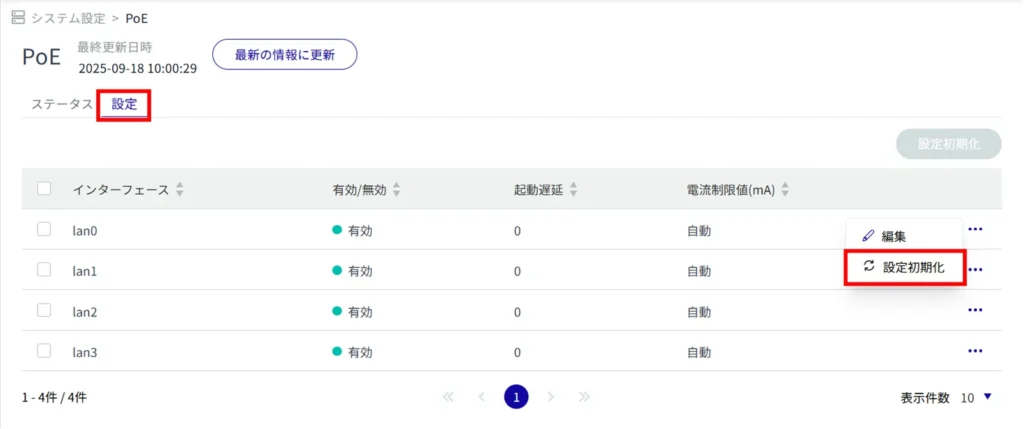
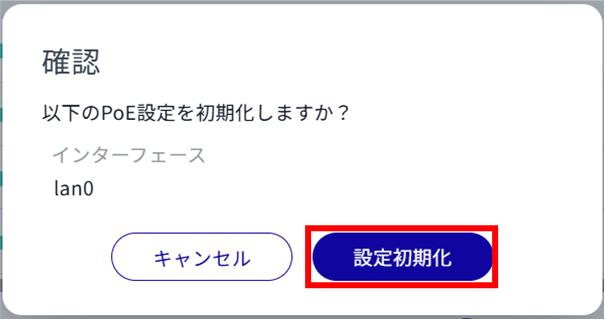
PoE is initialized.
Select multiple PoEs and initialize settings
This method is used to initialize the settings after checking the check boxes of the PoEs you wish to initialize. You can also select a single PoE to initialize its settings.
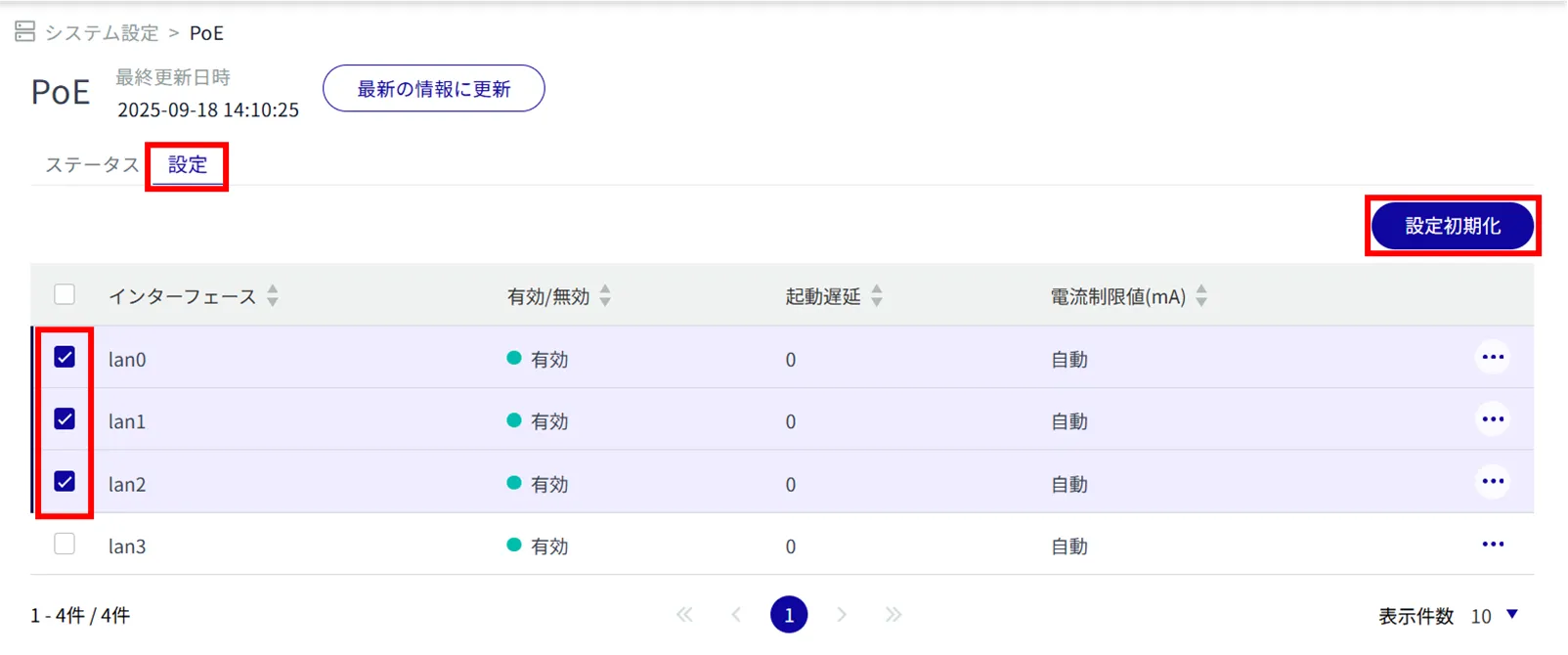
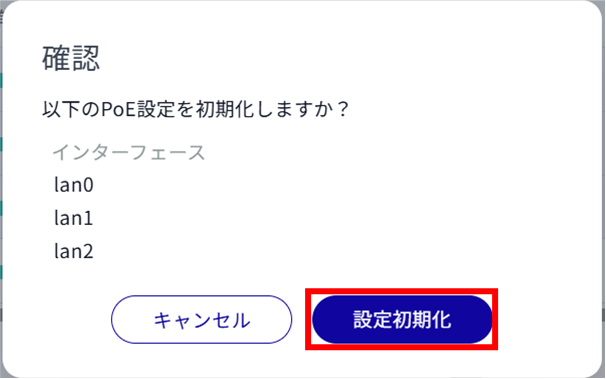
PoE is initialized.