IoT routers (amnimo R series) and compact routers (amnimo C series) do not have this feature.
Nx Witness settings for this product.
This section describes how to change, save, and restore Nx Witness settings.
View Nx Witness settings
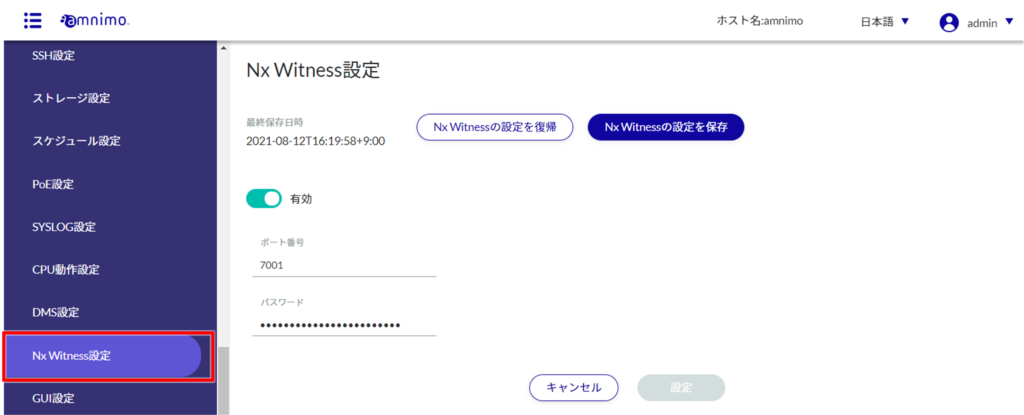
The "Nx Witness Settings" screen displays the current Nx Witness settings status.
Change Nx Witness settings
❶ Click the toggle to enable/disable.
❷ Specify the port number. The default value is set to 7001.
❸ Enter the admin password set for Nx Witness.
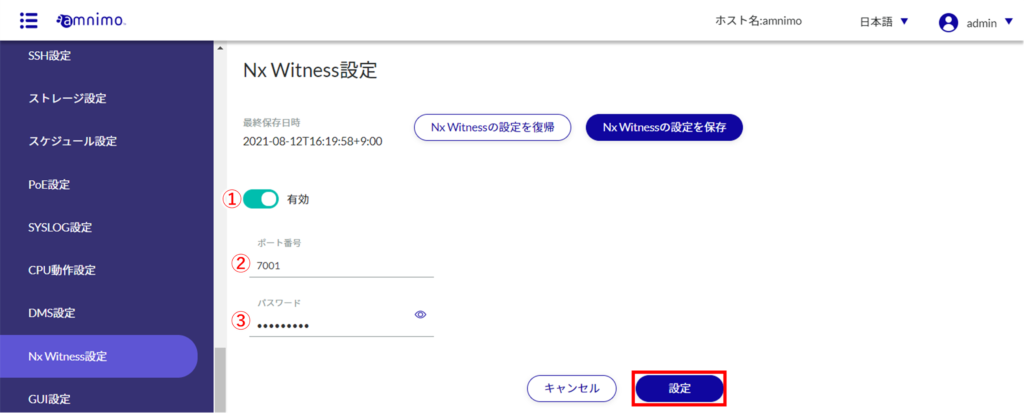
If NxWitness is activated while VMS settings are enabled (amnimo VMS is enabled), click [ Settings ] when the following message appears.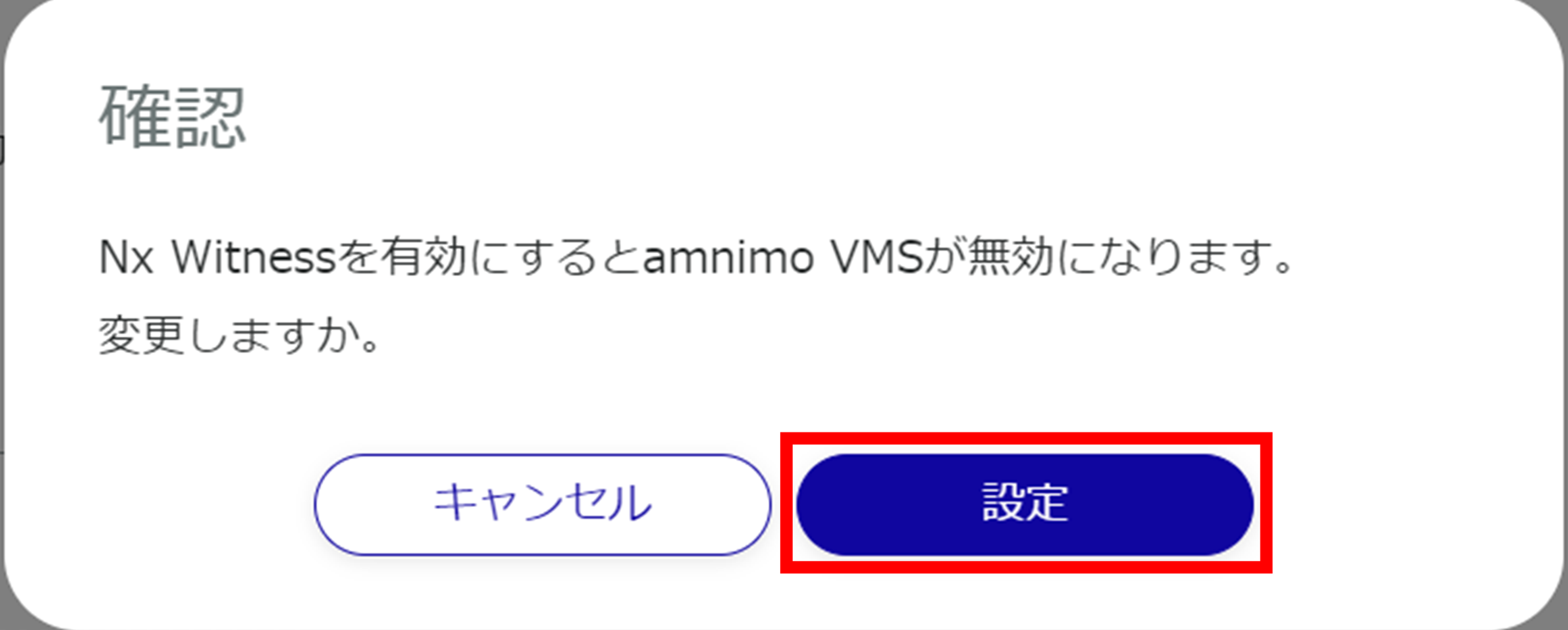
Save Nx Witness settings
To use this feature, the NxWitness password must have been properly set in advance. Please note that an error message will be displayed if the password is not set correctly.
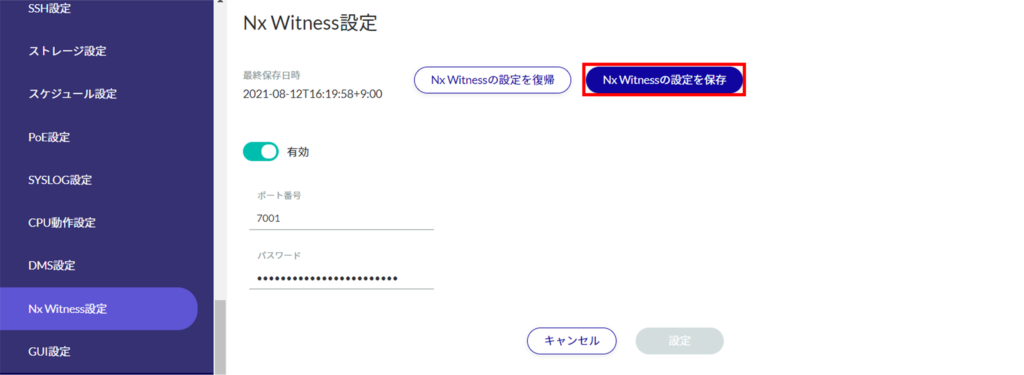
The "Confirmation" screen appears.

Nx Witness settings are saved and the last save date/time in the upper left corner of the screen is updated.
Load Nx Witness settings
Loads saved Nx Witness settings.
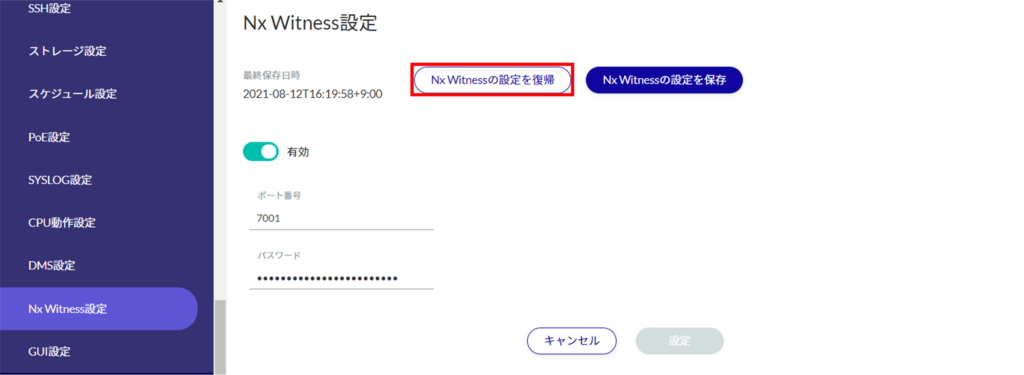
The "Confirmation" screen appears.
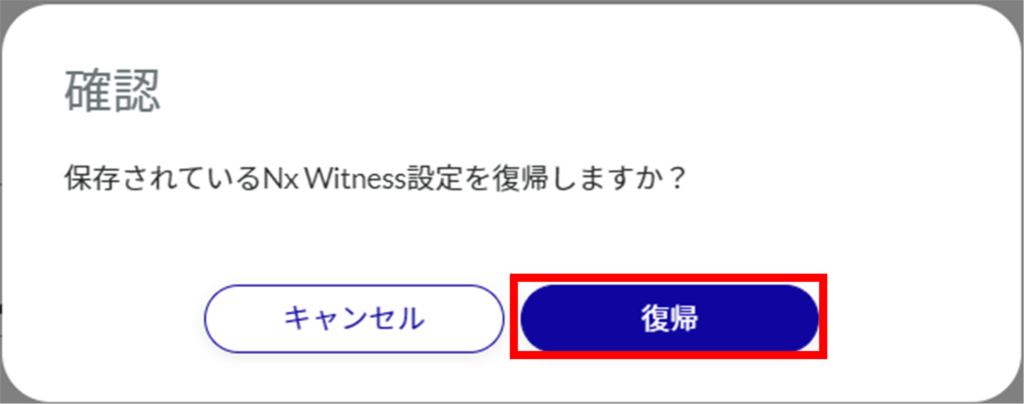
Saved Nx Witness settings are loaded.