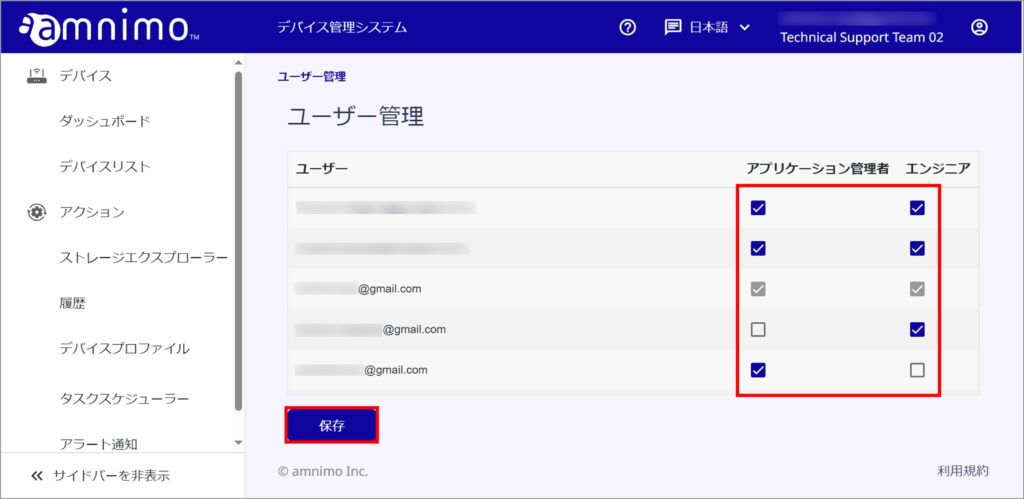
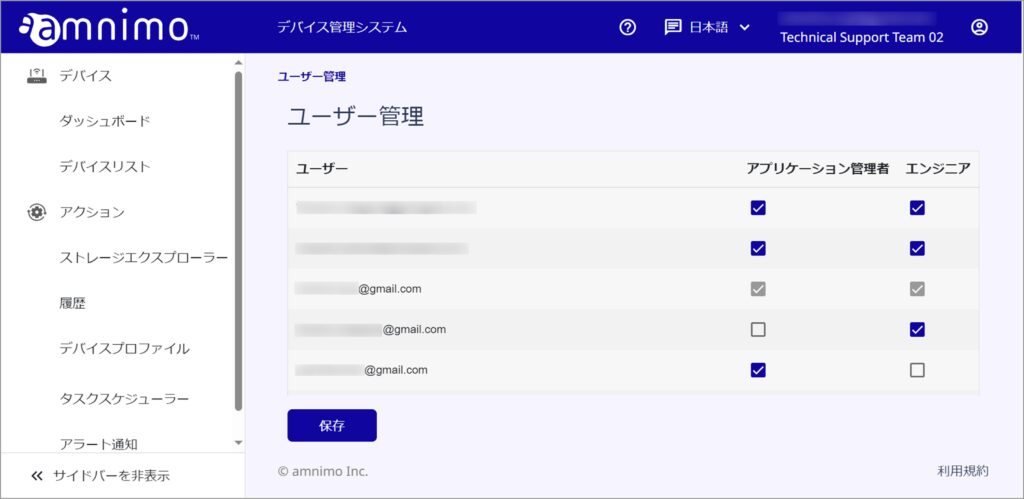
The User Management screen allows you to manage application usage privileges for members.
Invite Members
Granting privileges to members allows them to use the device management system.
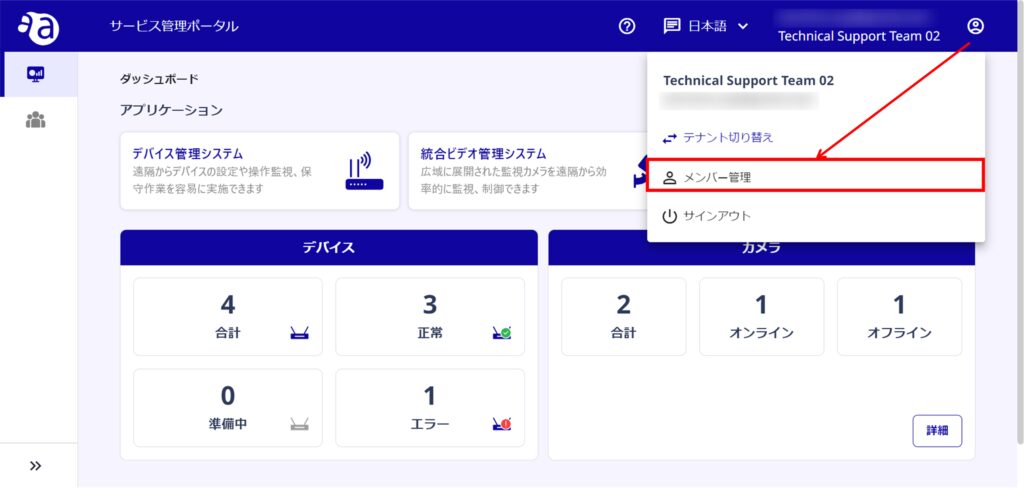
Members must be invited in advance through the "Service Management Portal".
In this section, Service Management Portal and authorize them in the Device Management System.
Here is how to invite members. You can also grant application privileges when inviting members.
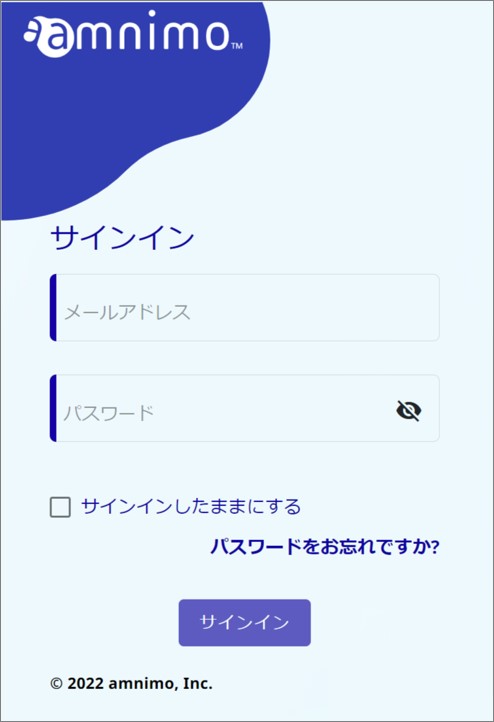
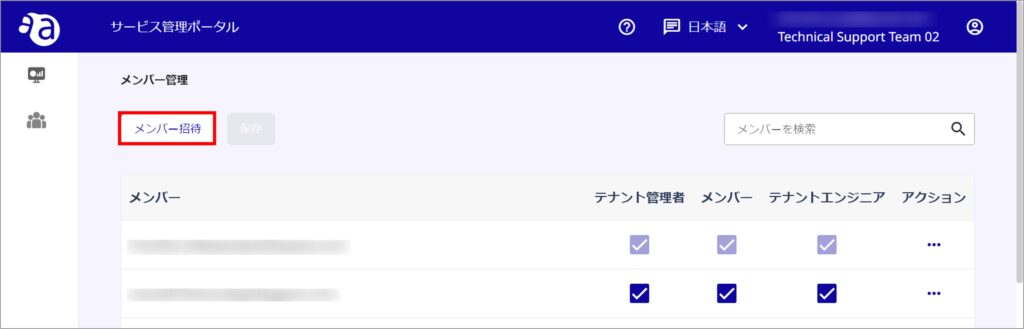
Invited members will receive an e-mail. Please check it.
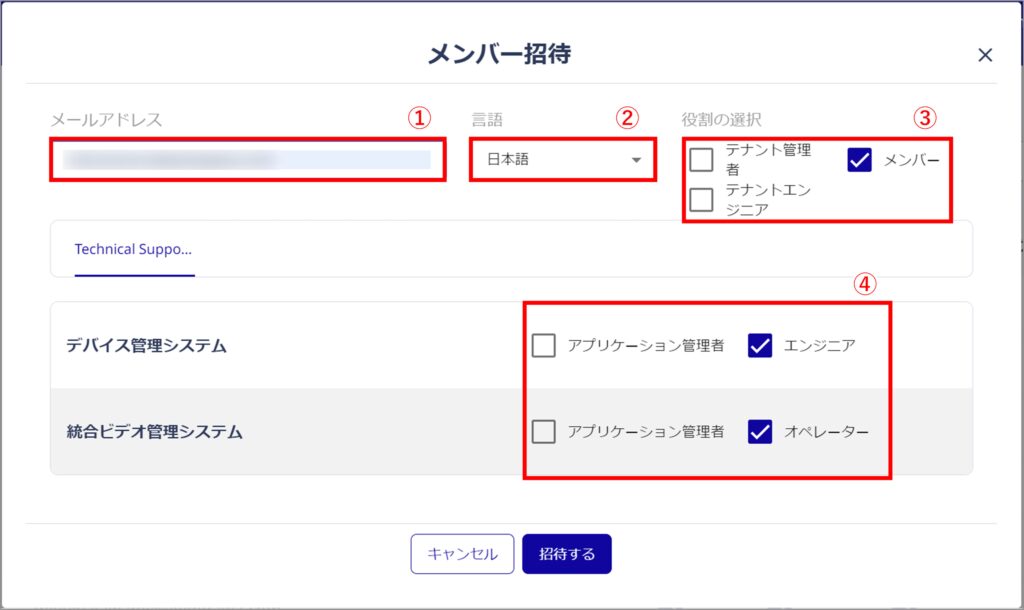
E-mail address: Enter the e-mail address of the member to be invited.
② Language: Select the language.
(3) Role Selection: Select a role (Tenant Administrator, Member, or Tenant Engineer). (For more information on each role, please click here.)
(4) Application Permissions: Select the permissions. (For more information on each role, please refer to the Permission Table.)
Granting privileges to users
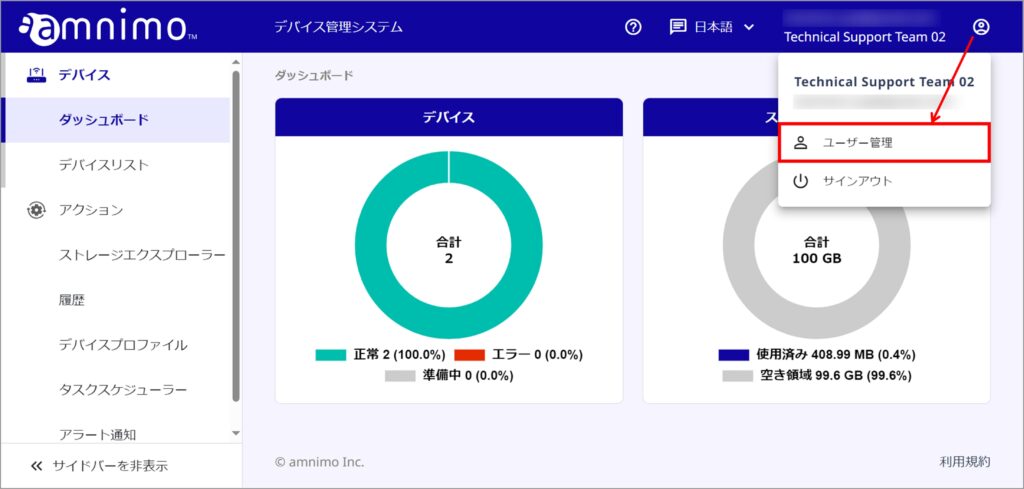
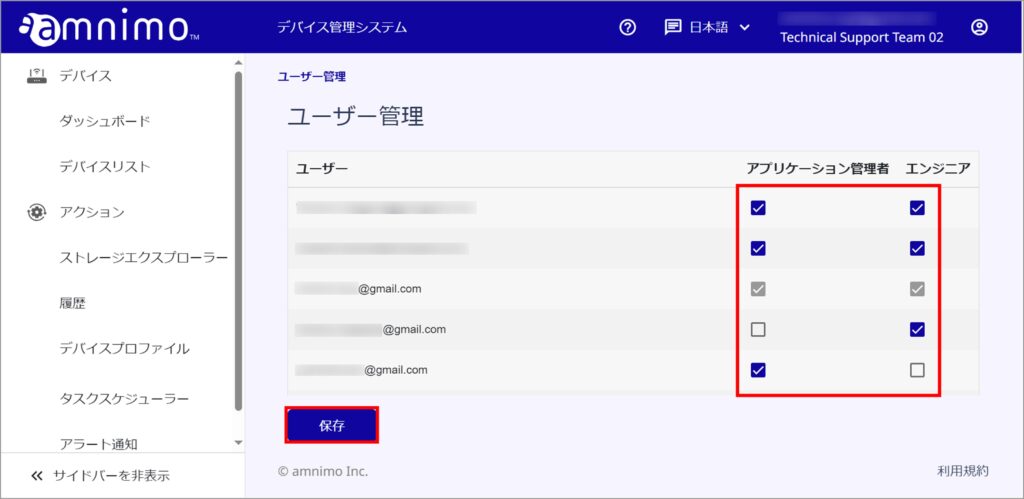
Once members are added in the Service Management Portal, they can be authorized from the Device Management System.
You cannot control the permissions on your own account.
Removing user privileges
You cannot control the permissions on your own account.