There are two ways to connect to this product via CLI
Connect using a serial console
Connect this product to a PC with a serial cable and use a terminal emulator to connect from the PC.
Refer to the user's manuals for each product as the method of connecting to the serial console differs for each product.
Connect using SSH (Secure Shell)
Connect from a PC connected to the same network (Ethernet) as the product by specifying the IP address of the product using a terminal emulator or the ssh command.
SSH is disabled by default on this product.
- For information on how to enable SSH, see "Configuring SSH Settings".
Connecting with a terminal emulator




This section describes the procedure for connecting to this product using Tera Term (Ver 4.105), a Windows terminal emulator.
Connect via serial console
Connect from the "Tera Term new connection" screen of Tera Term.
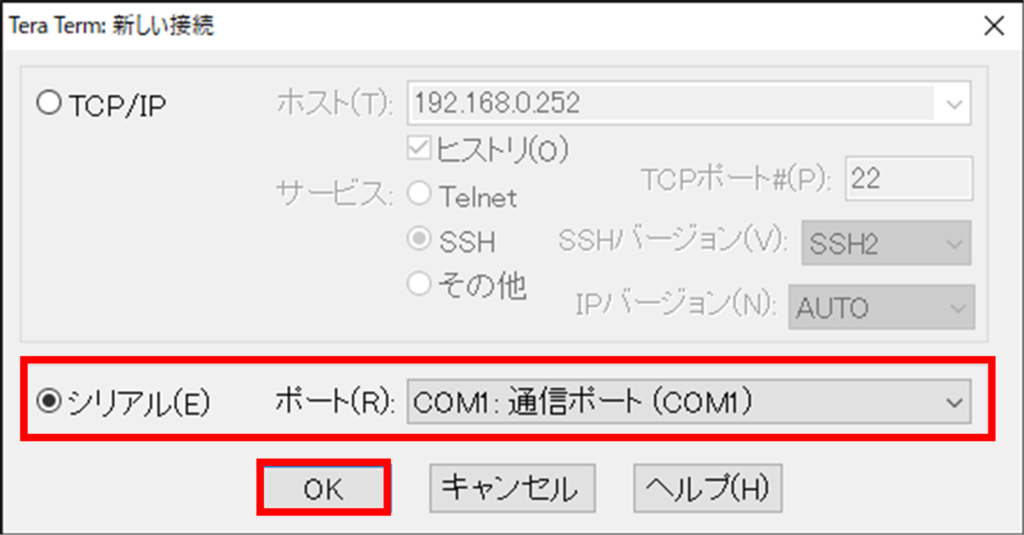
The "Serial Port Settings and Connections" screen appears.
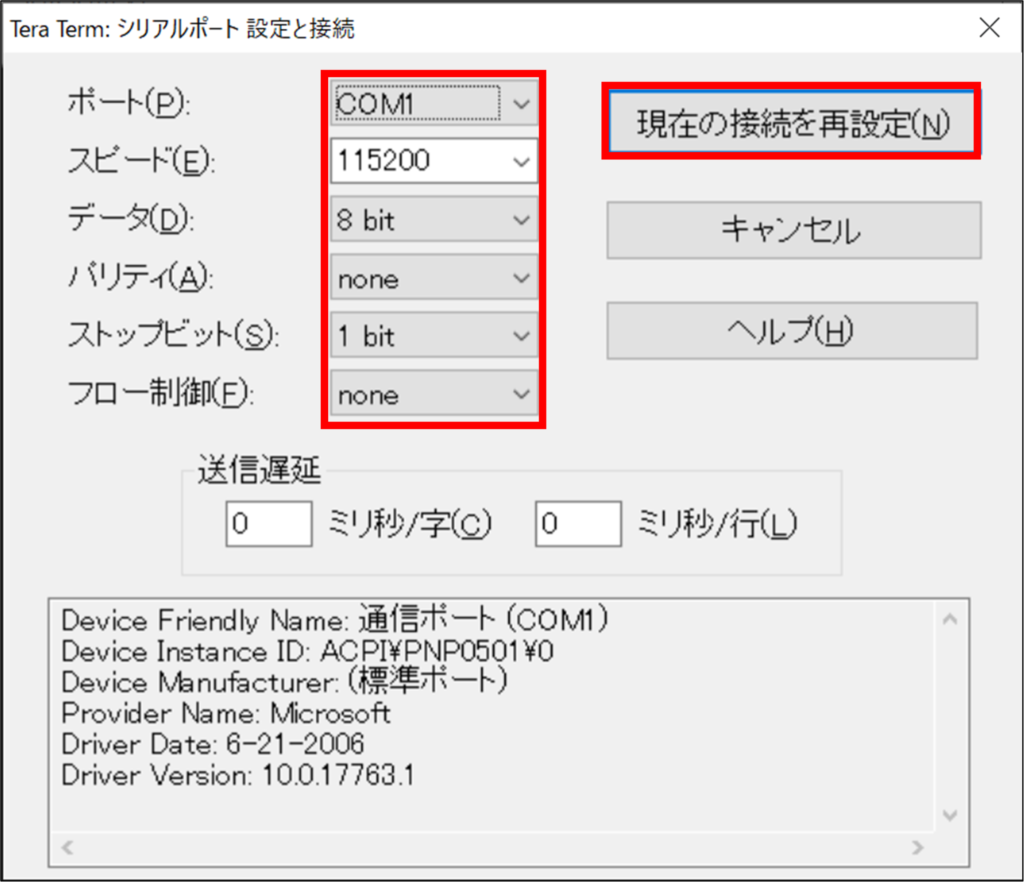
When connected to the product, the terminal emulator will display a login prompt.
Connect via SSH
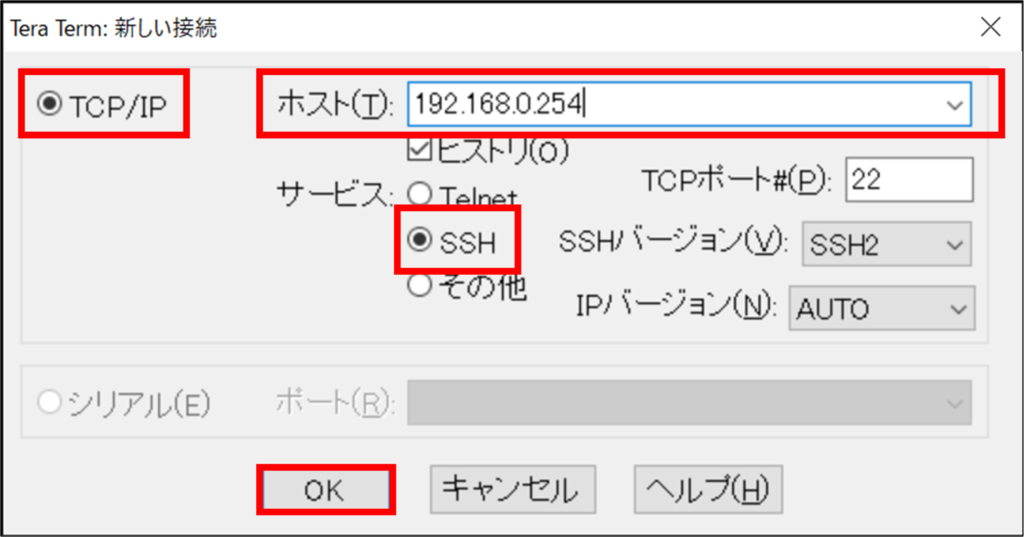
Connect from the "Tera Term new connection" screen of Tera Term.
(1) Select "TCP/IP
(2) Enter IP address in "Host
The following figure shows an example configuration when connected to the following ports
Edge gateway: lan0-3
IoT router: eth1
(3) Select "SSH" under "Service
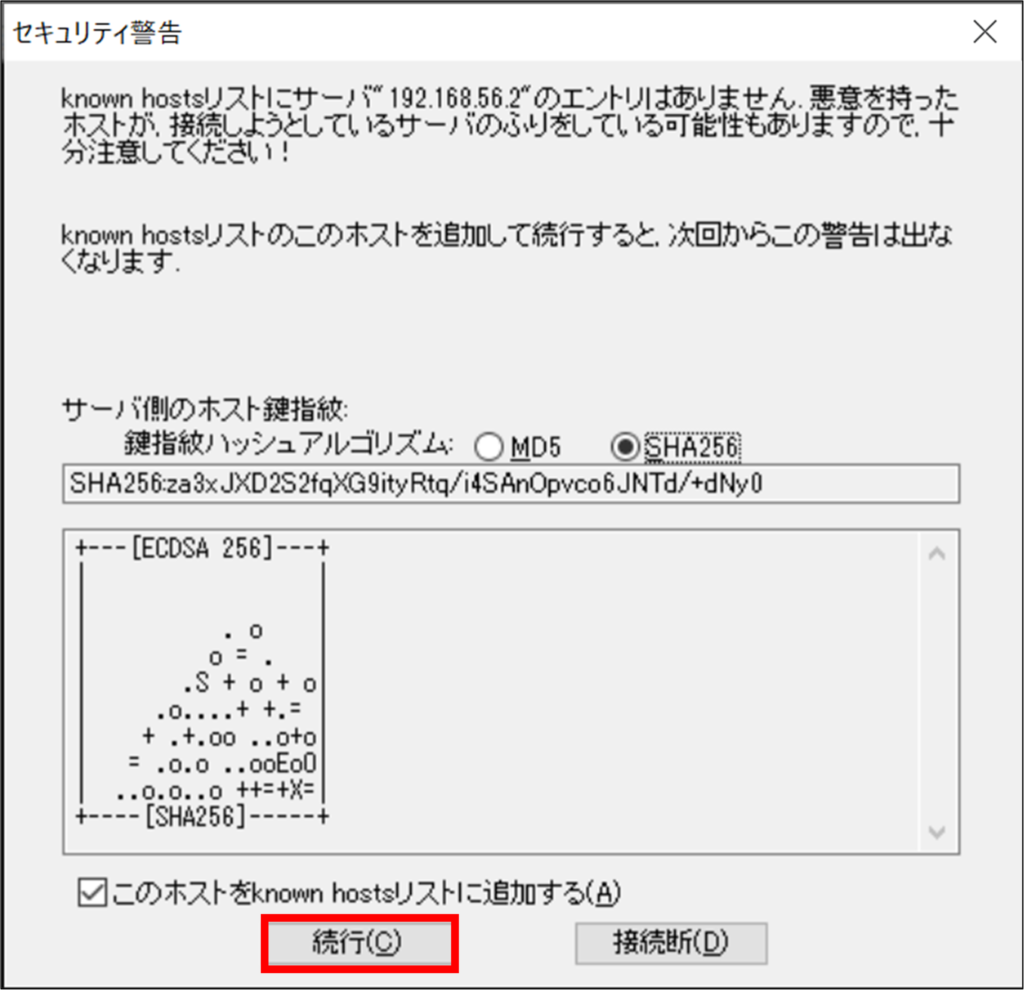
When connecting to a new host, a "Security Warning" screen will appear.
The "SSH Authentication" screen appears.
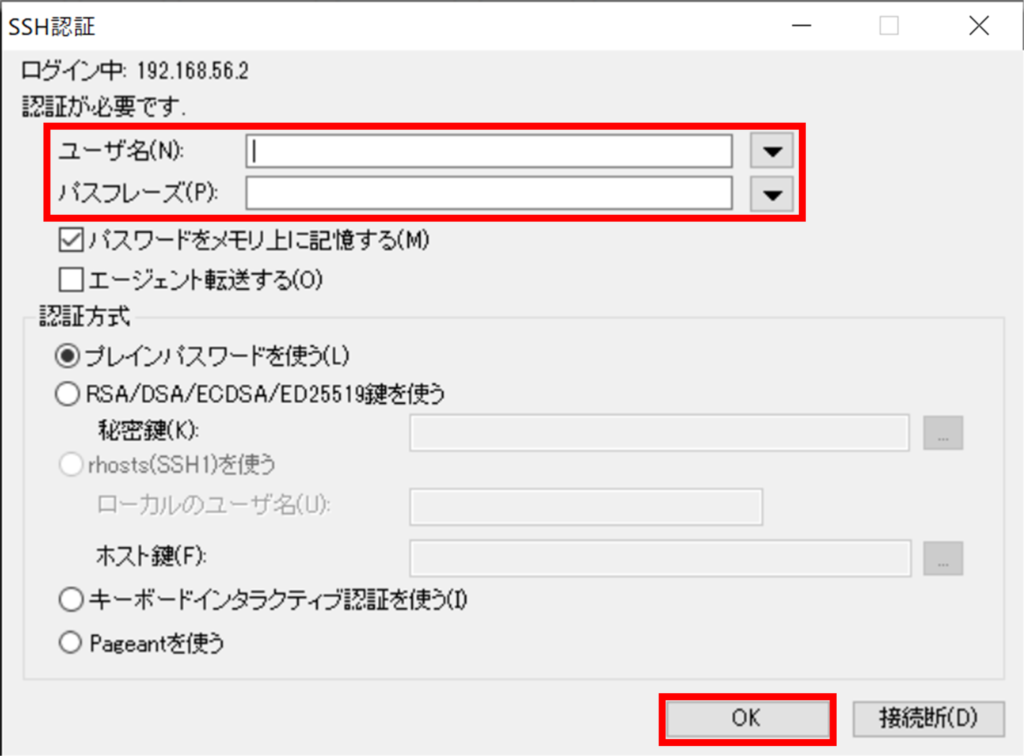
When connected to the product, the terminal emulator will display a login prompt.
Log in to this product
The procedure for logging in to the product differs for the first time and for the second and subsequent times.
Log in for the first time
Enter "admin" as the login name and Enter without entering a password to log in.
You will need to change your password after logging in.
Ubuntu 18.04.5 LTS amnimo ttyMV0

amnimo login: admin		←ログイン名adminを入力してEnter
Password: 			←パスワードを入力せずにEnter
Last login: Mon Oct 12 15:54:21 UTC 2020 on ttyMV0
Welcome to Ubuntu 18.04.5 LTS (GNU/Linux 4.19.93-02928-g44990b3300f7 aarch64)
(略)
Changing password for admin.
(current) UNIX password: 		←パスワードを入力せずにEnter
Enter new UNIX password: ←新しく設定するパスワードを入力してEnterThe password must be a string of characters that meets the following criteria
- 8 characters or more
- Includes at least two types of uppercase and lowercase letters, numbers, and symbols
Even if a password satisfies the above conditions, it cannot be set if any of the following conditions apply
- Words in the dictionary (e.g., test)
- Words with regularity, such as number or alphabet keyboard sequences (e.g., 1234, abcde, qwert)
- Words with regularity, such as number or alphabet keyboard sequences (e.g., 1234, abcde, qwert)
Log in for the second time or later
To log in a second time or later, enter the password you set the first time.
amnimo G series/ amnimo R series
Ubuntu 18.04.5 LTS amnimo ttyMV0

amnimo login: admin	←ログイン名adminを入力してEnter
Password: 		←設定したパスワードを入力してEnter
Last login: Mon Oct 12 15:58:31 UTC 2020 on ttyMV0
Welcome to Ubuntu 18.04.5 LTS (GNU/Linux 4.19.145-00773-gd341a7f2d77d aarch64)

 * Documentation:  https://help.ubuntu.com
 * Management:     https://landscape.canonical.com
 * Support:        https://ubuntu.com/advantage

           ..JggggJ..
           ?TMMMMMMMMNNgggggggggg&...
       .JJ..  _TMMMMMMMMMMMMMMMMMMMMNm..
      .MMMMMN,  ?MMMMMMMMM#Y"7???7TMMMMNg,
      dMMMMMMN{  (MMMMMMMN. ......   7MMMNe.
      MMMMMMMMr  .MMMMMMMMMMMMMMMNm.  _MMMMm-
         _?7TY:  (MMMMMMMMMMMMMMMMMN.  (MMMMN.
   .gNNNmgJ...  .MMMMMMMMMMMMMMMMMMMP   MMMMMy
  jMMMMMMMMM#~  dMMMMMMMMMB"7!`         MMMMM#.
 .HMMMMMMMM#%  (MMMMMMMMB!  ..JJggggx   MMMMM#~
  (MMMMMMMM=  .dMMMMMMMD`  (MMMMMMMMP   MMMMM#~
    _7"""!    jMMMMMMMM\  .MMMMMMMMM$   MMMMM#
             .MMMMMMMMMr  .WMMMMMMM9    MMMMMC
             .MMMMMMMMMN&   ?T"Y9=` .   MMMMD
              _HMMMMMMMMMmJ..  ...JgR...MMMY`
                7MMMMMMMMMMMNNNNMMMMMMMMM#=
                 .TMMMMMMMMMMMMMMMMMMMM#"
About the login prompt
The prompts that appear when connecting to this product vary depending on the series and settings of the connected edge gateway.
amnimo G series/ amnimo R series
Ubuntu 18.04.3 LTS amnimo ttyMV0

amnimo login:
amnimo C series
amnimo C series AC10 version 1.5.0 build 00000

amnimo login:
Change the bootloader password for this product
The boot loader (hereafter referred to as U-Boot) can log in on the U-Boot when it is started in U-Boot command mode. Since the initial password is fixed, it is recommended to update it for security reasons.
This function is not available on compact routers.
Booting in U-Boot command mode
Before connecting the power supply, set the DIP switch to "U-Boot command mode" and connect the power supply.
DIP switch settings for U-Boot command mode
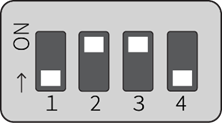
When the power is turned on, the following password input screen (input period: 10 seconds) will appear. Enter the password and press Enter to log in.
Execution example
TIM-1.0
WTMI-devel-18.12.1-118f0bd
WTMI: system early-init
SVC REV: 5, CPU VDD voltage: 1.108V
(略)
STATUS:SN=[300002],MAC0=[E8:1B:4B:00:30:02],BS=[a:0 b:385 h:0 s:0],DIPBM=[ubootcommand]
am_show_board_status: CNTFRQ_EL0=12500000 Hz
Please enter password - autoboot in 10 sec... ←パスワード入力後、Enterキー入力
Return to boot status(0x55) for login
Amnimo>> run stopwdt ←ウォッチドッグICの自動リセット停止
Amnimo>- Please check with our support for the initial password.
- Failure to enter the password is limited to three attempts; if more than three attempts fail, the system will boot in Linux boot mode.
- When working on the U-Boot, the run stopwdt command can be used to stop the reset by the watchdog IC to give you more time to work; note that if you do not run the run stopwdt command, it will automatically reset after a few minutes.
Change your password in U-Boot
You can use the ampasswd command to change your password.
Execution example
Amnimo>> ampasswd
Current Password: ←現在のパスワード入力後、Enterキー入力
New Password: ←変更したいパスワード入力後、Enterキー入力
Retry Password: ←再度、変更したいパスワード入力後、Enterキー入力
OK
Amnimo>>Booting in Linux boot mode
Set the DIP switch to "Linux boot mode" and reboot using the reset command.
Linux boot mode DIP switch settings
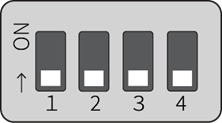
Execution example
Amnimo>> reset ←再起動