Device settings are saved as Amnimo configuration information, which is loaded and reflected when the device is started. In order to reflect the settings made on the settings screen, they must be saved to the device.
If the Amnimo configuration information has not been saved to the device after the settings have been changed, a message will appear at the top of the screen stating that the settings have not been saved to the device. To make the settings permanent, please click here. The alert "Your settings have not been saved to the device.
This section describes the operation of the "AMNIMO Setting Information" screen.
Click [Administration] > [Amnimo Settings] on the side menu to open the "Amnimo Settings" screen.
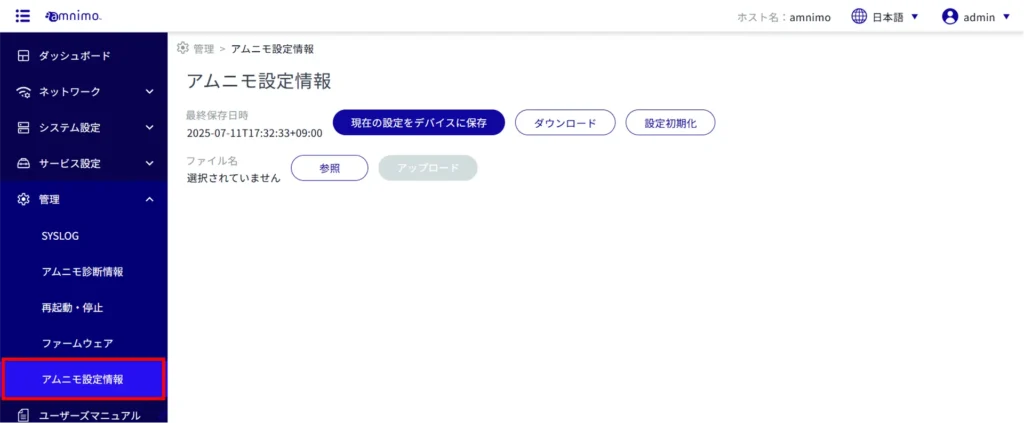
The “Amnimo Configuration Information” screen allows you to perform the following operations
- Save the settings to the device
- Reset settings to factory defaults (Initialize Settings)
- Download Amnimo Setup Information
- Upload Amnimo configuration information
Save the current settings to the device
Saves the settings on the settings screen to the device.
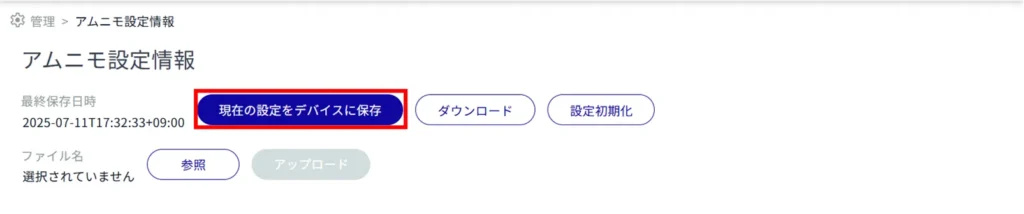

Configuration information is saved in the device.
Initialize Amnimo configuration information
Initializes Amnimo configuration information and returns settings to factory defaults.
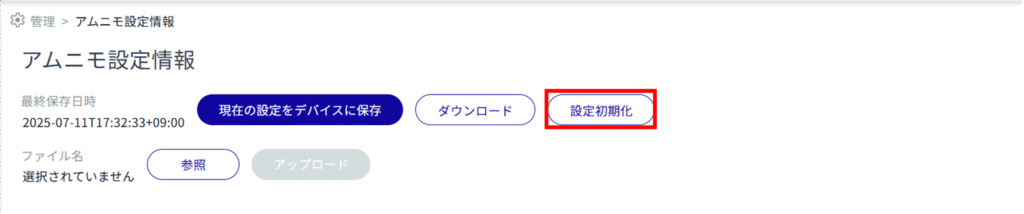
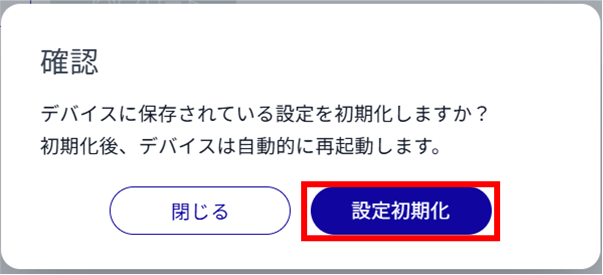
Initialization of settings will begin and the following dialog will appear.
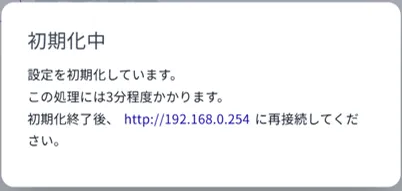
Once configuration initialization is complete, the device will begin rebooting.
After the restart is complete, the "Sign In" screen will appear.
After rebooting, if the "Sign In" screen does not appear because the IP address has changed, manually access the following address
http://192.168.0.254 (default until v.3.3.0)
https://192.168.0.254 (default since v.3.4.0)
Download Amnimo Setup Information
Download the Amnimo configuration information to your PC.
The downloaded Amnimo configuration information can be uploaded to another device of the same model for use.
⇒ For details on uploading, please refer to " Uploading Amnimo Configuration Information ".
- Note that if the fixed IP address of the configured device is listed in the downloaded Amnimo configuration information, the settings will conflict when uploading and applying the Amnimo configuration information to another device of the same model.
- It is not possible to upload settings to a device of a different model. Please note that this may cause malfunctions (e.g., uploading AG10 settings to AX11).
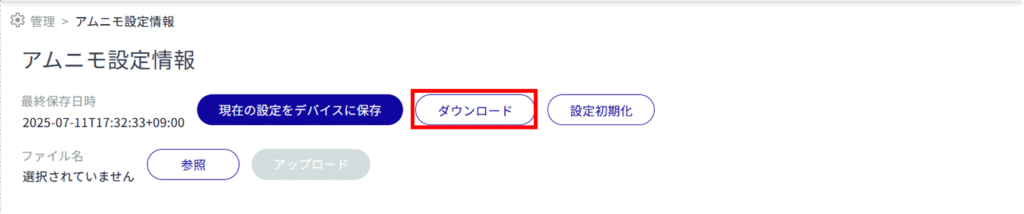
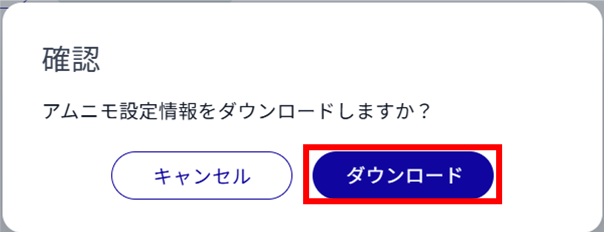
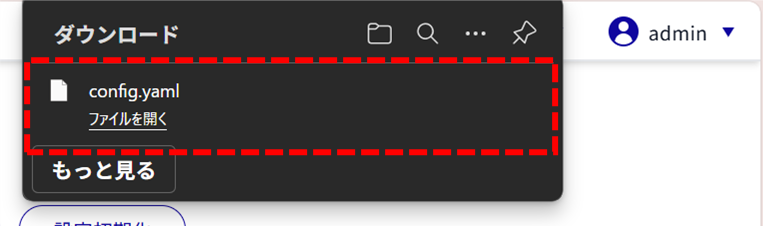
Amnimo configuration information is downloaded under the name "config.yaml".
Upload Amnimo configuration information
Amnimo configuration information downloaded to a PC can be uploaded to the device.
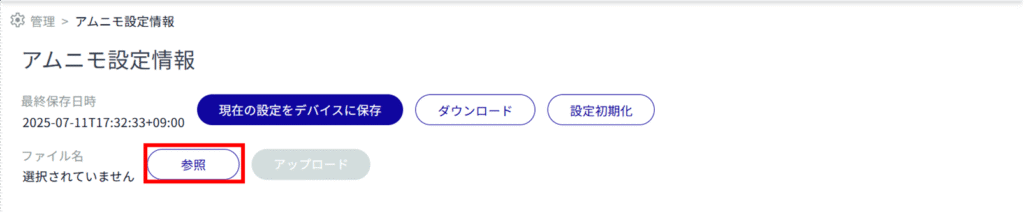

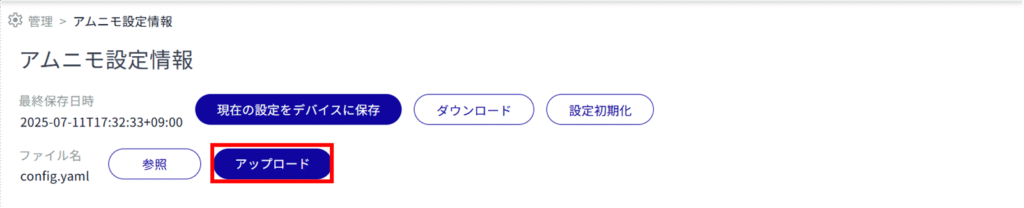
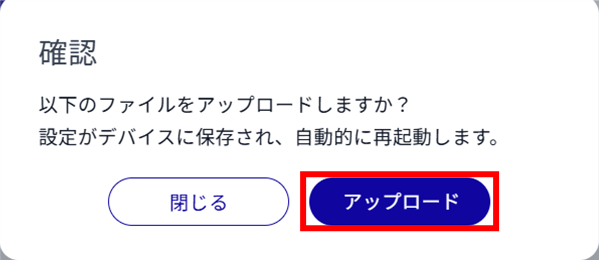
Amnimo configuration information is uploaded and the following dialog appears

When the upload is complete, the device will begin rebooting.
After the restart is complete, the "Sign In" screen will appear.
If, after rebooting, the "Sign In" screen does not appear because the IP address has changed, please access the IP address listed in the configuration file that you manually uploaded.