This page is common to AX, AG, and AR series.
- The simple setting screen is displayed only when setting up for the first time.
- If you are using an IoT Router (AR10-000JP) that is not equipped with a communication module, the "Simple Settings" screen will not appear.
Overview of simple settings
The following settings can be made in the "Simple Settings" screen.
- Mobile Communication Settings
- Interface Settings
- Package Repository Credentials
- Enable / Disable DNS
- filter (esp. camera)
- Enable / Disable DMS (Device Management System)
- Enable / Disable Nx Witness
Note that the DNS and filtering settings are automatically applied when the simplified settings are configured. The DNS and filtering settings that are automatically applied are as follows
| Feature | (data) item | set value (e.g. of a function, parameter, etc.) |
|---|---|---|
| Domain Name System | enable/disable setting | validity |
| Filtering input settings | Input default policy related established invalid input interface | Discard Permit Permit Discard Permit |
| Filtering forwarding settings | Transfer Default Policy | permit |
| Filtering output settings | Transfer Default Policy | permit |
For detailed settings, please refer to the following manuals.
⇒ Edge Gateway Series GUI User's Manual "Configuring Filter Settings" "Configuring DNS Settings
Simple Setup Procedure
When configuring mobile communication settings on the "Simple Settings" screen, the SIM must be set to slot0.
Please note that if the SIM is not properly set to slot0 or set to slot1, the device will reboot due to the failsafe function.
The following is an example of operating the indoor version of the Edge Gateway (AG10).
[Clicking on the "Skip" button will take you to the "Quick Setup" screen.

Simple Settings" screen

If you do not need to set up a mobile connection, click "Next" and proceed to the interface settings.
The "APN Name", "Account", "Password", and "Authentication Method" will be automatically set according to the selected carrier or subscription plan.
- If no carrier or subscription plan is registered in the "Carrier / Subscription Plan" field, select "Other".
- If you are using a SIM that does not require authentication, uncheck both "PAP" and "CHAP" in "Authentication Method".

Incorrectly configured mobile settings may cause the compact router to reboot due to the failsafe feature.
- When setting up, be sure to set the correct user name and password.
- If the Compact Router repeatedly reboots, please refer to the following page.
⇒ Edge Gateway Startup Guide , "Device Repeatedly Reboots".
The mobile connection settings are also explained in the video on the following page.
⇒ " Connecting your Amnemo device to the Internet
Each device has a different interface name. When configuring the settings, please read each name differently.

(1) Configure the "ecm0" setting required for mobile connection.
Click the toggle to enable/disable.
If you have not set up mobile communication, please set it to [Disabled].
Also check "Dynamic SNAT" if necessary.
(2) Configure "eth0" settings necessary for WAN connection.
Click the toggle to enable/disable.
Select "DHCP Client" or "Static IP Address" as the method for assigning the "IP Address". If you select "Fixed IP Address", you will need to enter the IP Address and Netmask.
If necessary, check the "Dynamic SNAT" checkbox.
(3) Configure the "br0" or "eth1" settings required for LAN connection.
Click the toggle to enable/disable.
Select "DHCP Client" or "Static IP Address" as the method for assigning the IP address. If you select "Fixed IP Address", you will need to enter the IP Address and Netmask.
If necessary, check the "Dynamic SNAT" checkbox.
Package repository credentials should only be set if a firmware update is required. If you would like to obtain authentication information (user name and password), please contact our support.


- If Nx Witness is enabled, set the "port number" and "password" as necessary.
- The IoT Router (AR) does not display the Nx Witness item.


After completing this setup, please save the settings to make them permanent. You can save the settings by clicking on the link at the top of the screen.
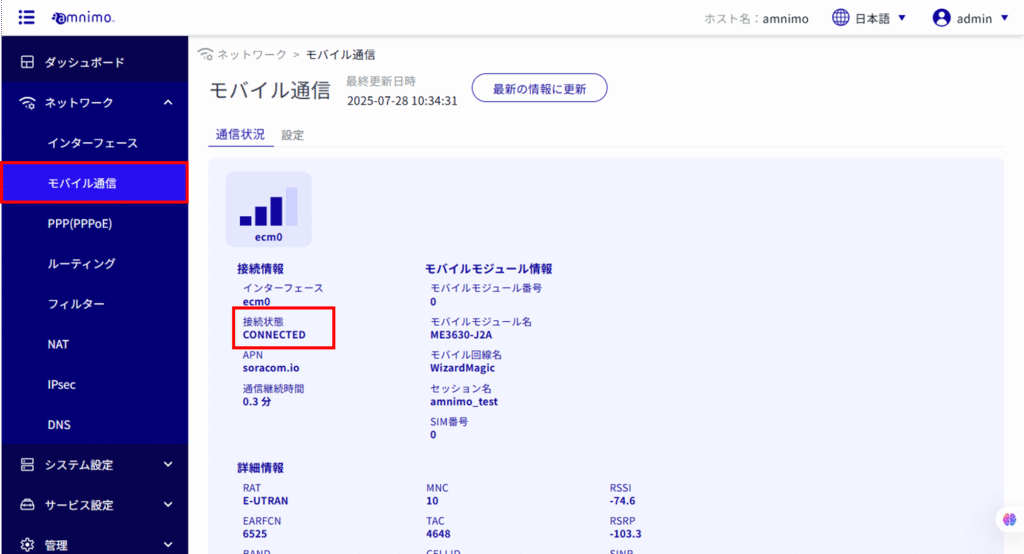
| Communication module status | meaning |
|---|---|
| DIALING | in the process of connecting |
| CONNECTED. | state of connectivity |
| DISCONNECTED. | disconnected state |
If the connection is not correct, such as if there is an error in the mobile settings, the device may automatically reboot due to the fail-safe feature. Please be aware of this.
Select [System Settings] > [GUI] from the GUI side menu to change the protocol and port number used in the GUI settings.
For details, please refer to the following
⇒ GUI " in the GUI User's Manual