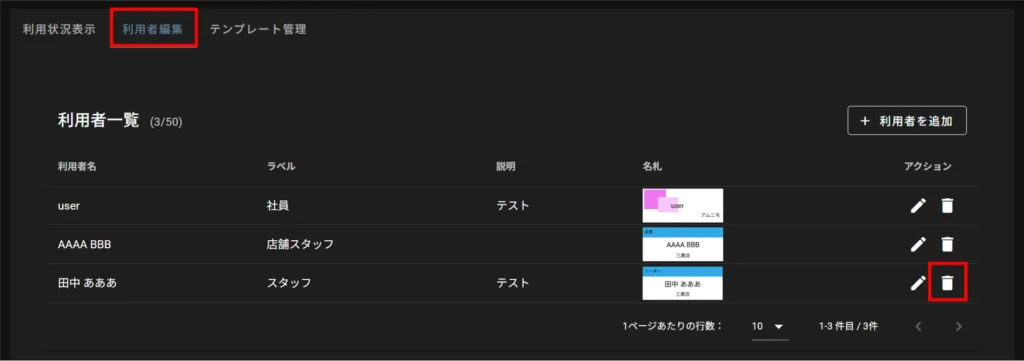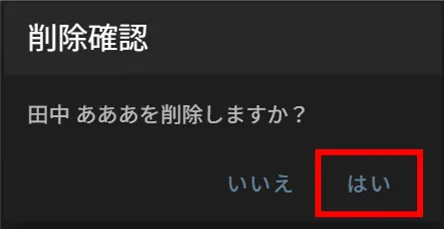
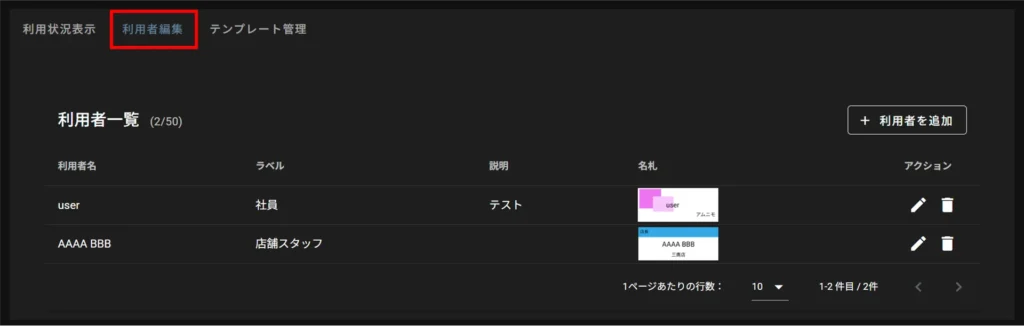
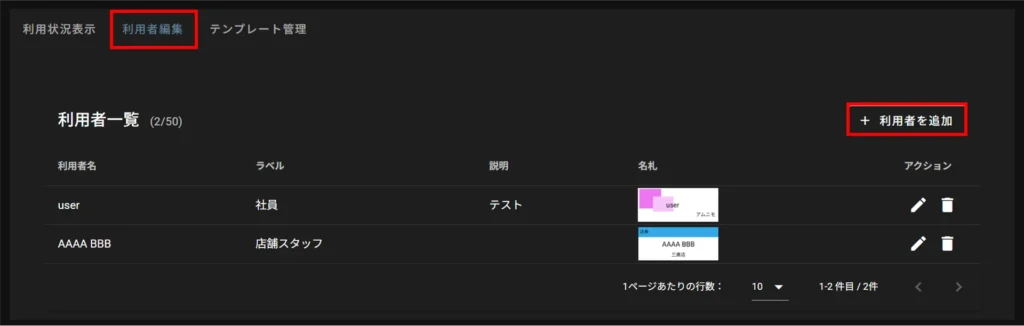
The "Edit User" tab of the nameplate management allows you to register and edit user information displayed on the device screen.
The maximum number of registered user information is 50.
What is User Information? #
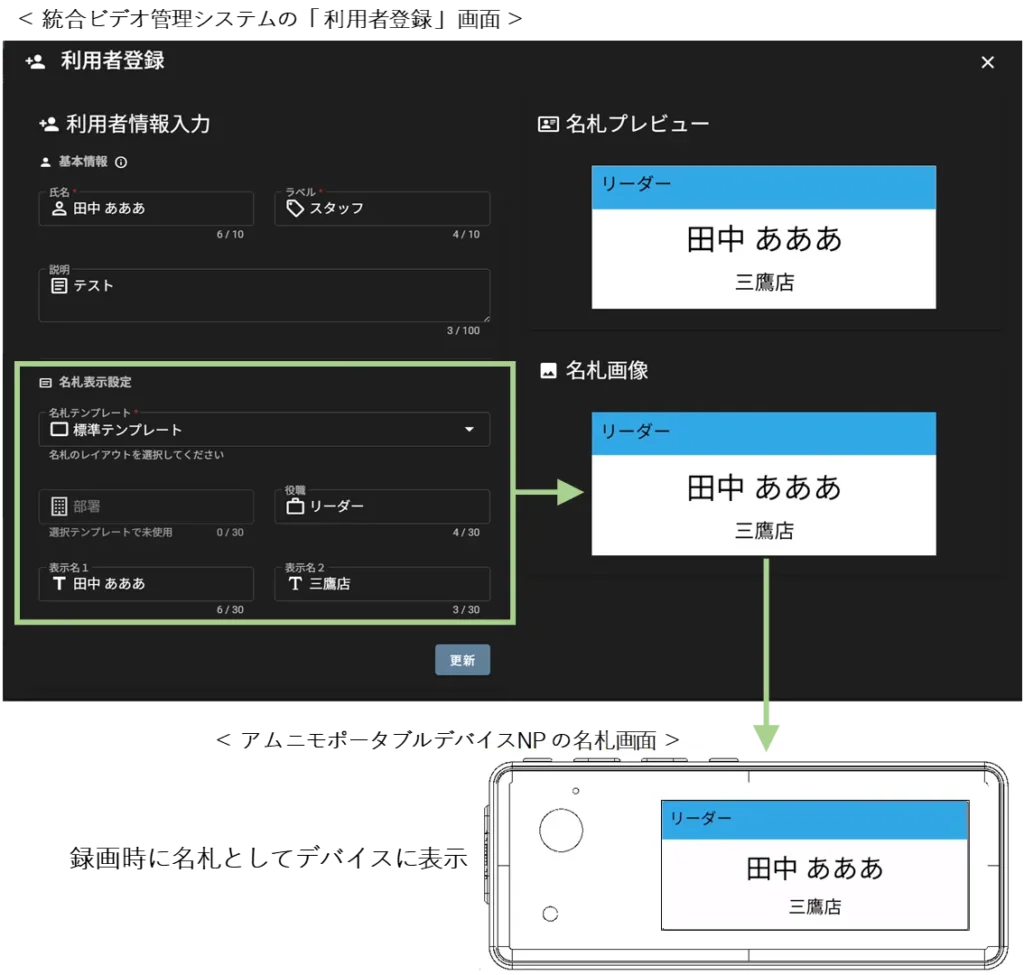
User information refers to information about the users of the Amnimo Portable Device NP (AB12) associated with a tenant.
It consists of two pieces of information :basic information and nameplate display settings.
All Amnimo portable NPs (AB12) associated with the tenant will display the added user information.
Basic Information #
The name and label of the basic information will appear on the device's user selection screen.
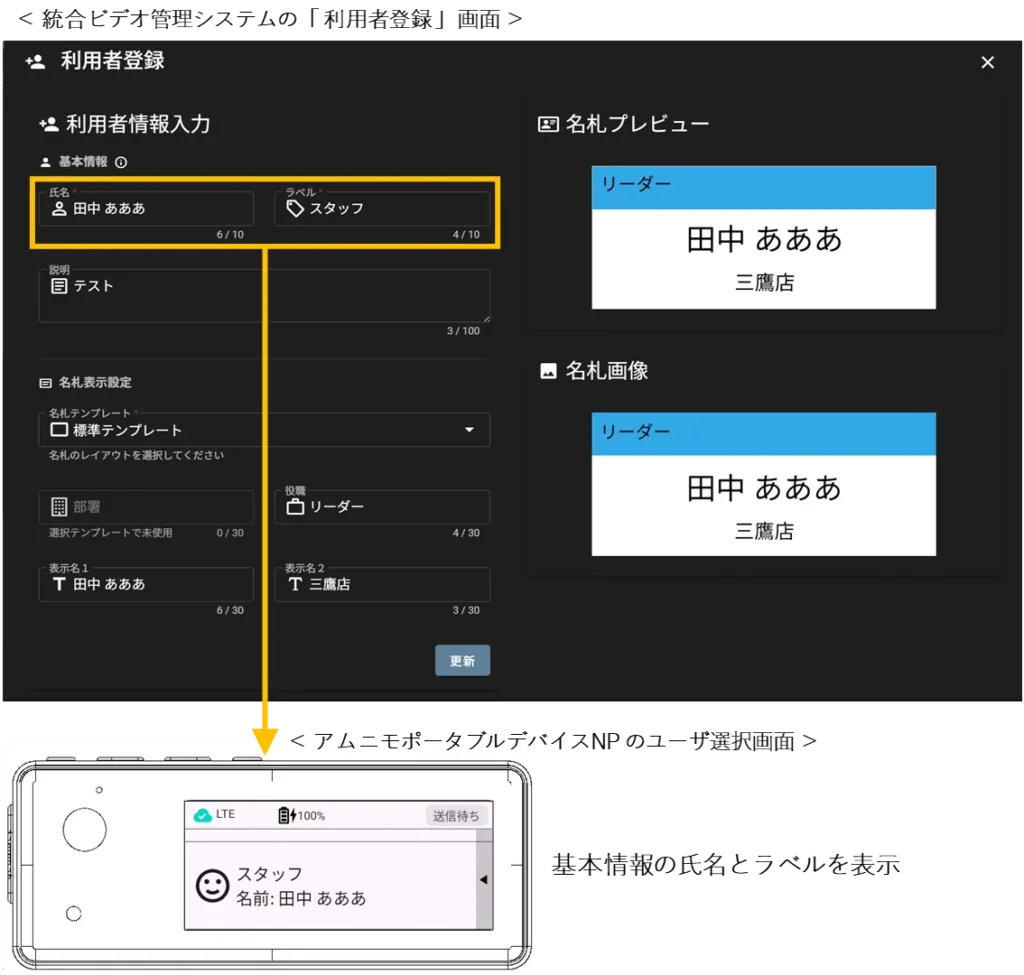
Nameplate display settings #
The nameplate display settings appear on the device's nameplate screen.
The information that appears on the nameplate screen depends on the nameplate template selected as the nameplate display setting.
Adding Users #
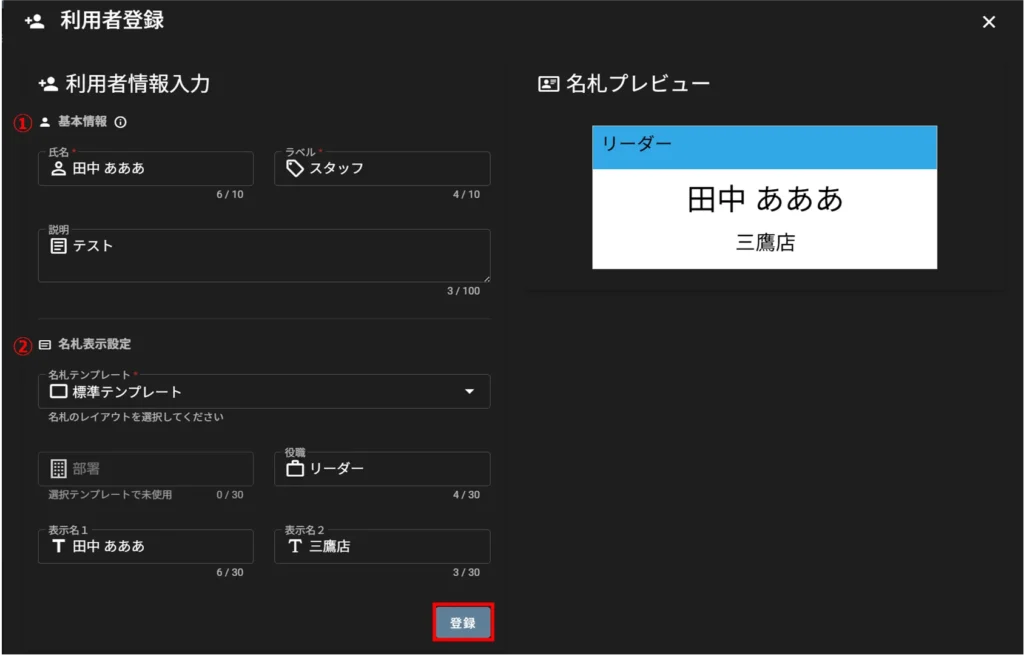
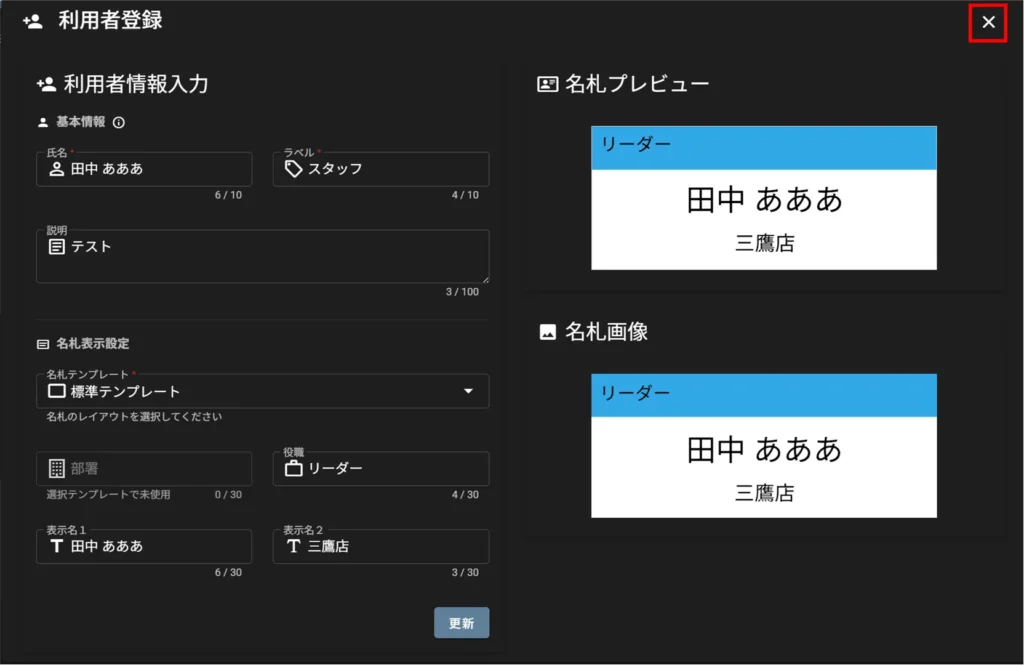
① Basic information ( name*, label*, description)
② Nameplate display settings (nameplate template*, department, title, display name 1, display name 2)
* Required fields
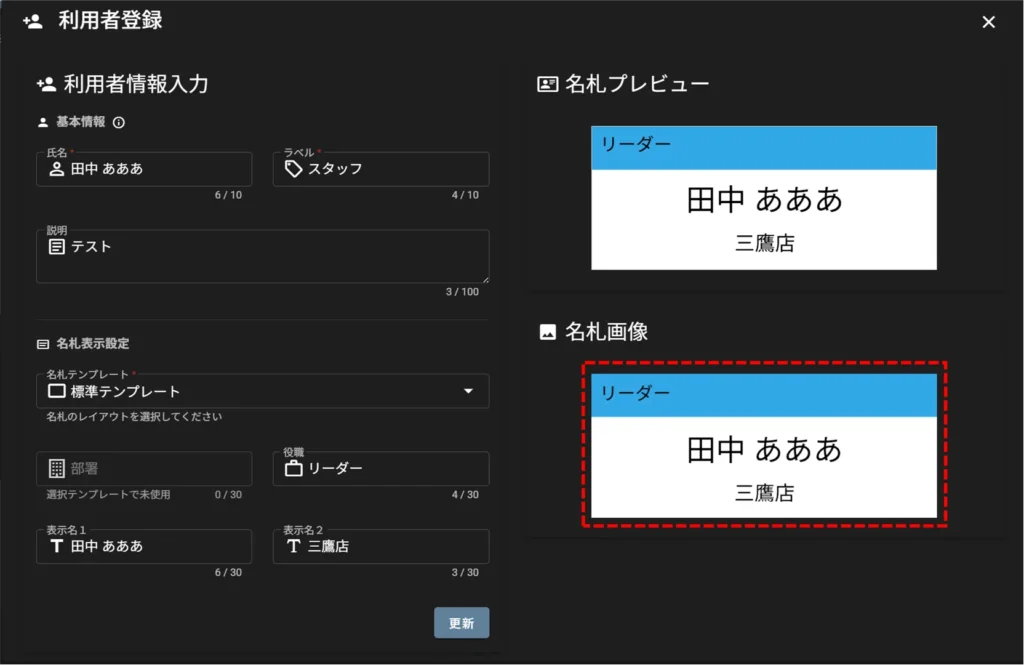
[After clicking "Register," the nameplate image is generated.
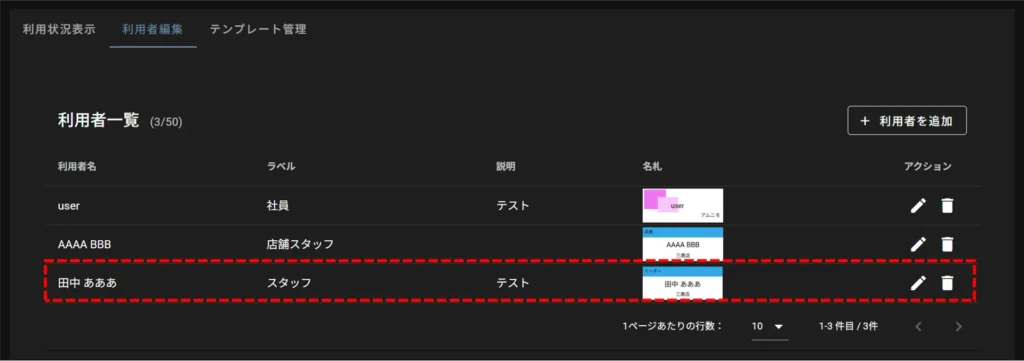
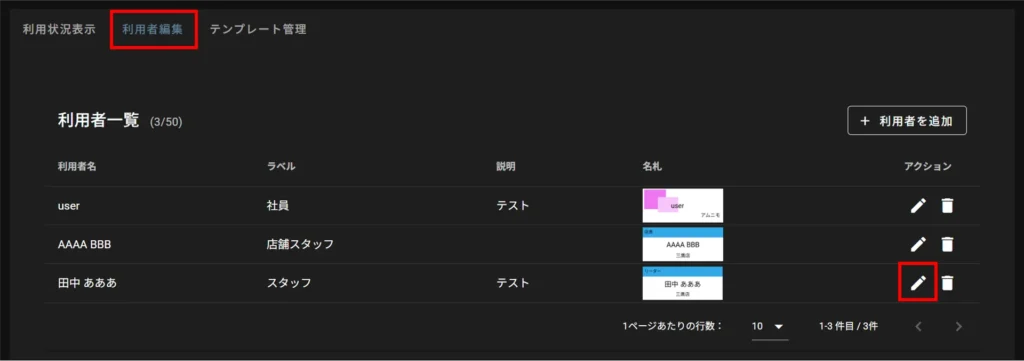
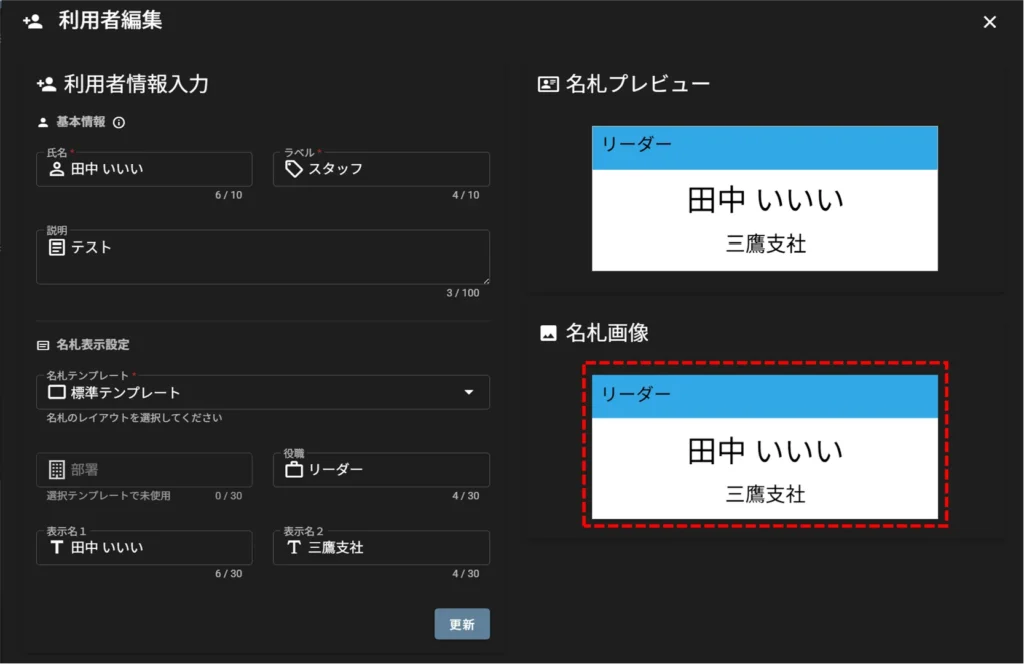
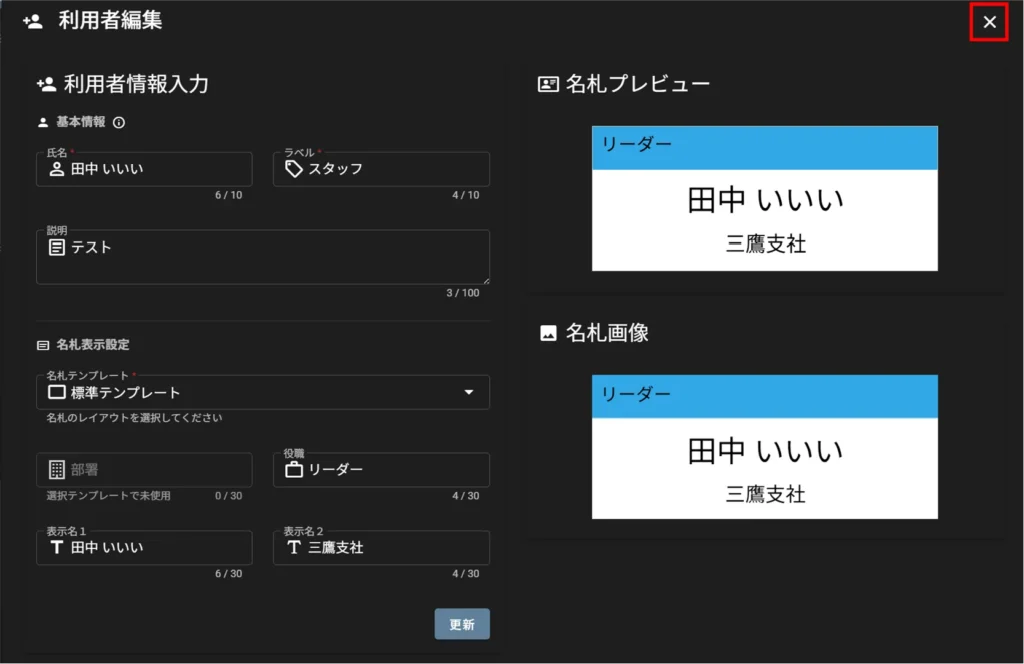
Edit user information #
Standard templates (common) cannot be edited.
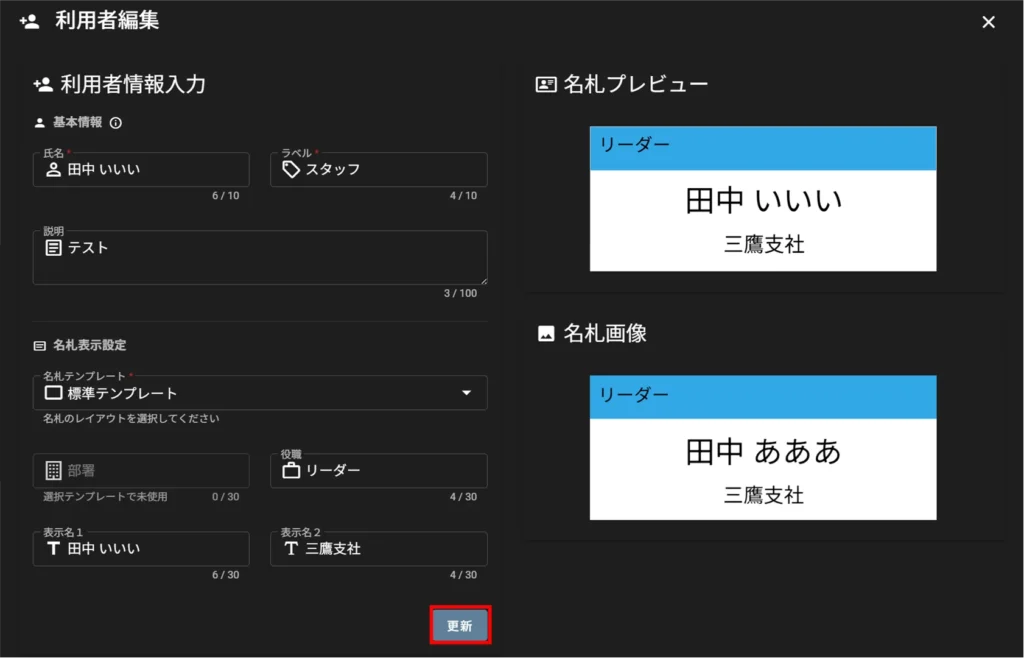
[After clicking "Update," the nameplate image is updated.
Delete user information #
Standard templates (common) cannot be deleted.