
To configure the network settings, a QR code for network settings must be created in advance and scanned by the Amnemo portable.
Generate QR code for network configuration #
Depending on your network environment, please configure the following settings.
- Connecting via wireless LAN
→ To generate a QR code for wireless LAN settings - Connecting via mobile network (using SIM card)
→ To generate QR code for APN setting
If both connection methods are to be used, generate both QR codes and set them up respectively.
(e.g., if you normally use a wireless LAN connection and a mobile network connection when outdoors)
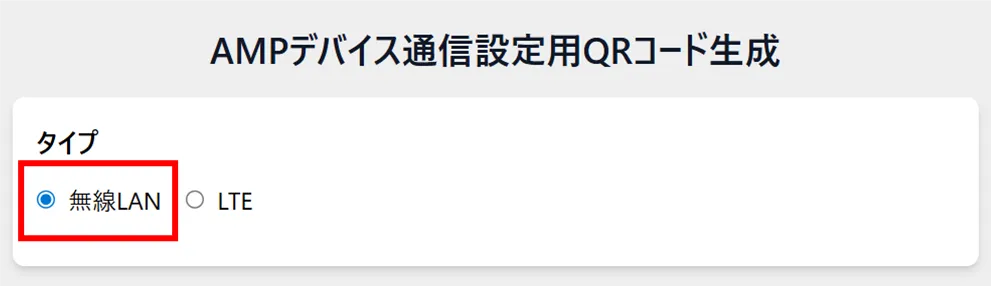
To generate a QR code for wireless LAN setup #
Generates a QR code with information on the wireless LAN to which the AMNIMO Portable Device NP is connected.
Enter the SSID.
Enter the priority level.
Enter the password.
Select the encryption type.
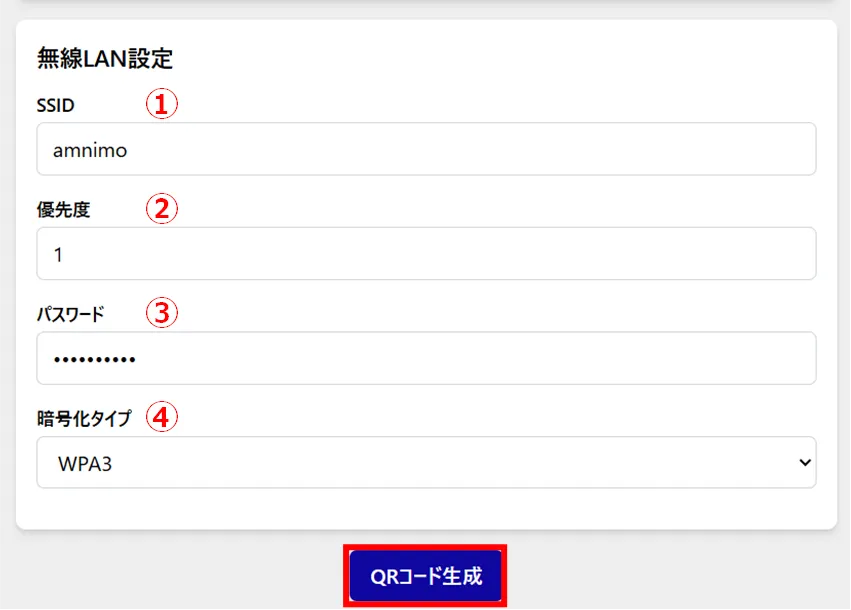
A QR code for wireless LAN setup is generated.
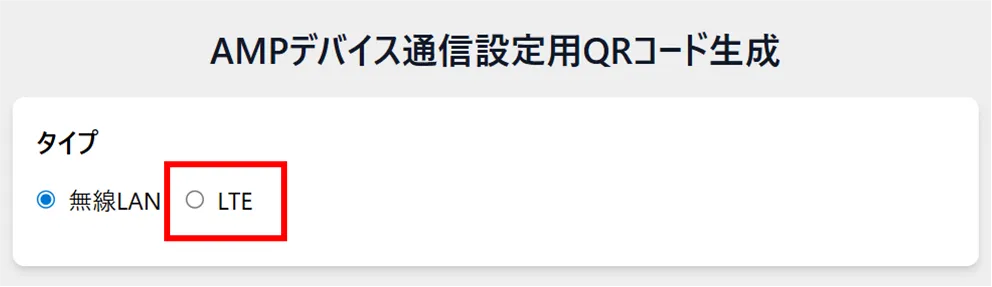
To generate a QR code for APN setup #
Generate the APN information used by the AMNIMO Portable Device NP as a QR code.
Enter an arbitrary name for identification.
Enter the APN.
Enter a user name.
Enter the password.
(5) Check [ON] for automatic connection.
(6) Enter the MCC (Mobile Country Code).
(7) Enter the MNC (Mobile Network Code).
Please refer to the following for information required for APN profiles.
⇒See " List of SIMs Tested".
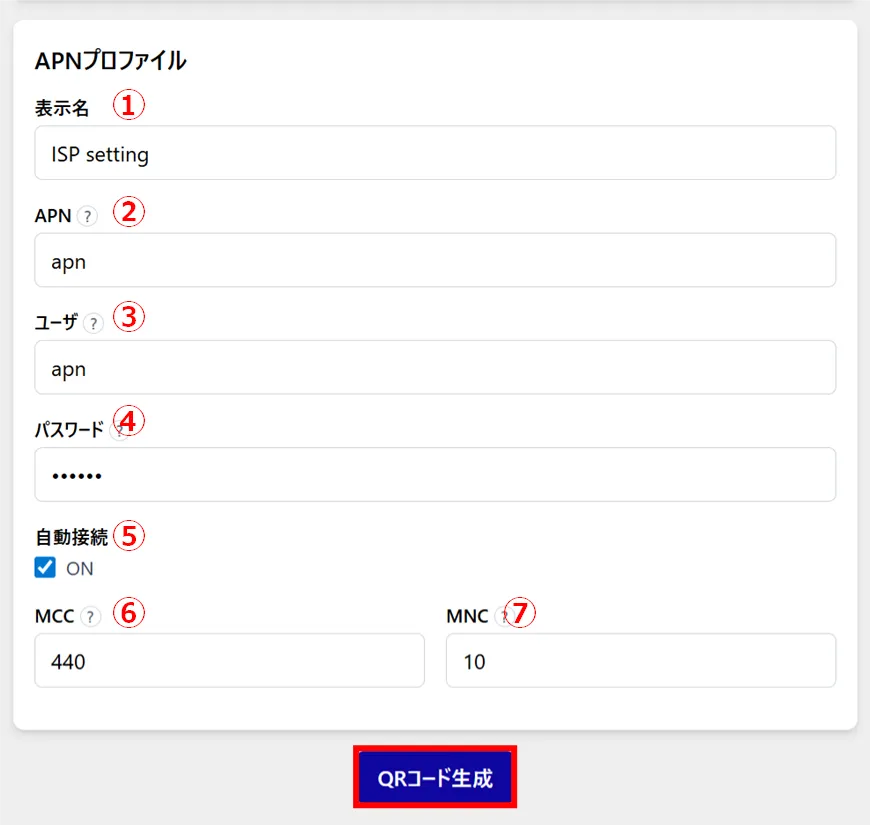
A QR code for LTE setup is generated.
Configure network settings #
Scan the QR code for network settings on the AMNIMO portable to configure network settings.
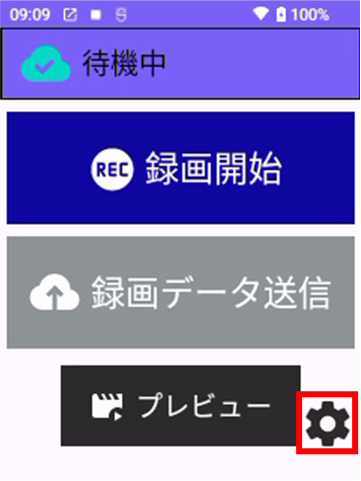
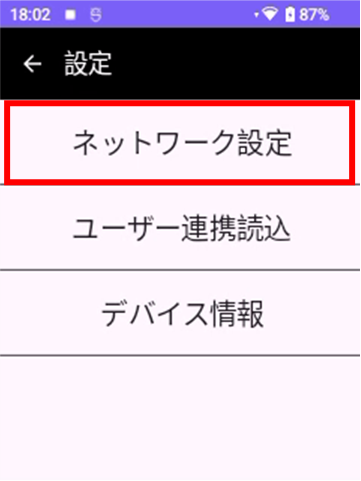
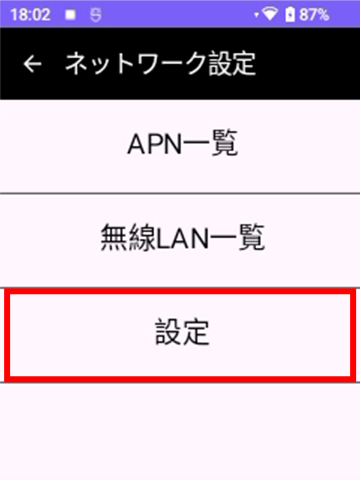
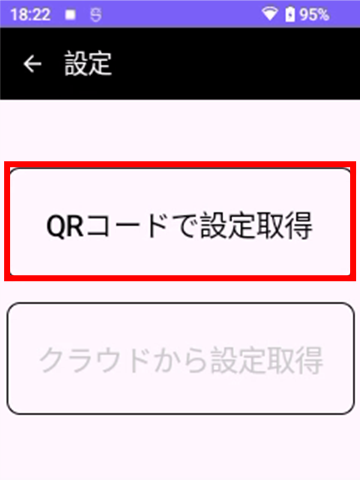
Generate QR code for network configuration Scan the QR code generated in
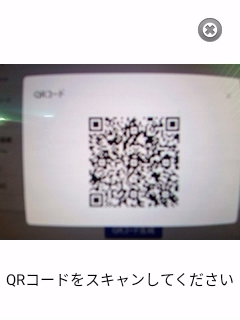
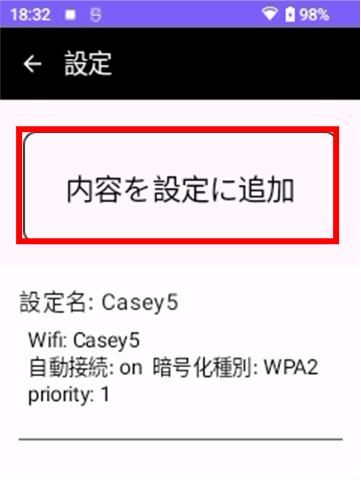
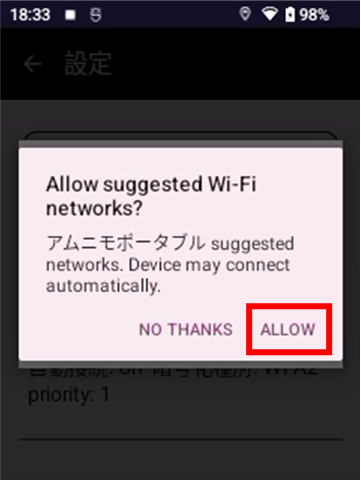
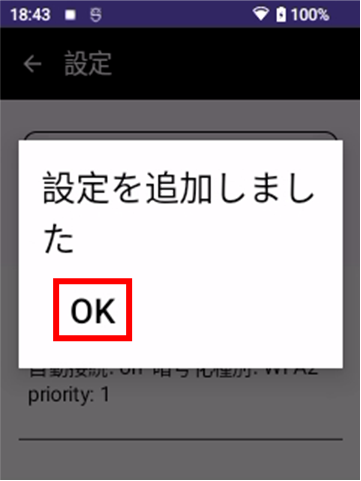
Network configuration is complete.
Check and delete network settings. #
Confirm or delete the APN list #
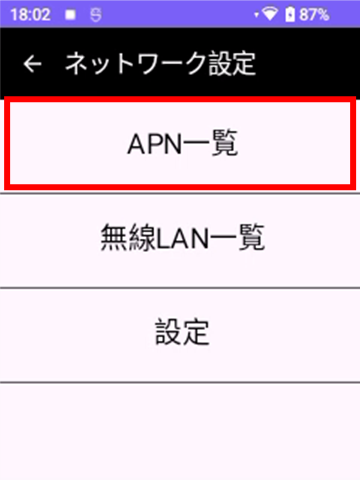
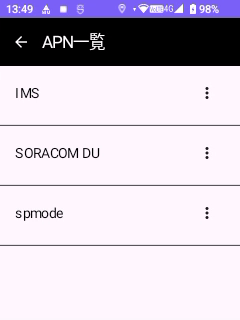
You can check the APN list.
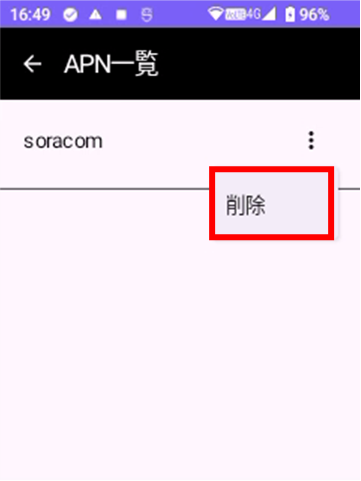
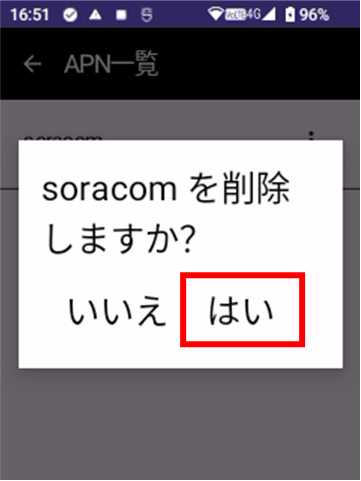
APN settings are deleted.
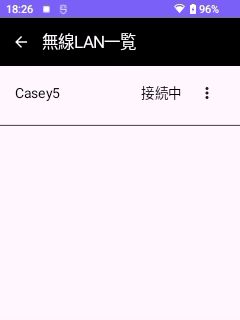
Check/delete the wireless LAN list #
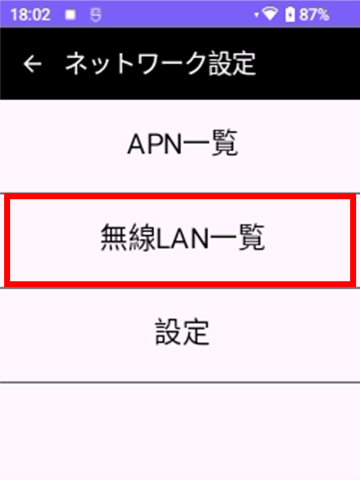
You can check the wireless LAN list.
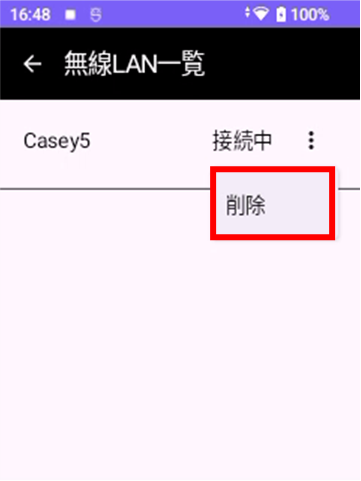
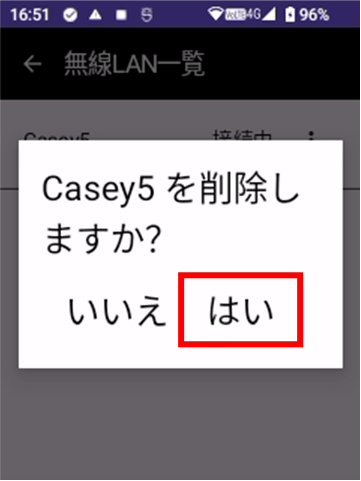
The wireless LAN settings are deleted.

