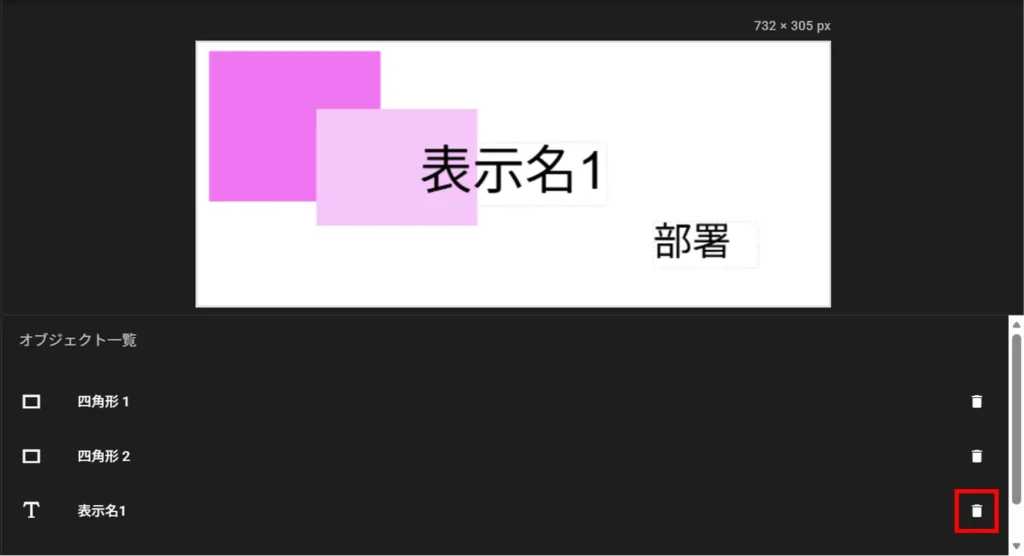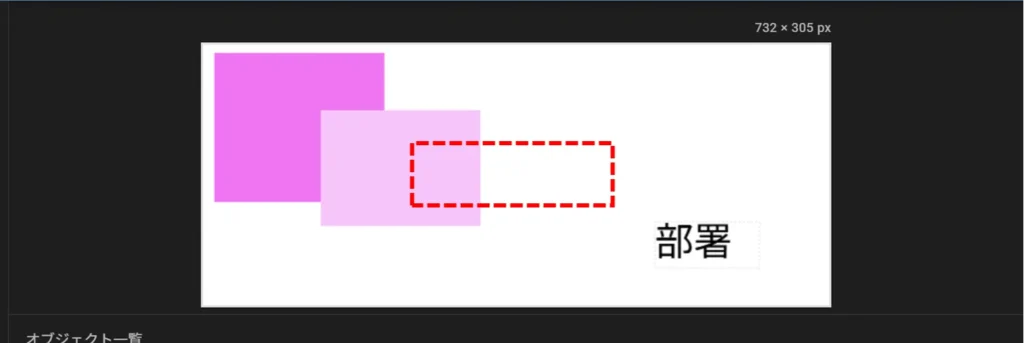
The nameplate template consists of a rectangle, an image, and a text object.
The order in which the objects are displayed is, from the back, rectangle → image → text. For objects of the same type, those added later are placed in the front.
Each nameplate template can contain up to 10 rectangles and 5 images.
Add Object - Rectangle #
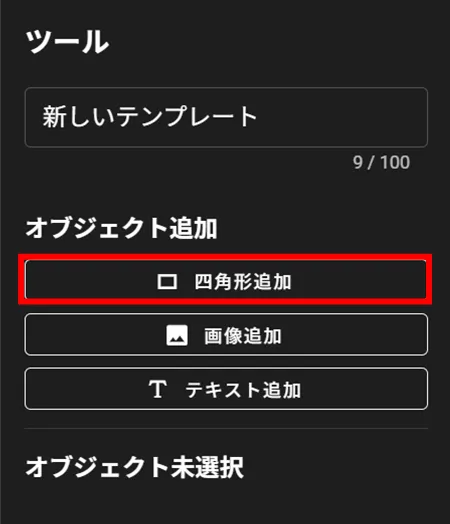
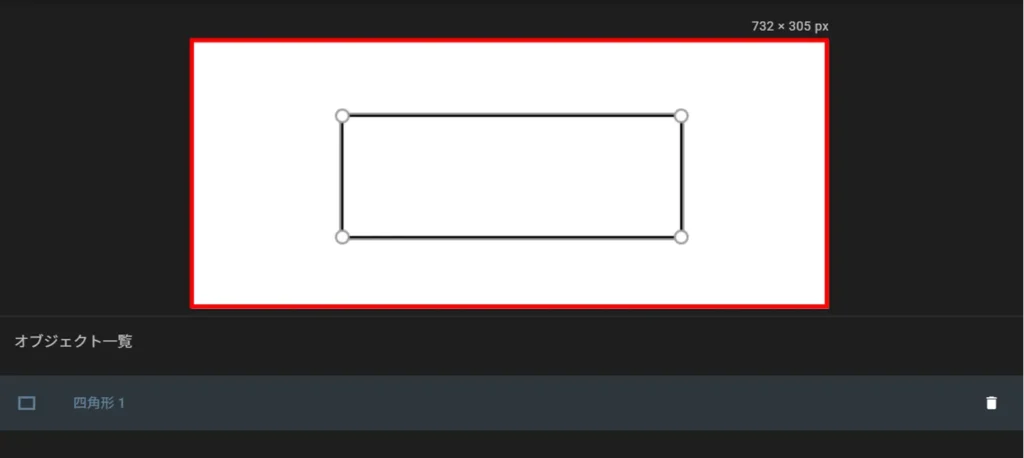
Adding Squares #
Rectangle Color Selection #
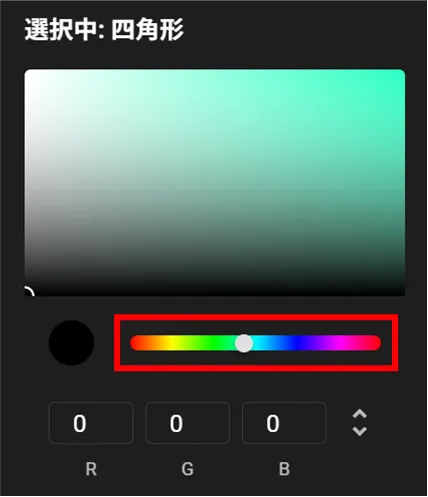
Lightness and saturation can be set either by selection on the color scale or by entering RGB values.
| color scale | RGB value |
|---|---|
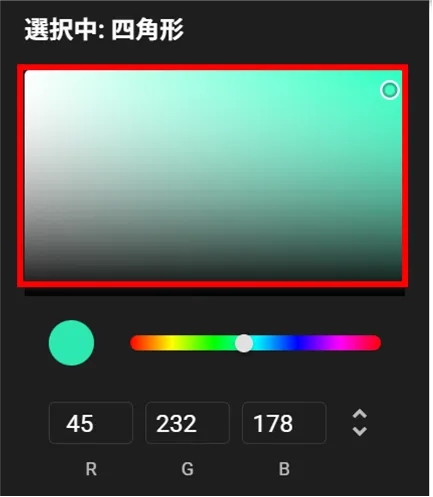 | 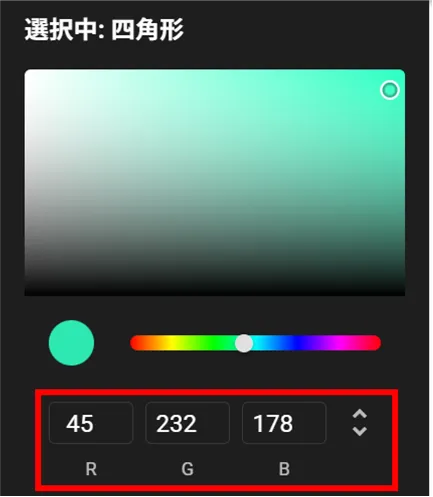 |
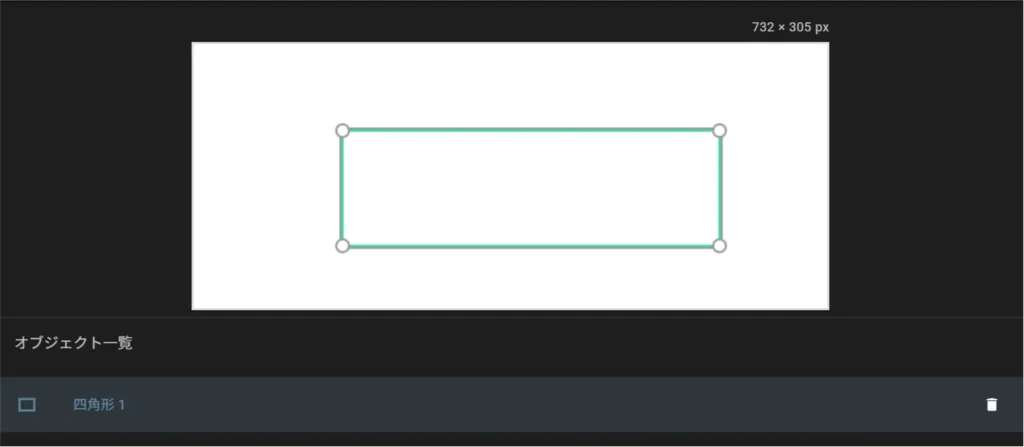
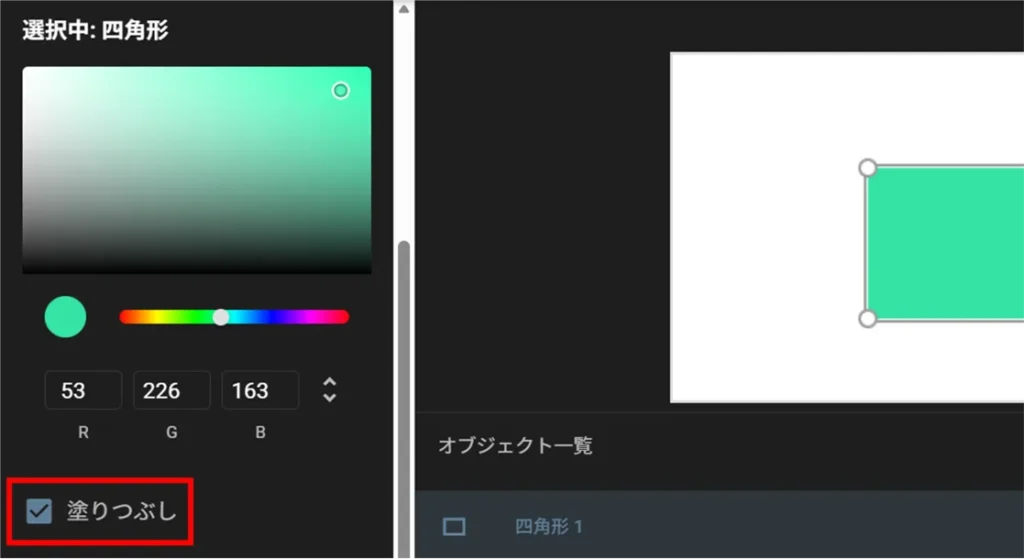
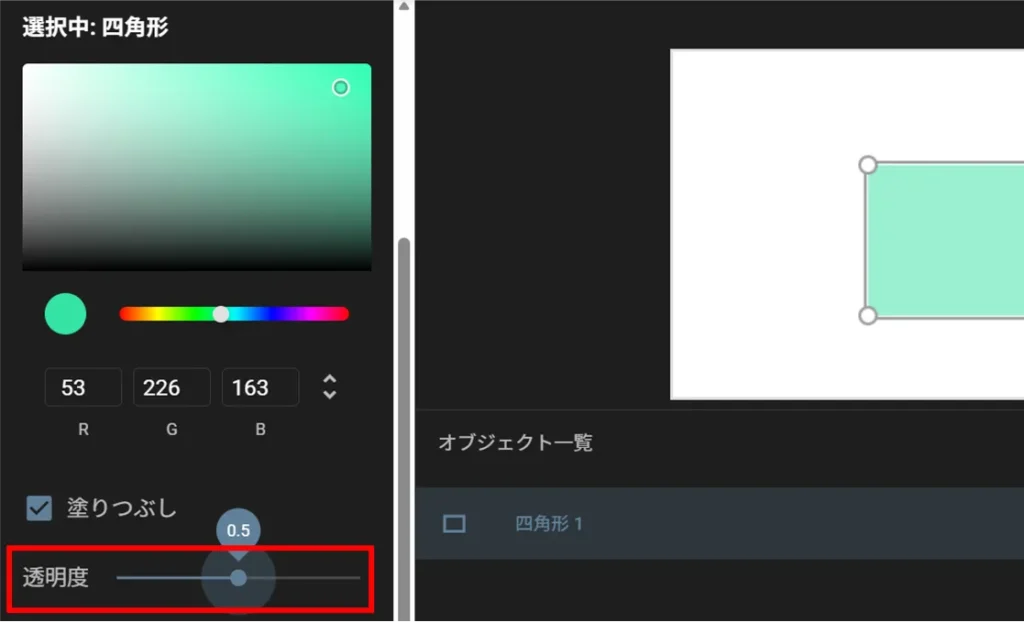
Rectangle Fill #
Adjustment of position, size and shape of squares #
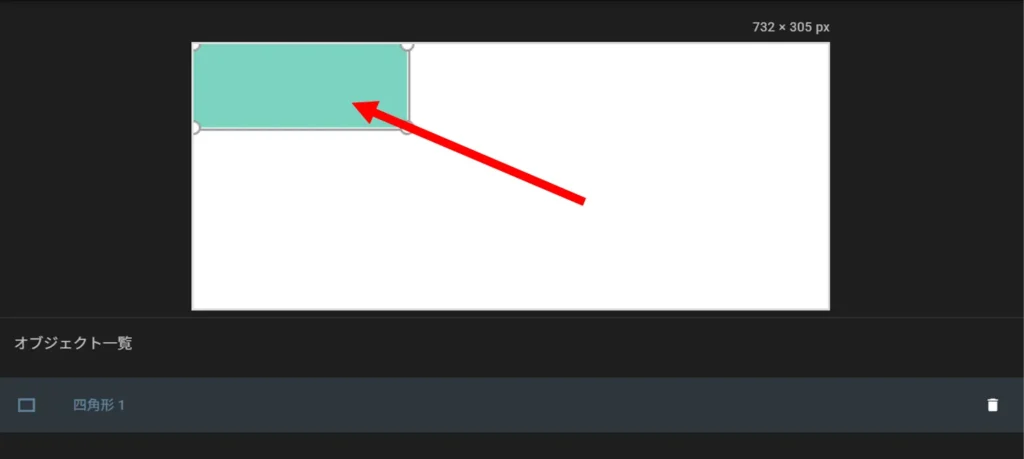
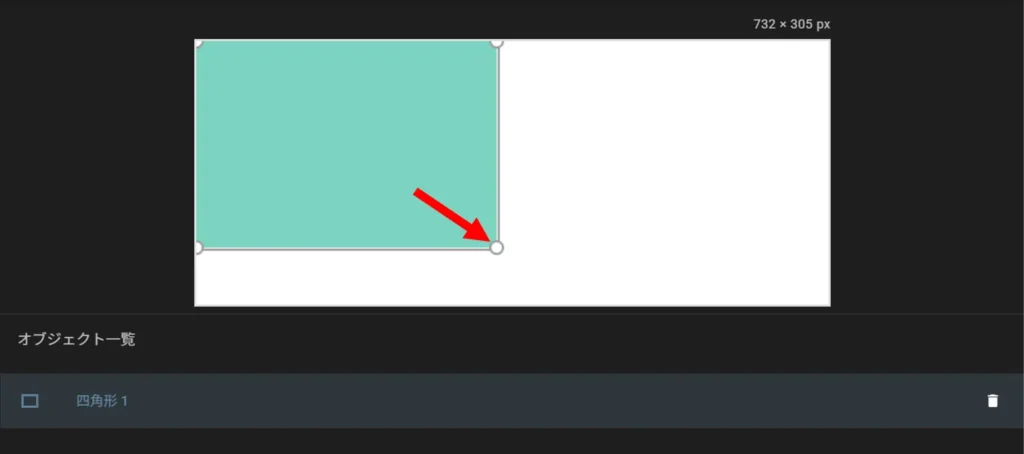
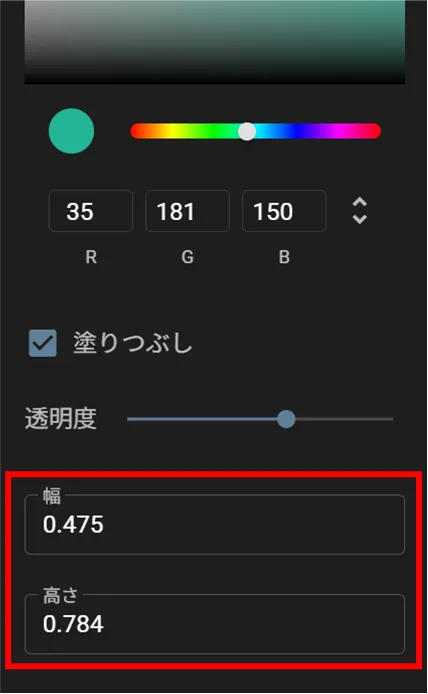
The size and shape of the rectangle can also be changed by entering numerical values for width and height.
The maximum value for width and height is 1 and the minimum value is 0.
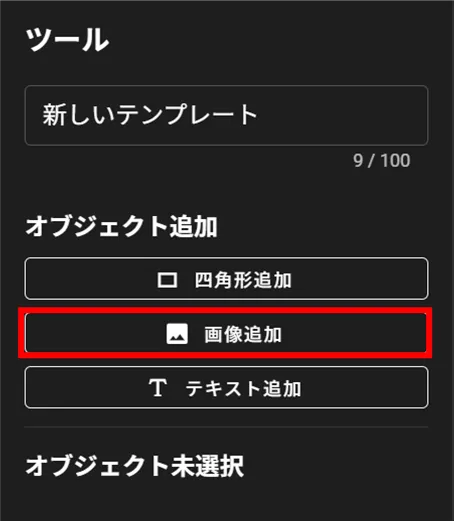
Add Object - Image #
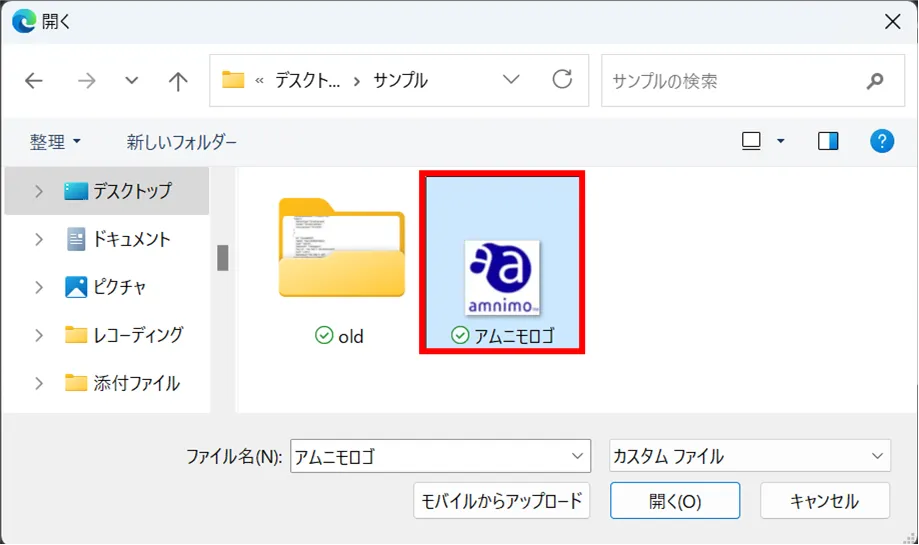
Supported images that can be added are as follows
- Supported formats: PNG, JPG, JPEG
- Maximum file size: 500 KB
Adding Images #
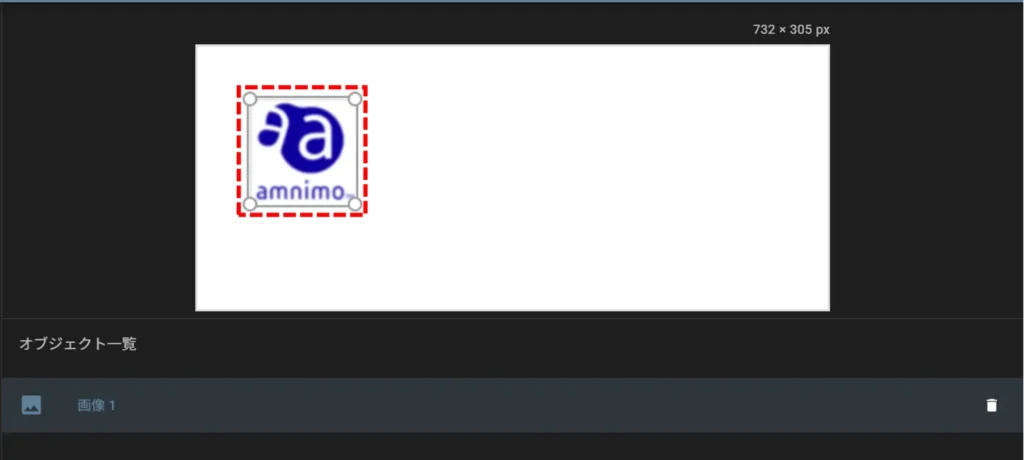
Adjustment of image position and size #
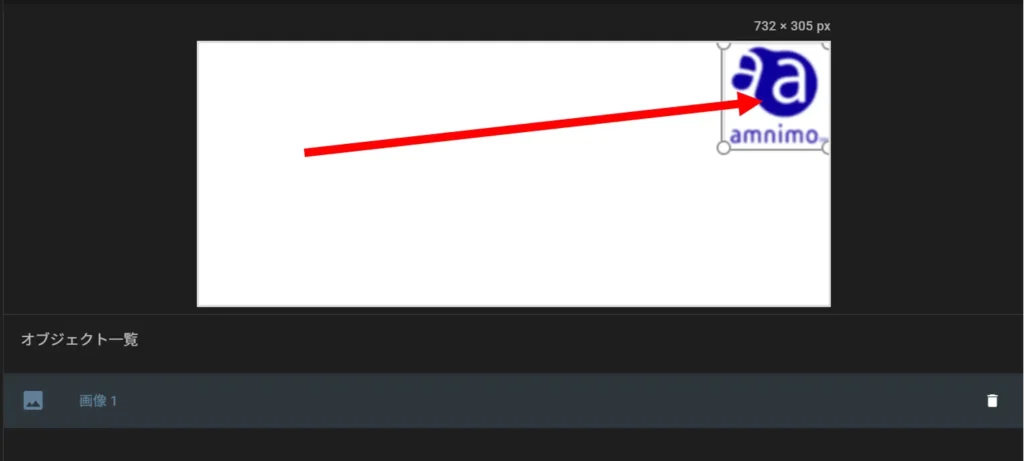
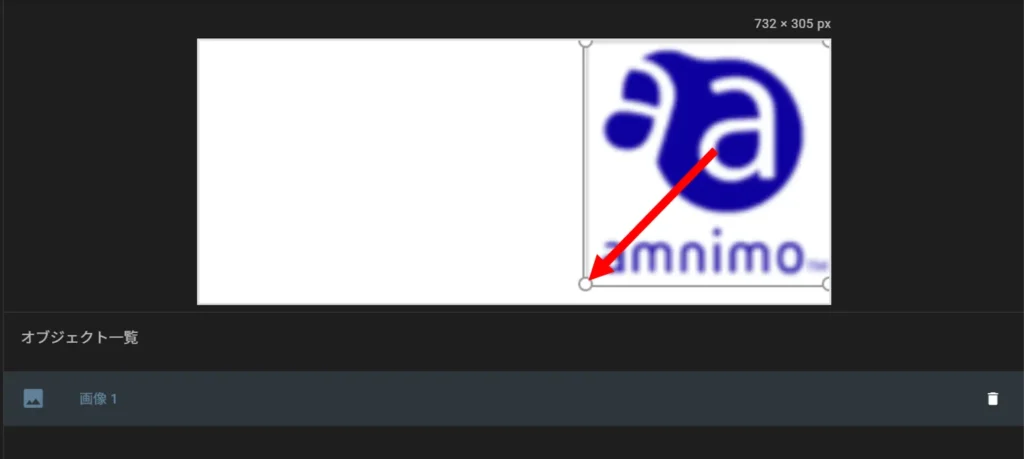
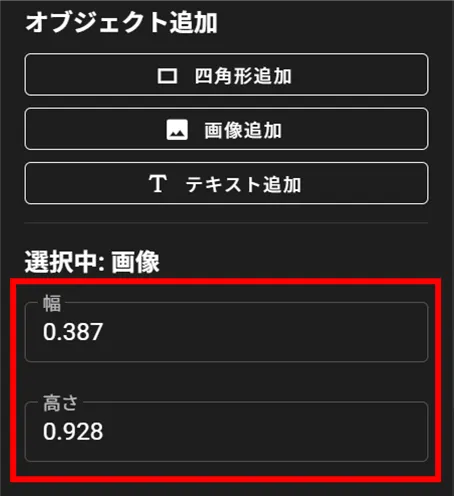
The size and shape of the image can also be changed by entering numerical values for width and height.
The maximum value for width and height is 1 and the minimum value is 0.
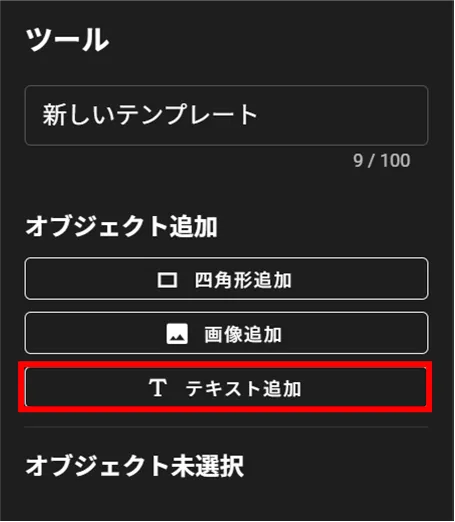
Add Object - Text #
Add Text #
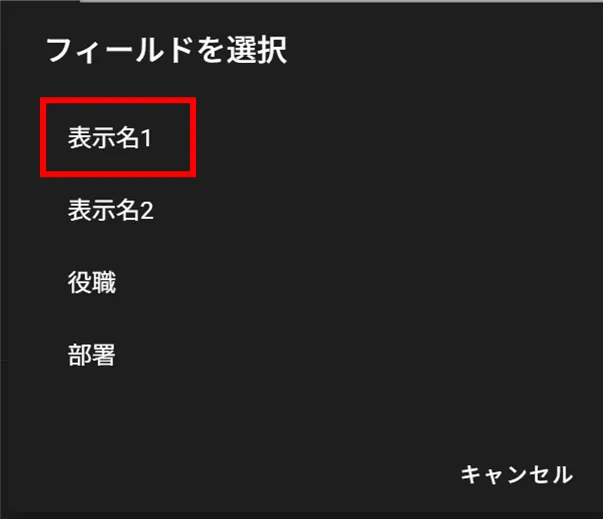
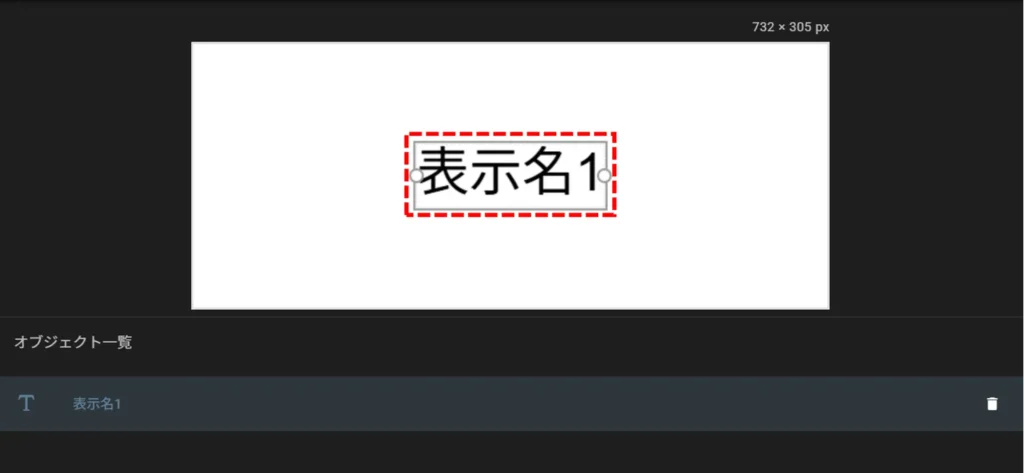
Text color selection #
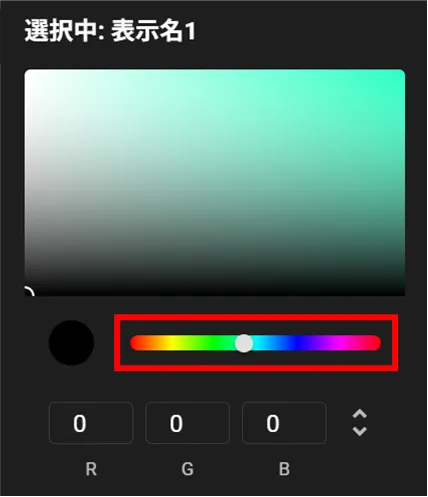
Lightness and saturation can be set either by selection on the color scale or by entering RGB values.
| color scale | RGB value |
|---|---|
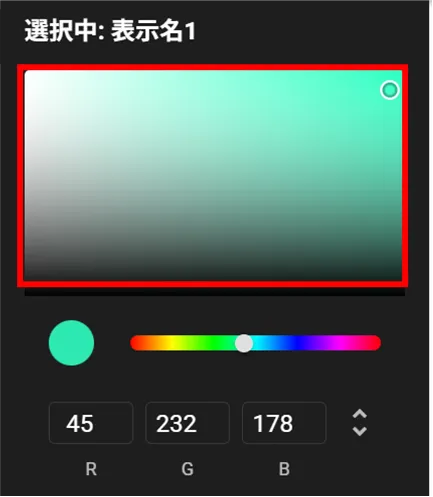 | 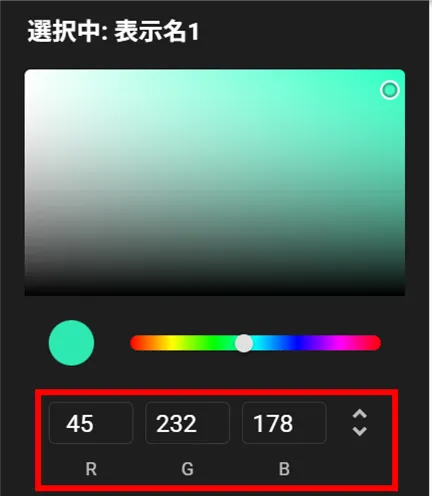 |
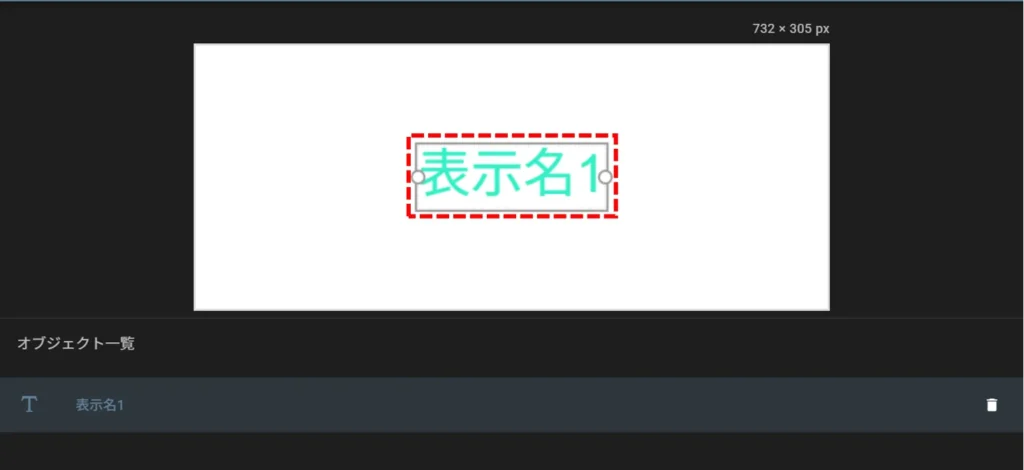
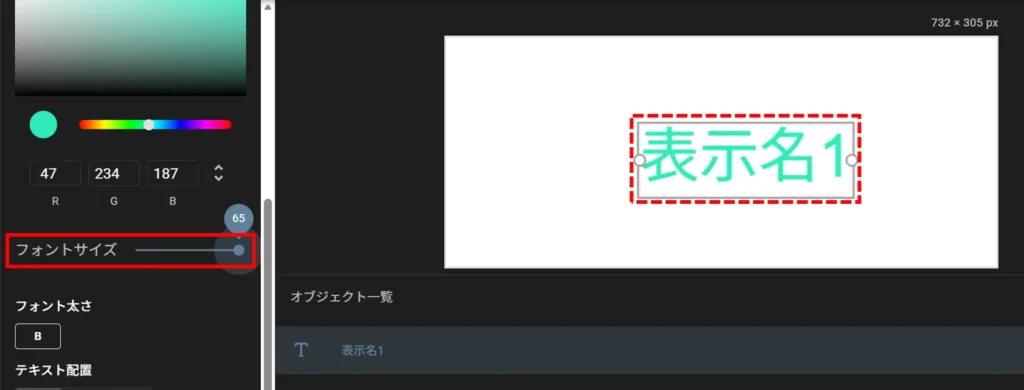
Font size adjustment and bold setting for text #
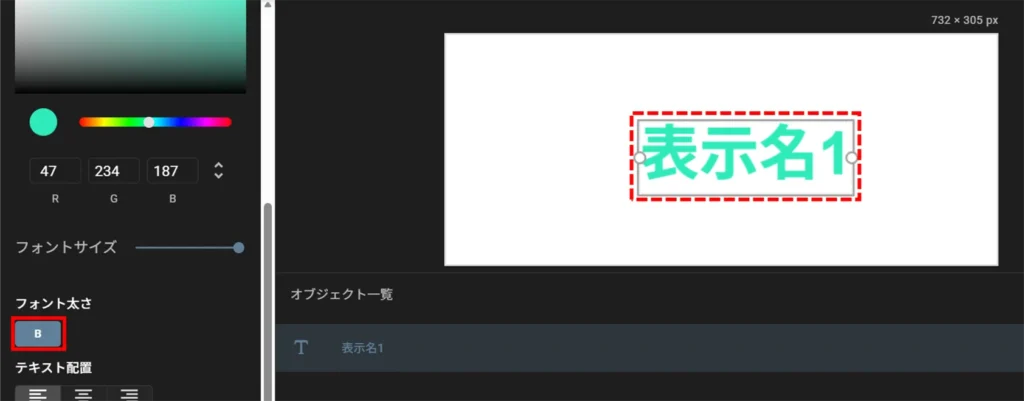
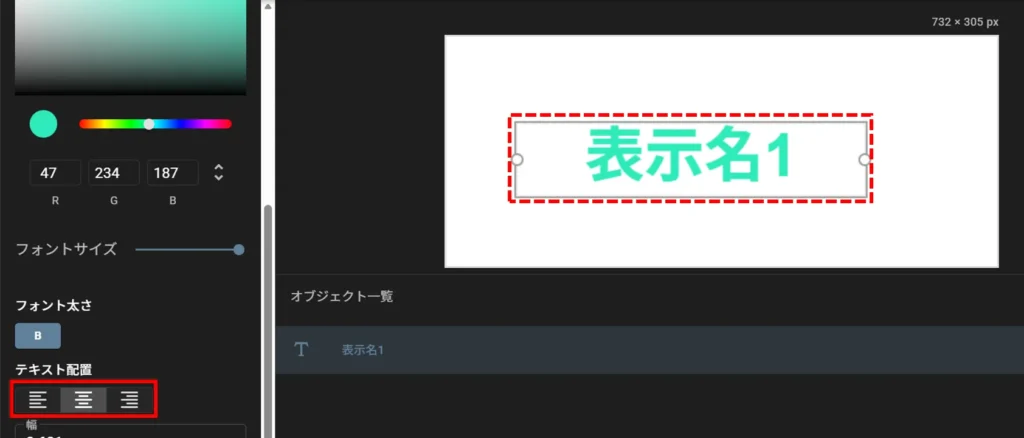
Text alignment settings #
Adjustment of text position and width #
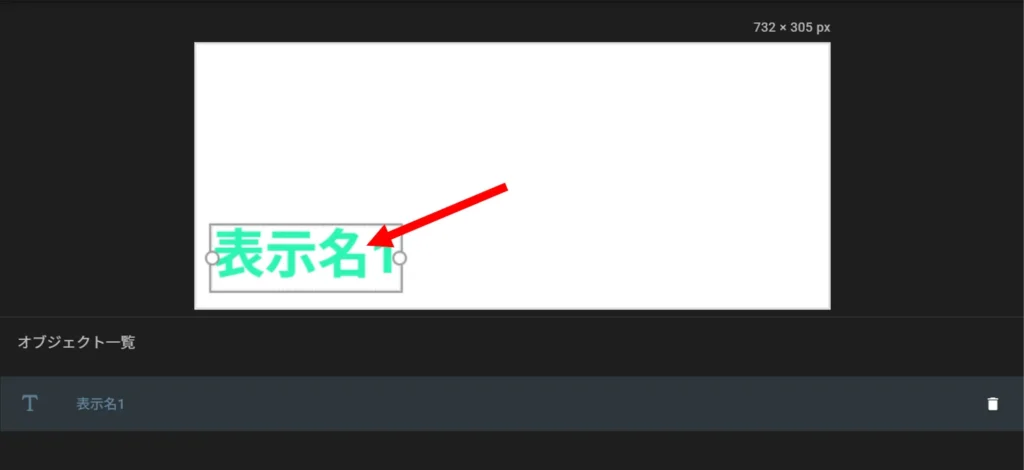
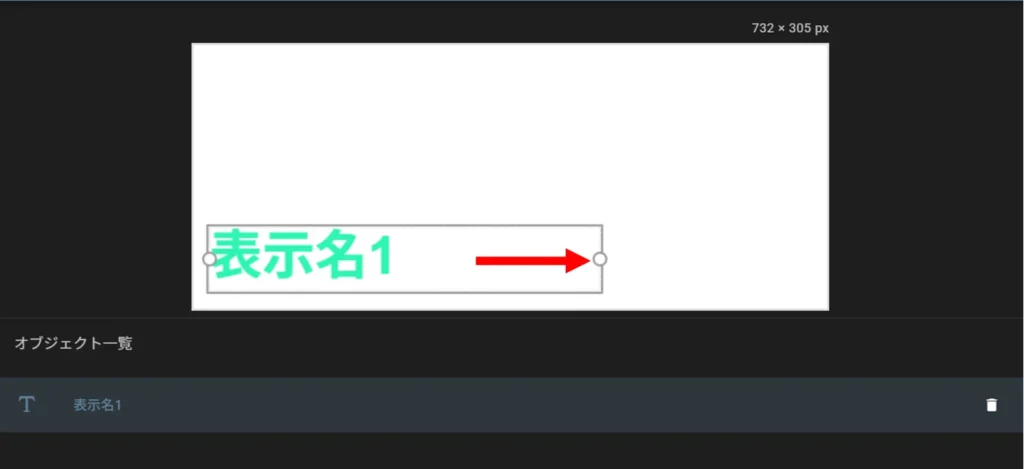
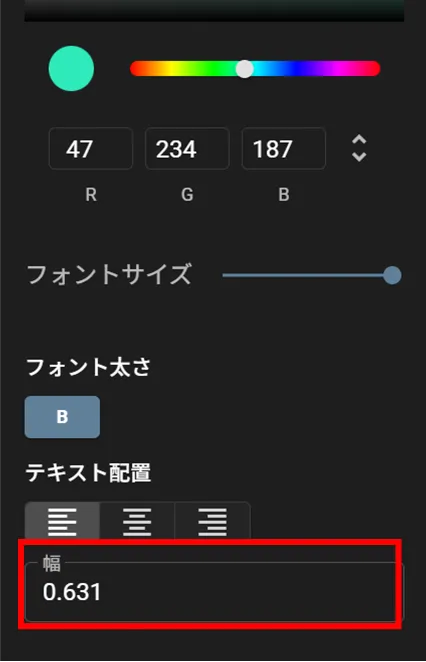
Text size can also be changed by entering a numerical value for width.
The maximum value of the width is 1 and the minimum value is 0.
object deletion #