What are notification settings (notification definitions)? #
The integrated video management system can send notification e-mails when events, etc., that have been predetermined occur. The maximum number of notification e-mails sent is 2000 per month per tenant.
The settings ( notification definitions ) for notification email triggers, recipients, etc. can be configured on the "Notification Definitions" tab of the "Configuration" page.
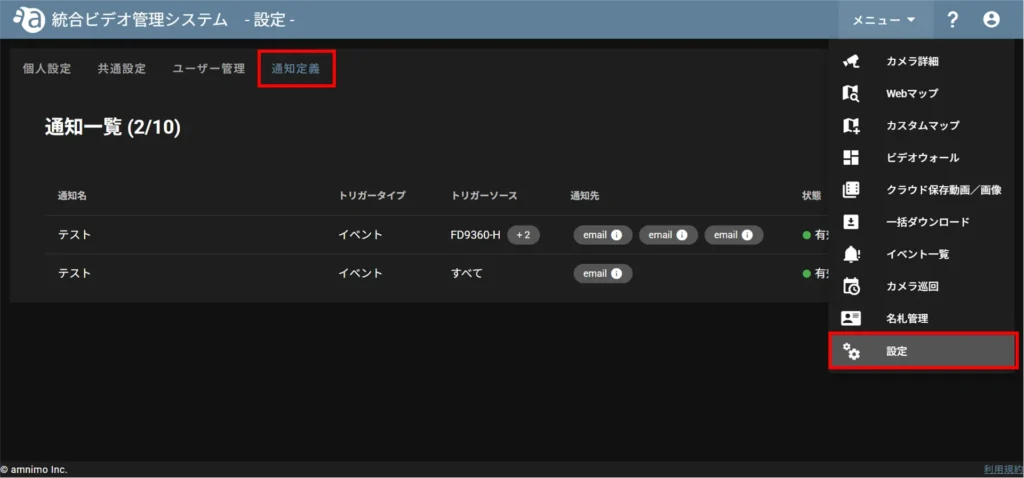
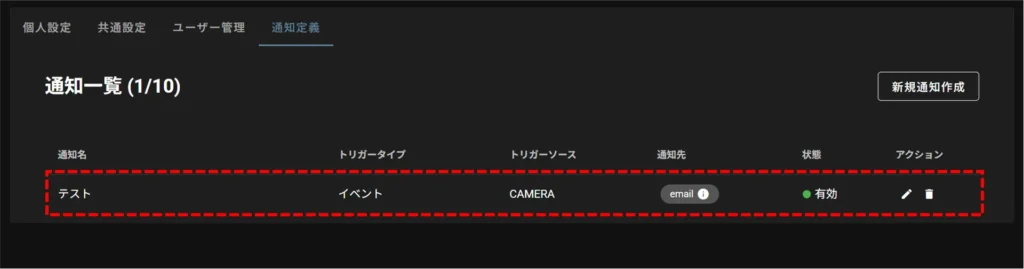
How to read the list of notification definitions #

| (data) item | Description. |
|---|---|
| Notification Name | Name of the notification definition |
| Trigger type | Type of notification email trigger (currently only events) |
| Trigger Source | Cameras that detect triggers If there are multiple trigger sources, mouse over [ +● ] to see the remaining trigger sources. 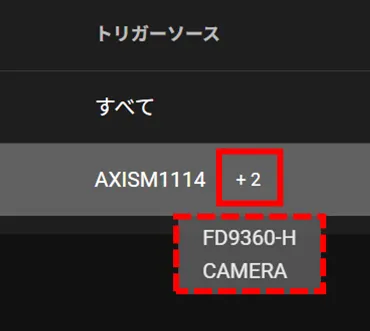 If there are more than 10 trigger sources, "●Others" will be displayed. If all cameras connected to a tenant are trigger sources, "All" will be displayed. |
| Notification to | Mouse over the notification type (i.e., notification method, currently only email) and destination information symbol to see information about the recipient. 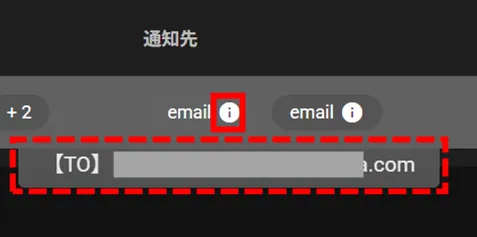 |
| condition | Enable / Disable Notification Definitions |
| action | Edit icon: Allows you to edit notification definitions and view details. Delete icon: Allows you to delete a notification definition. For more information, please refer to the following ⇒ Edit Notification Definition Delete Notification Definition |
Configure the settings for notification definitions. #
Create a new notification definition #
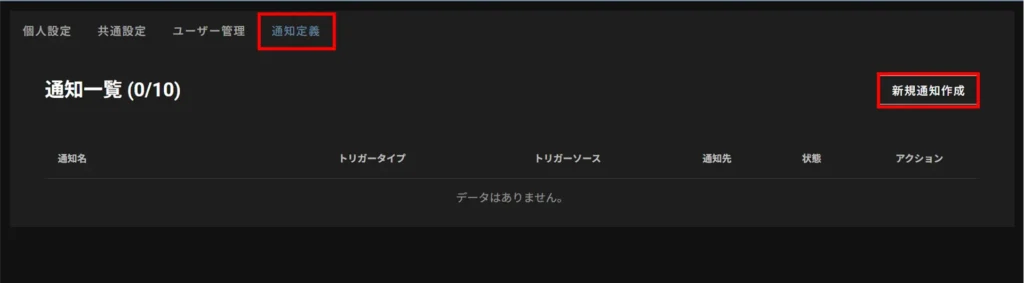
Set the name of the notification definition.
Enables/disables notification definitions.
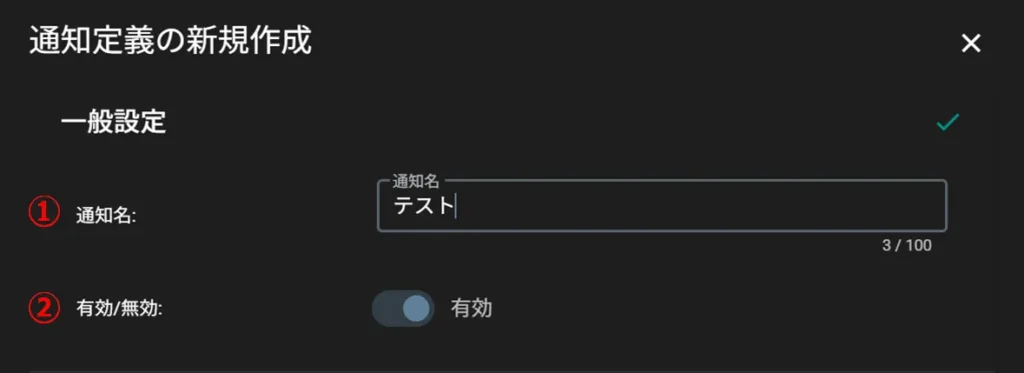
(1) Select the trigger type. (Currently only events can be selected.)
② Select the camera that will be the trigger source.
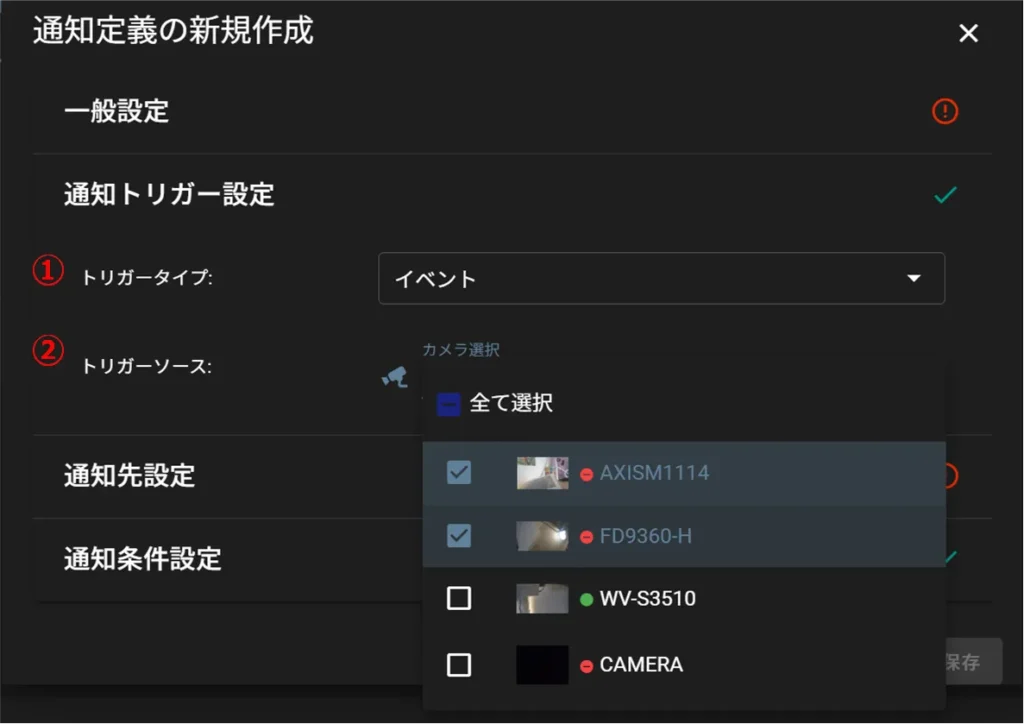
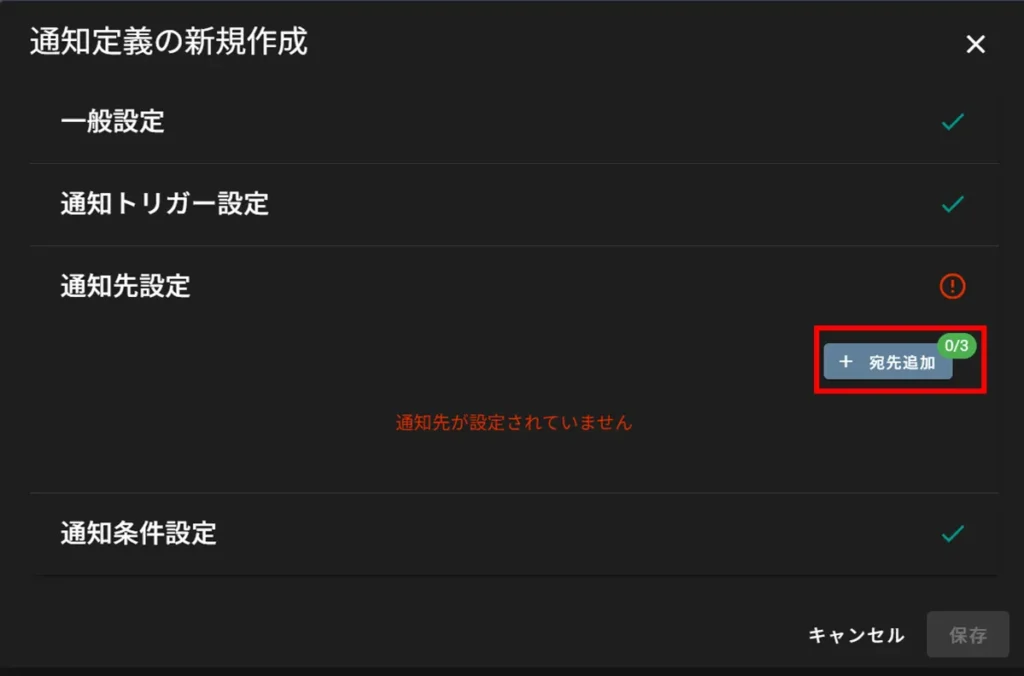
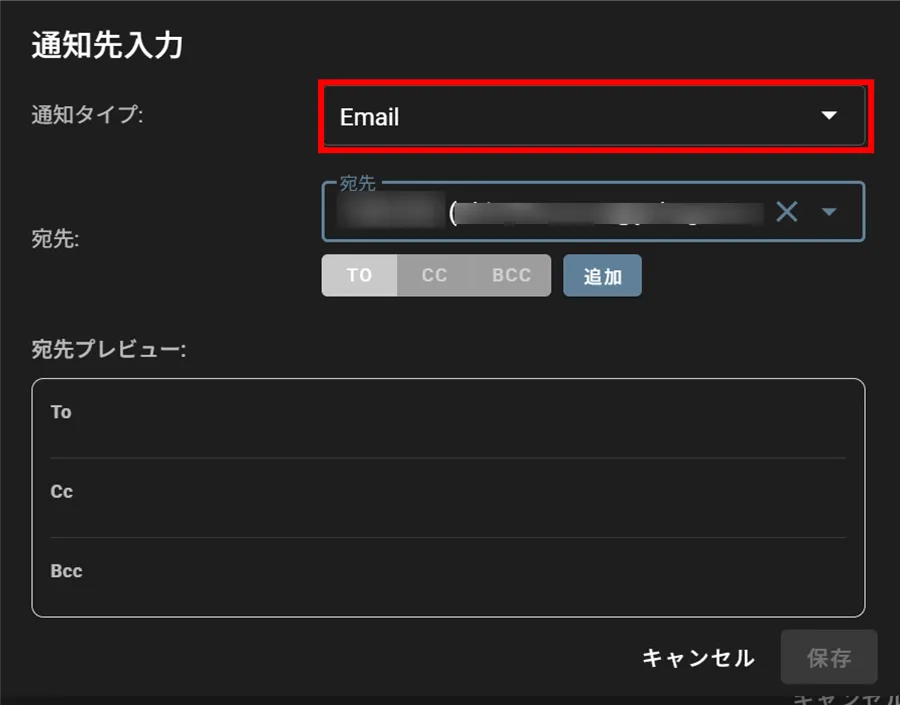
(1) Set the destination. (Tenant users can select from a pull-down menu. All others can be set by input).
(2) Select the destination type (TO / CC / BCC).
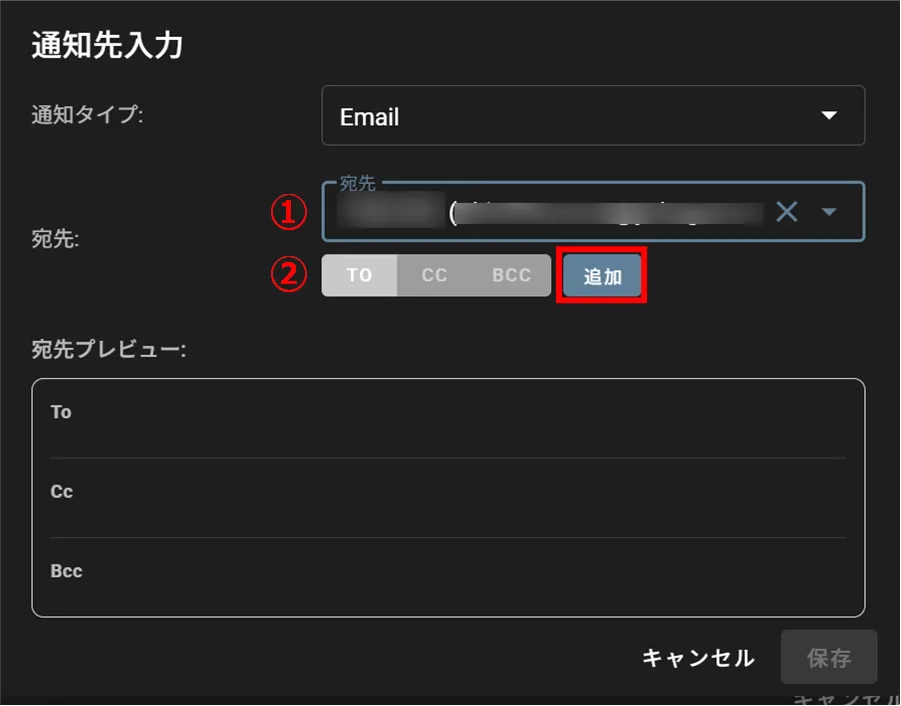
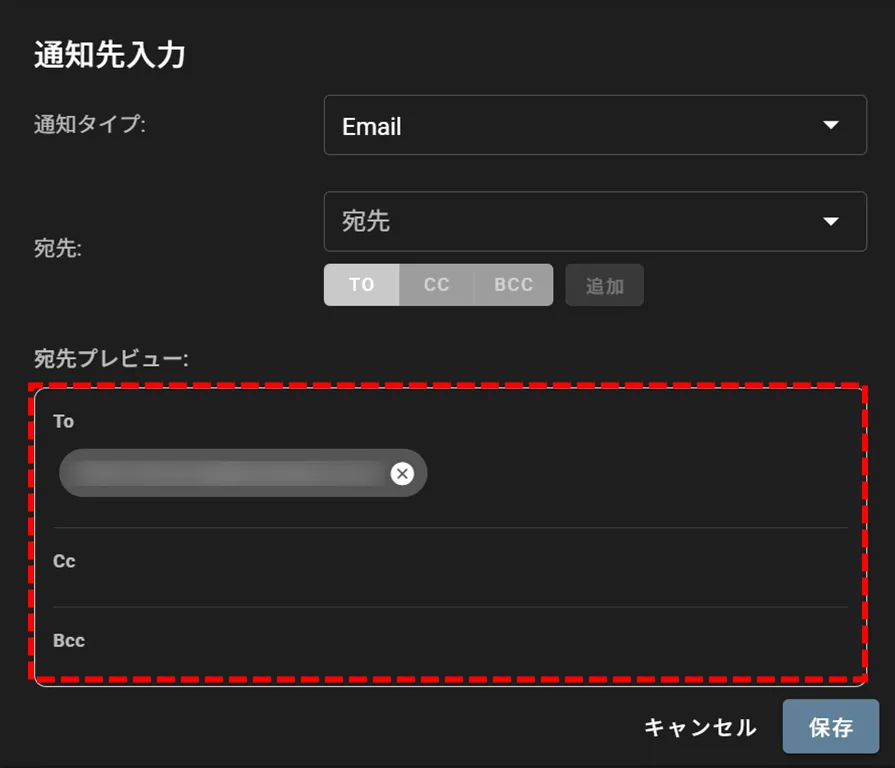
To set multiple destinations, repeat step 6.
A maximum of 10 destinations can be set per notification destination, excluding duplicates.
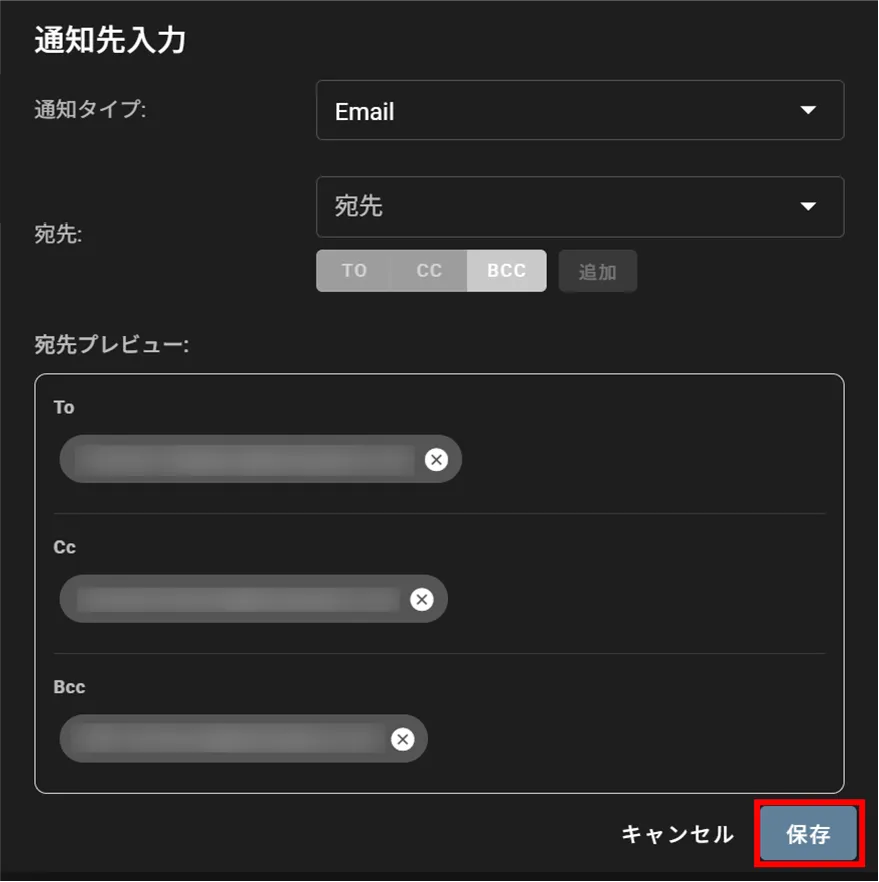
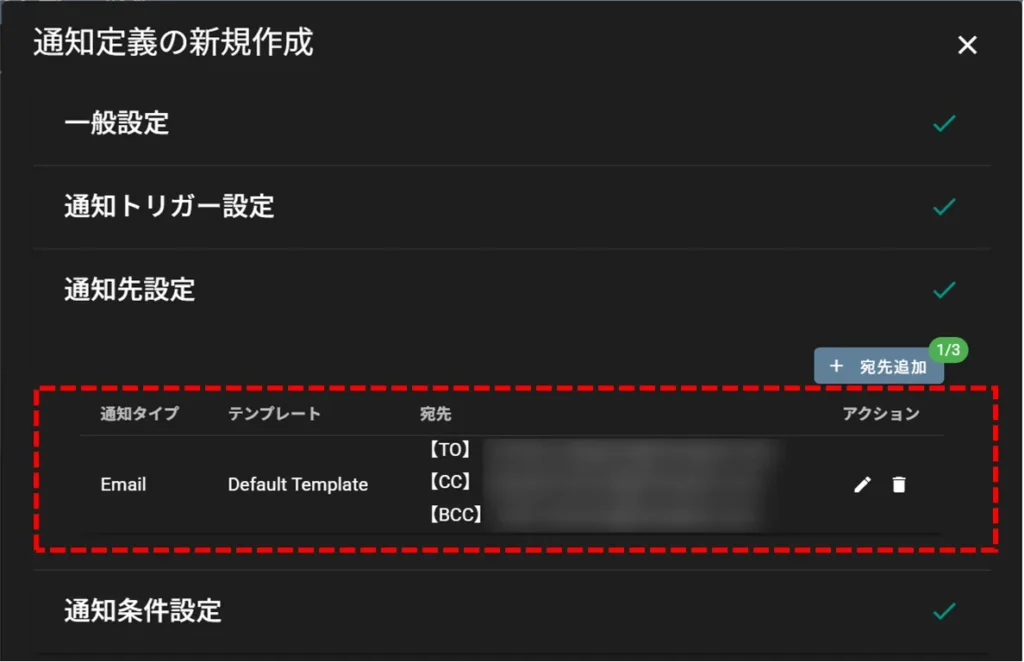
To set multiple destinations, repeat steps 4-8.
Up to three notification destinations can be set.
If you have set the duplicate notification suppression to [Enable], set the suppression time.
Duplicate notification suppression suppresses the sending of event notification e-mails when the same event occurs again within a specified period (suppression time) after the event occurs.
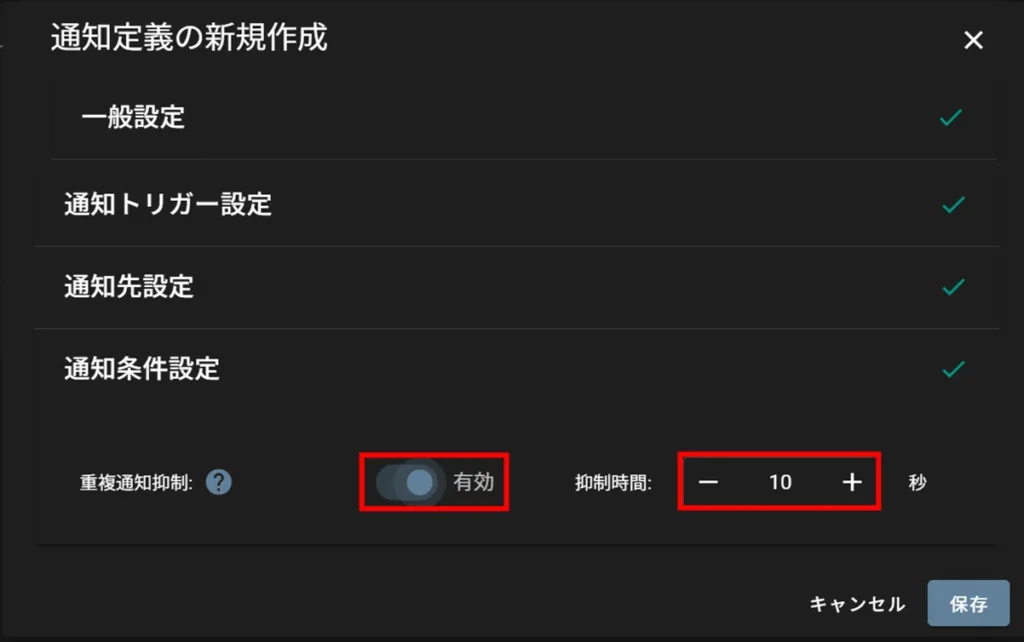
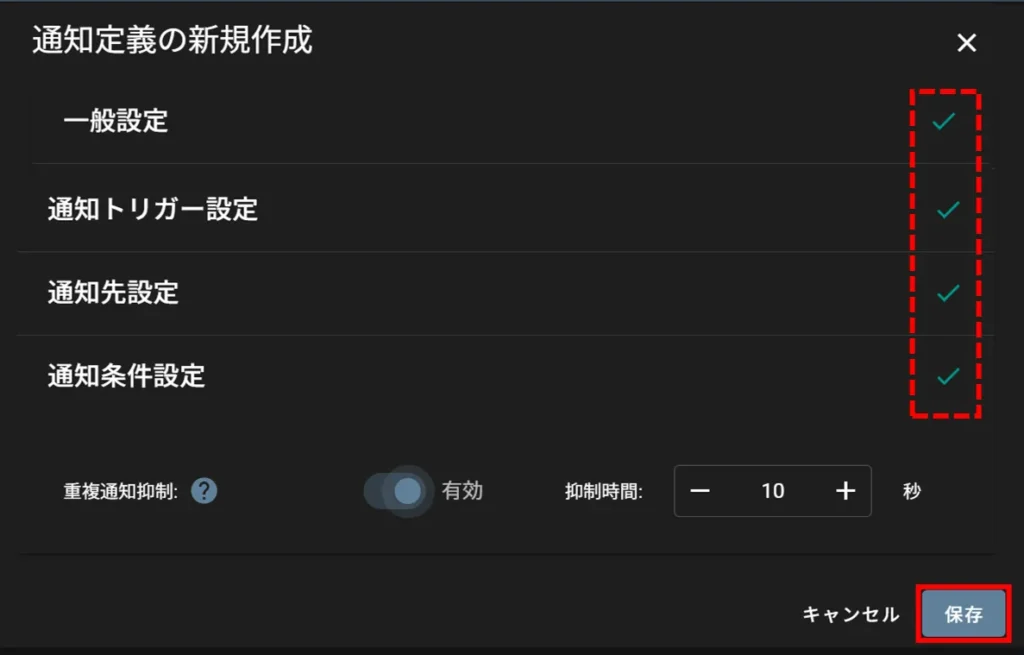
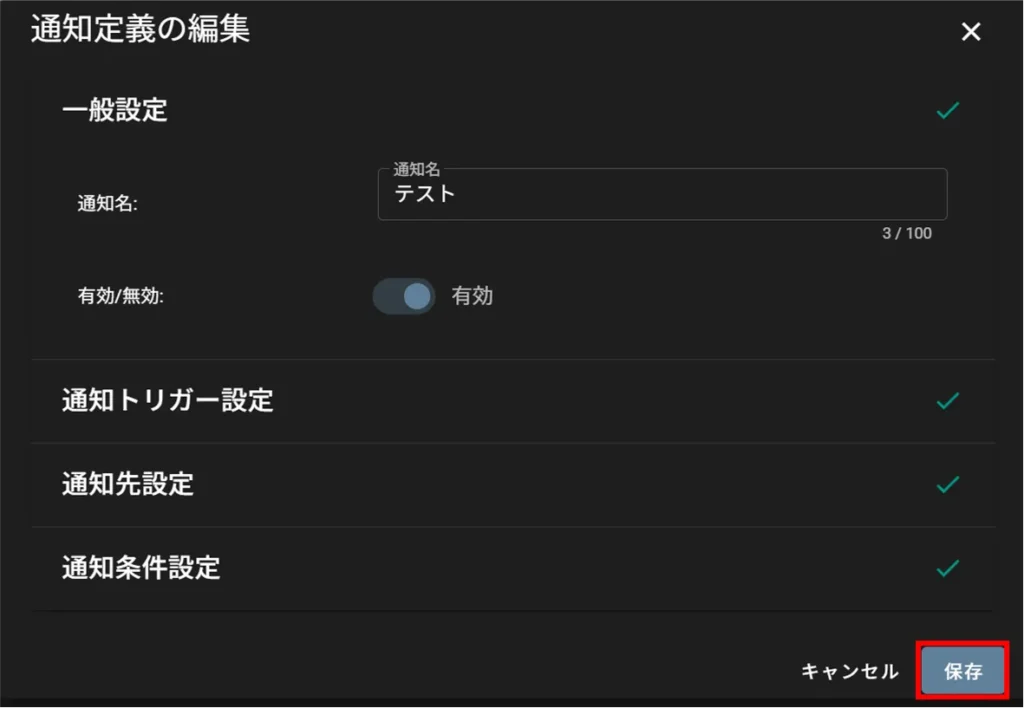
Editing Notification Definitions #
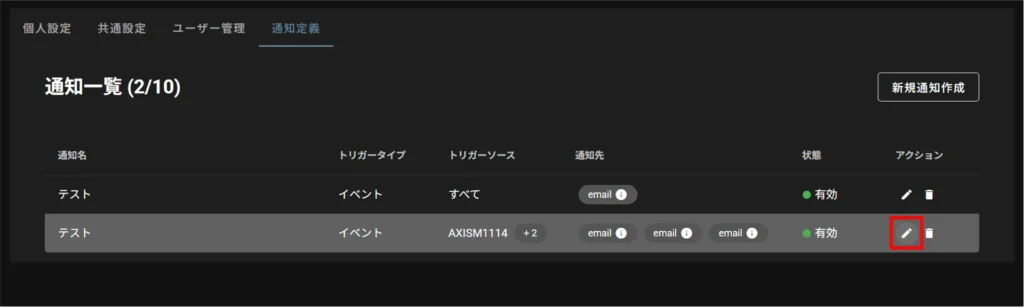
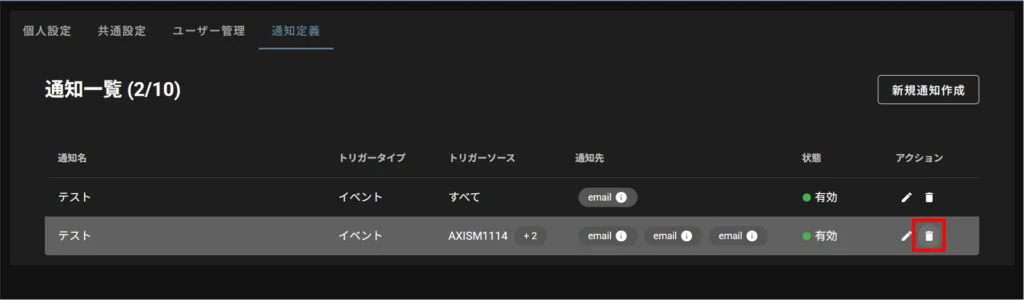
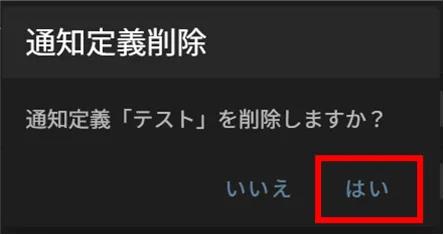
Deletion of notification definitions #
Receive event notification e-mails #
An event notification e-mail is sent when a triggering event set in the notification definition occurs.
About Event Notification Emails #
Each element of the event notification e-mail is as follows
| (data) item | Description. |
|---|---|
| Title. | Displayed in the format shown at right [Event Notification] MM/DD HH:mm Camera Name:0000 |
| sender | no-reply@amnimo.com |
| destination | To/CC: Addresses set in the notification definition BCC: Not stated |
| body (of letter) | The text is organized as follows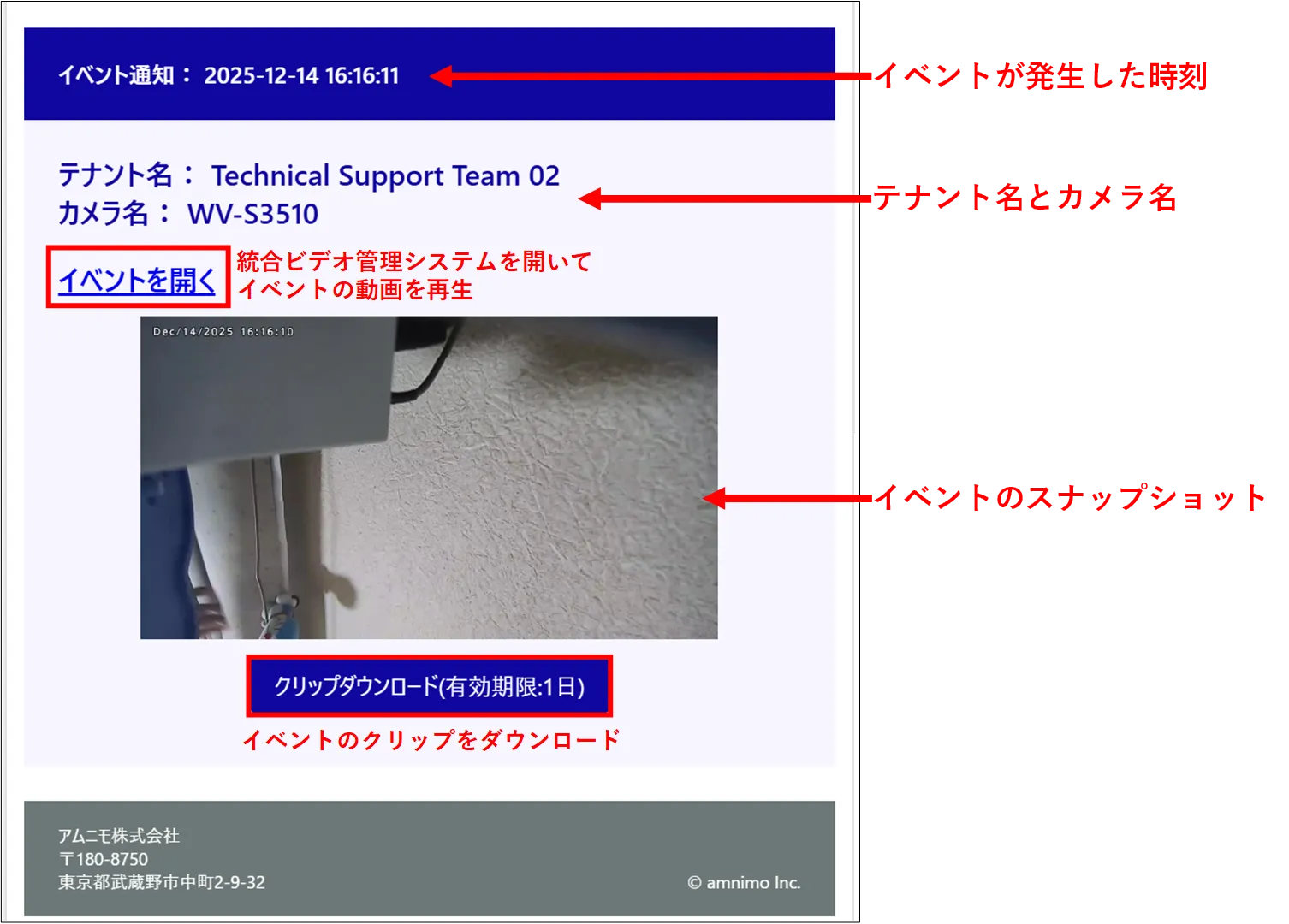 |
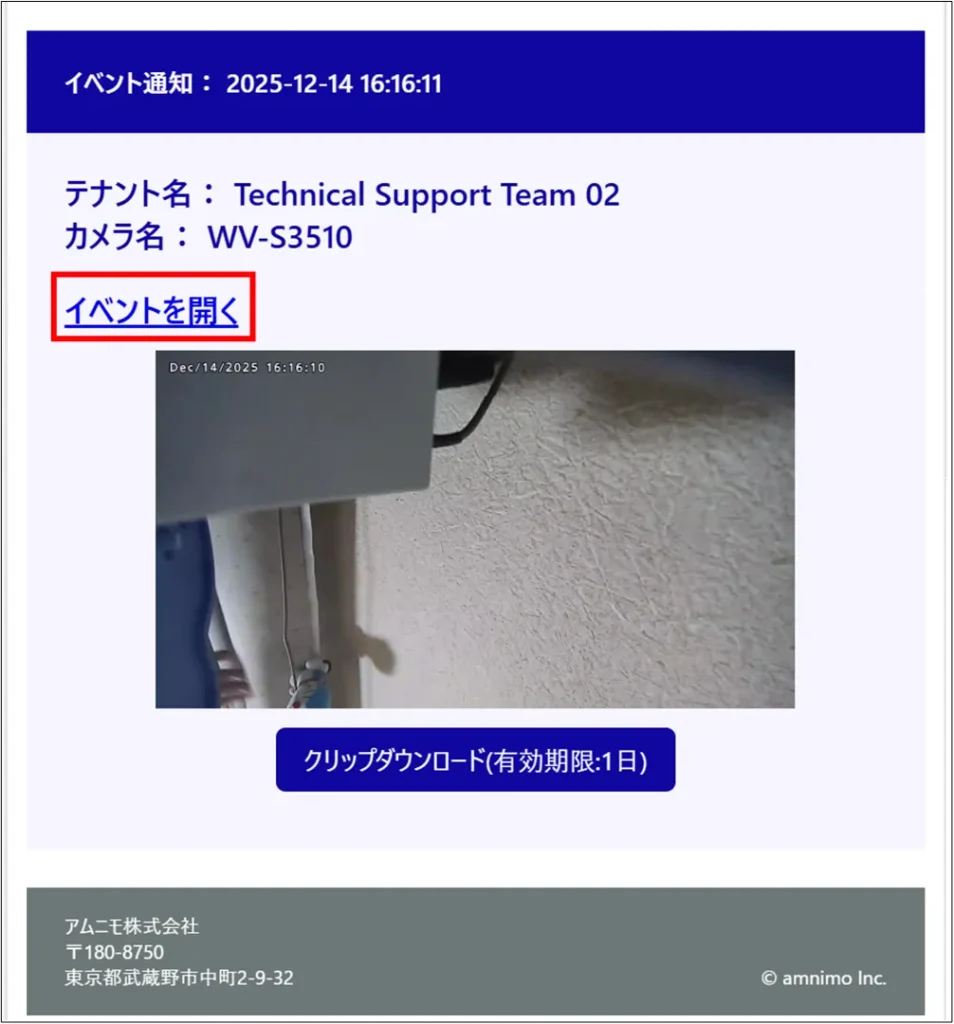
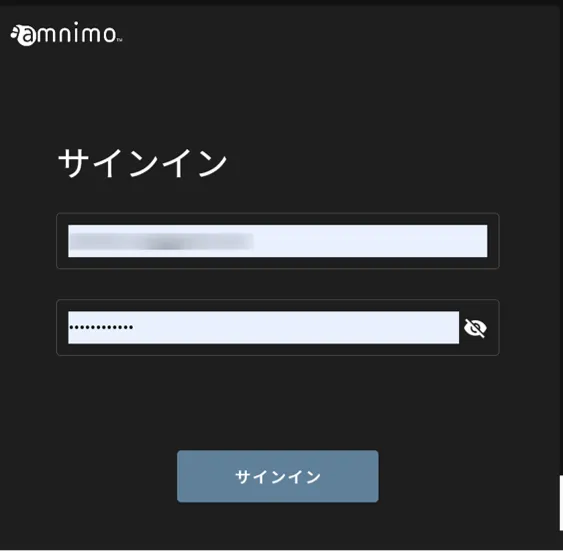
Open an event #
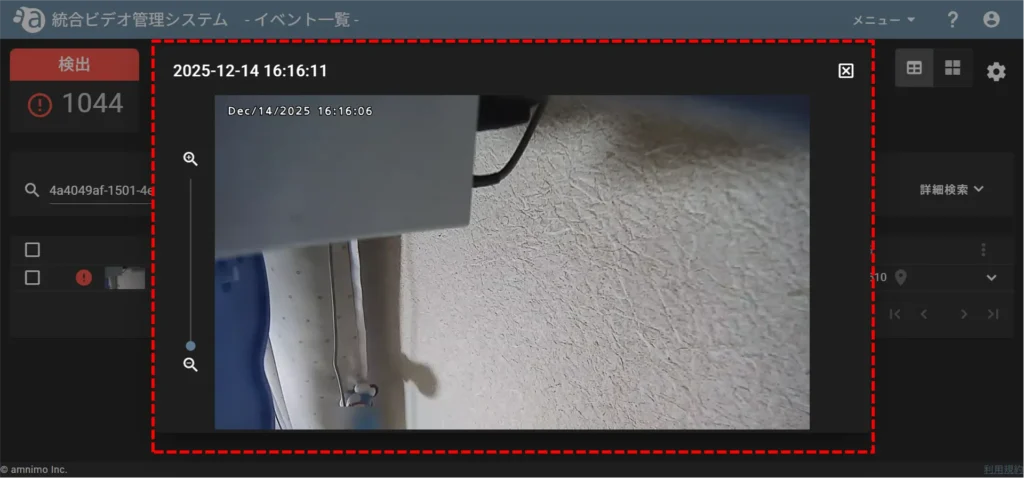
Clip Download #