
There are two types of event displays: table display and card display.
This page describes the operation of events in card view.
NOTE
For more information on working with events in the table view, see
- Search Events
- Play Events
- Check the map for the location of the camera where the event occurred.
- Obtain a snapshot from the video when the event occurs
- Download videos of events as they occur.
- Enter the details of your response to the event
- Output event information as a report (if you have applied for this function)
Switch to card view #
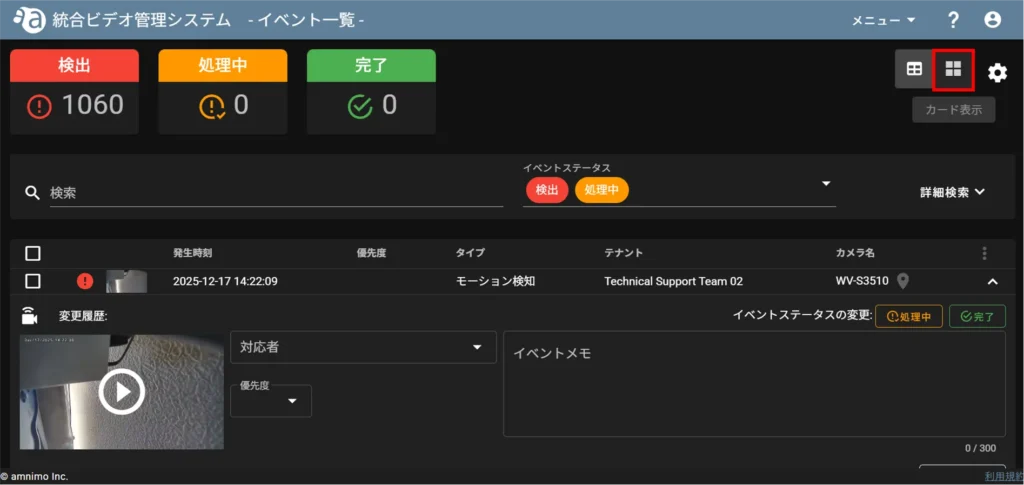
To switch from table view to card view, follow the instructions below.
[Click on "Card View.
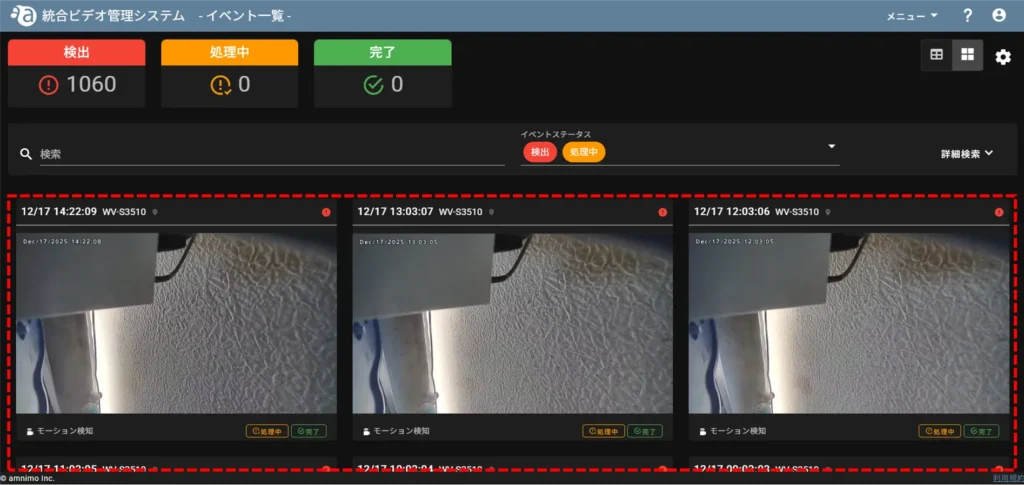
Switches to card display.
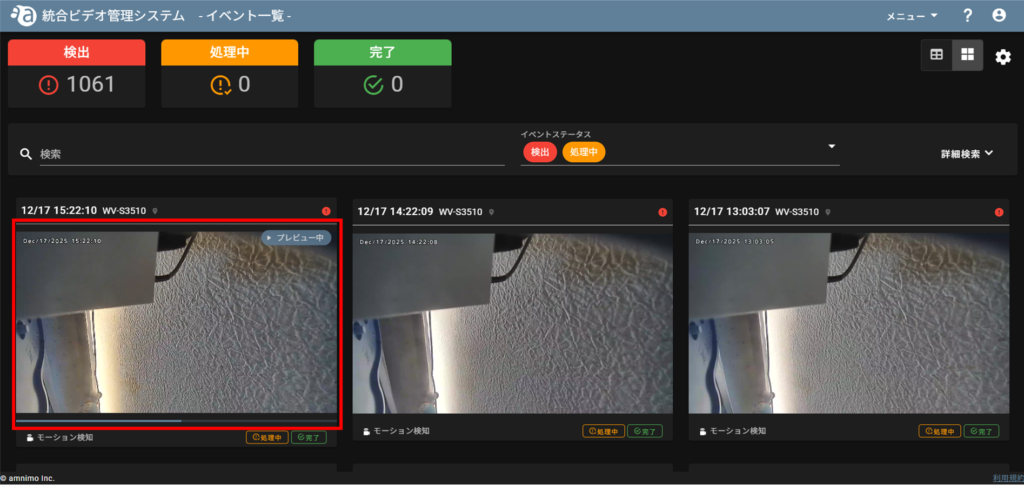
Preview playback of events #
Mouse-over the thumbnail of the event you want to preview, and preview playback will begin automatically.
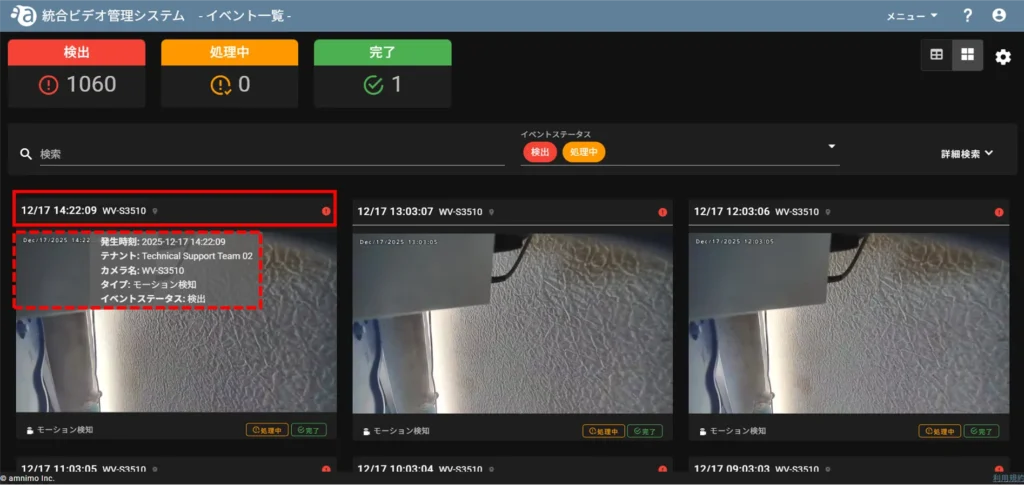
Check event information #
Mouse over the information column of the event for which you want to check event information.
Change event status #
Click on [PROCESSING] or [COMPLETED] under the thumbnail of the event whose status you wish to change.
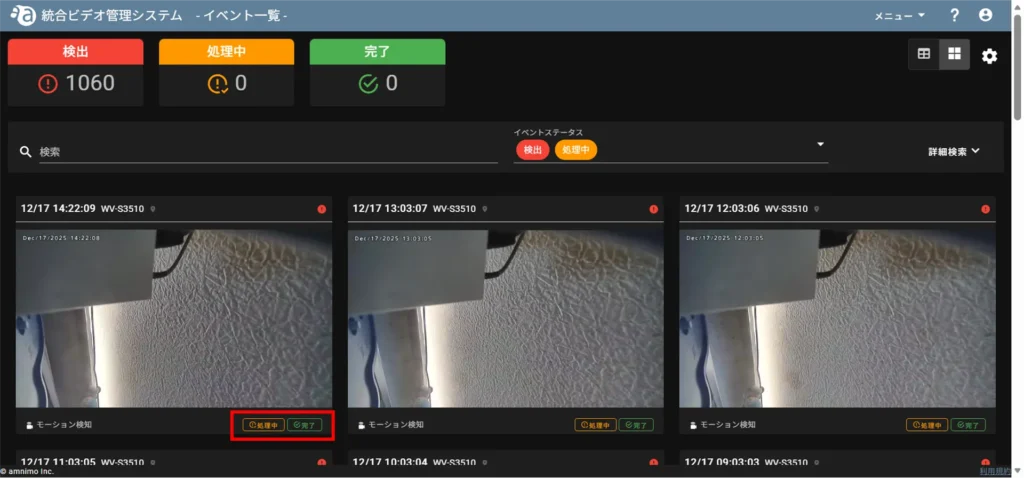
The status of the event will be changed.