
If you are using an edge gateway with SSD storage, you will need to configure the storage. This step describes the procedure to mount and make the storage available.
For detailed storage settings, please refer to the following
⇒ GUI User's Manual , "Storage".
Adding partitions #
Add a partition to be selected when configuring storage.
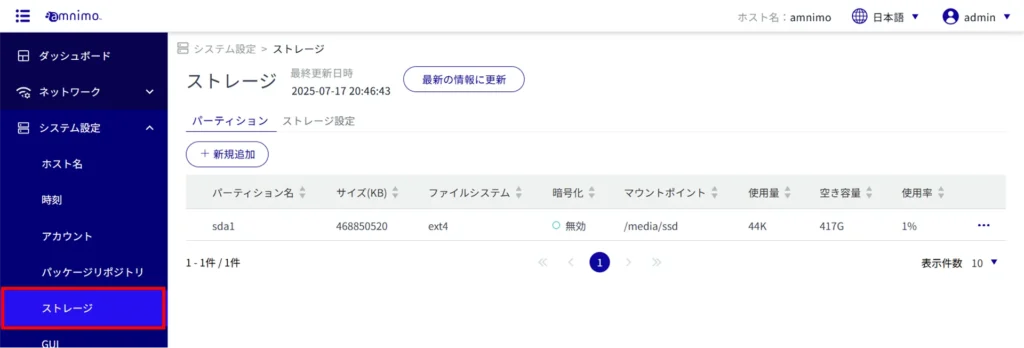
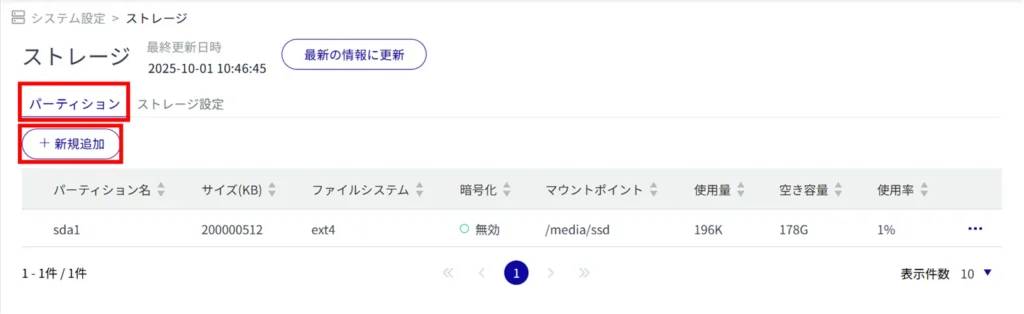
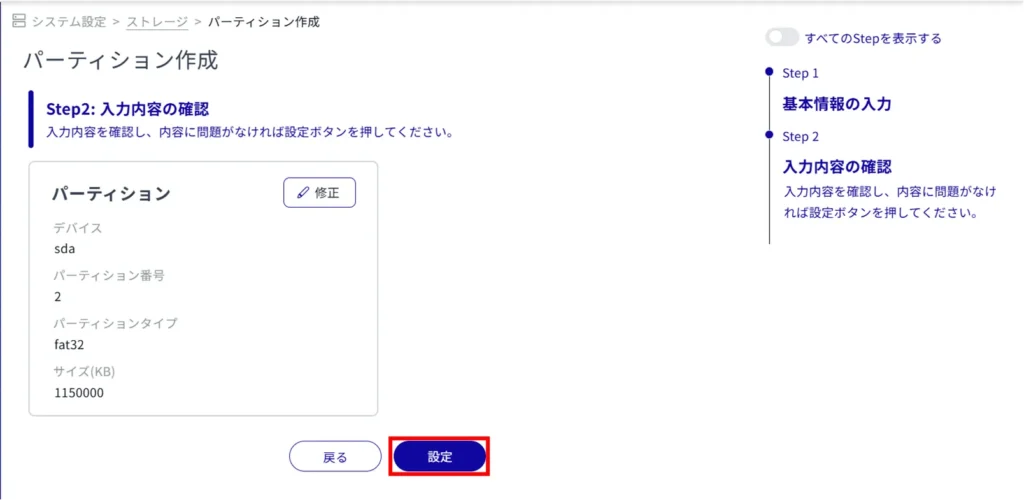
The "Create Partition" screen appears.
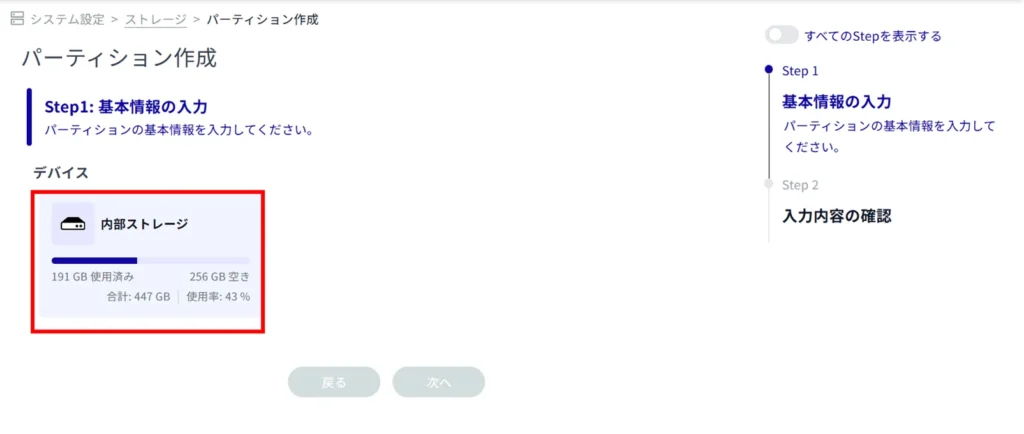
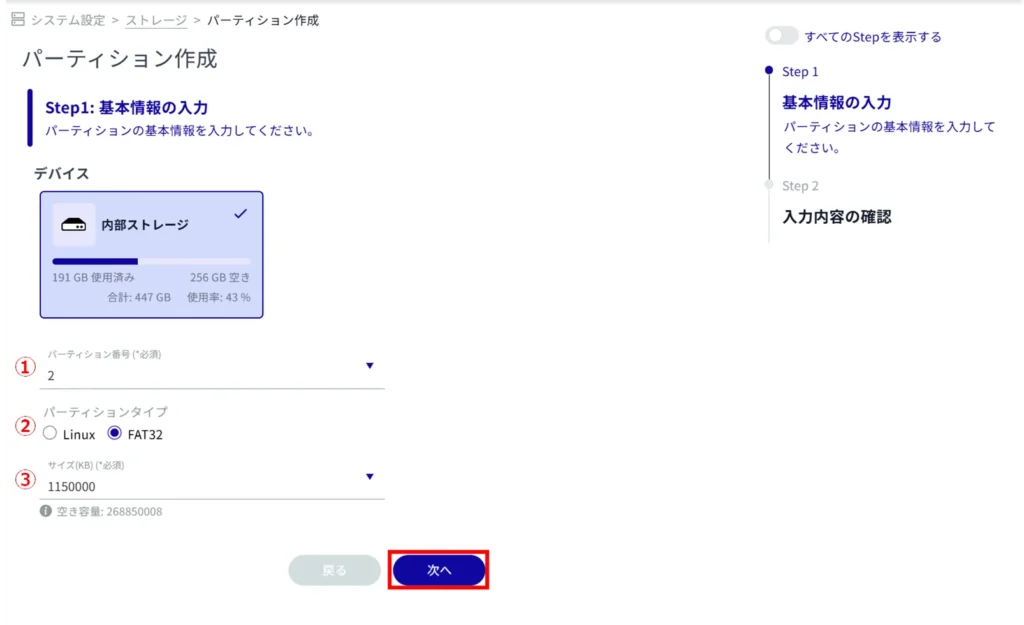
Select a partition number in the range of 2 to 9.
(2) Select the partition type.
Linux ... Linux standard partition type. It is set by default.
fat32 ... FAT32 (LBA) partition type.
(c) Enter the partition capacity in kilobytes.
If omitted, the maximum value of the storage device will be used.
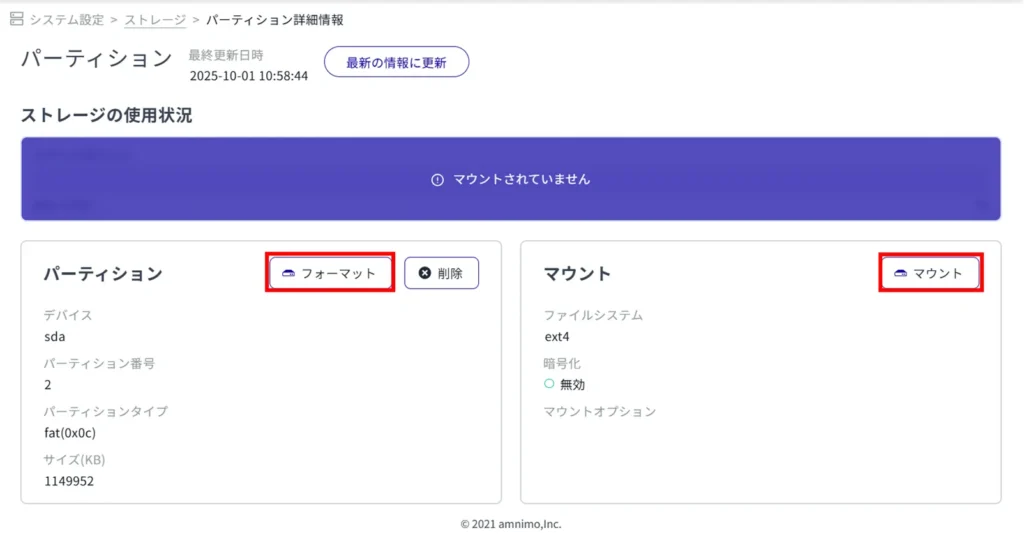
To move to the detail screen, click [Transition].

To format a partition, proceed as follows
⇒ GUI User's Manual "Storage" Formatting a partition Step 2
To mount the partition, proceed as follows
⇒ GUI User's Manual "Storage" Mounting a partition Step 2
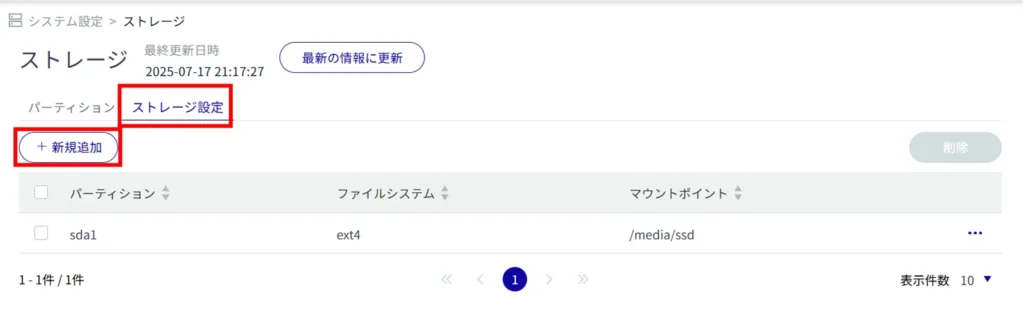
Add storage settings #
Add storage settings.
Adding partitions You can select a partition created in
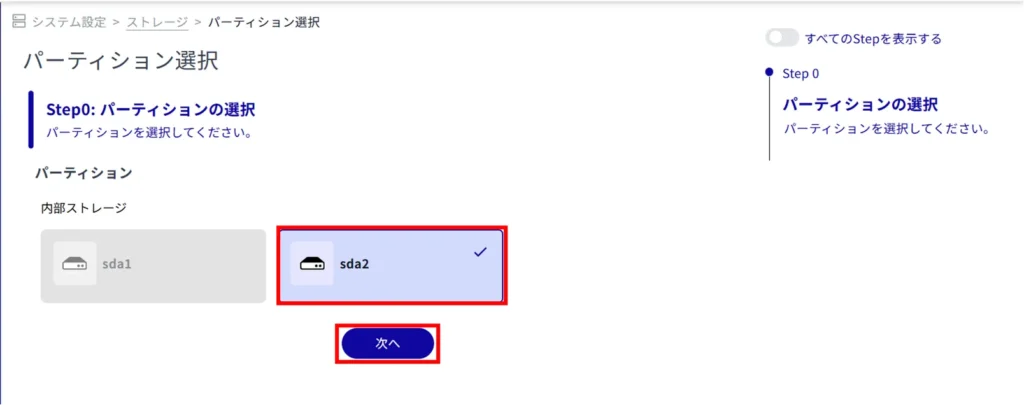
(1) Specify the mount point name. (Maximum 32 alphanumeric characters)
② Select the file system.
(3) Select the mount option.
Click the toggle button to enable or disable encryption.
If encryption is enabled, set a password.
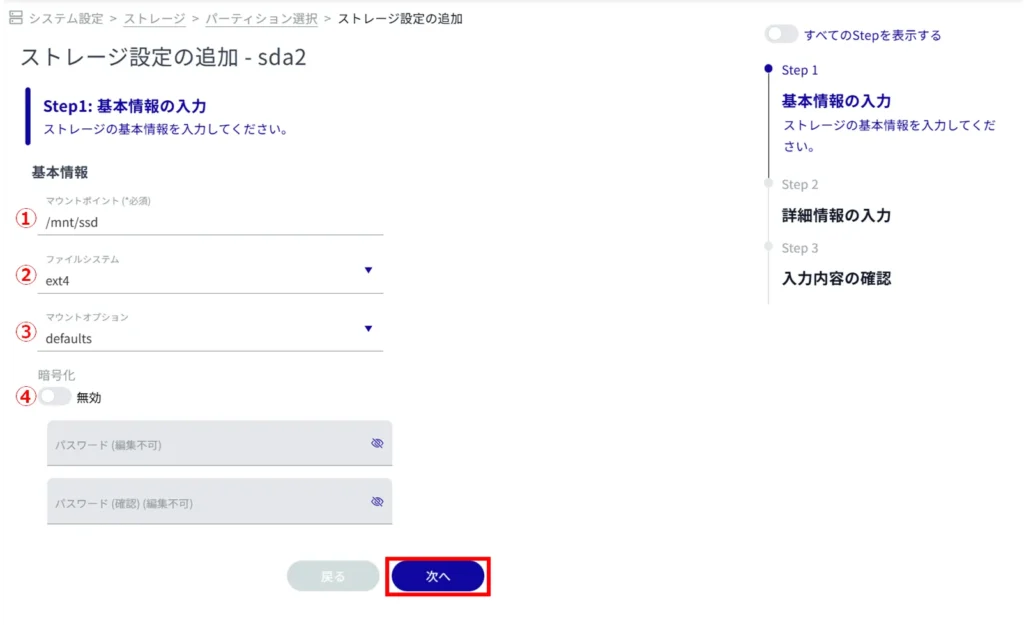
*Because this is an optional field, you can proceed to the next step even if you have not entered any information.
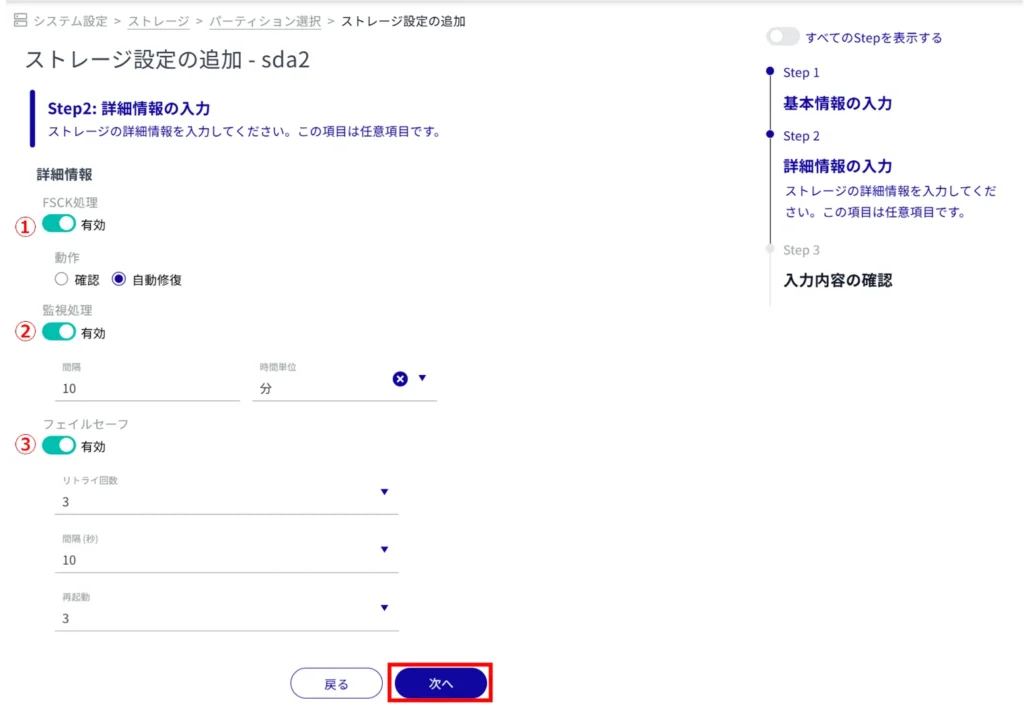
Click the toggle button to enable or disable FSCK processing.
If "Confirm" is selected, only bad sectors are checked.
[Selecting Auto Repair will repair minor errors.
Click the toggle to enable/disable the monitoring process.
Click the toggle to enable/disable fail-safe.
If enabled, set the number of retries, interval, and number of restarts when the fsck/mount process fails.
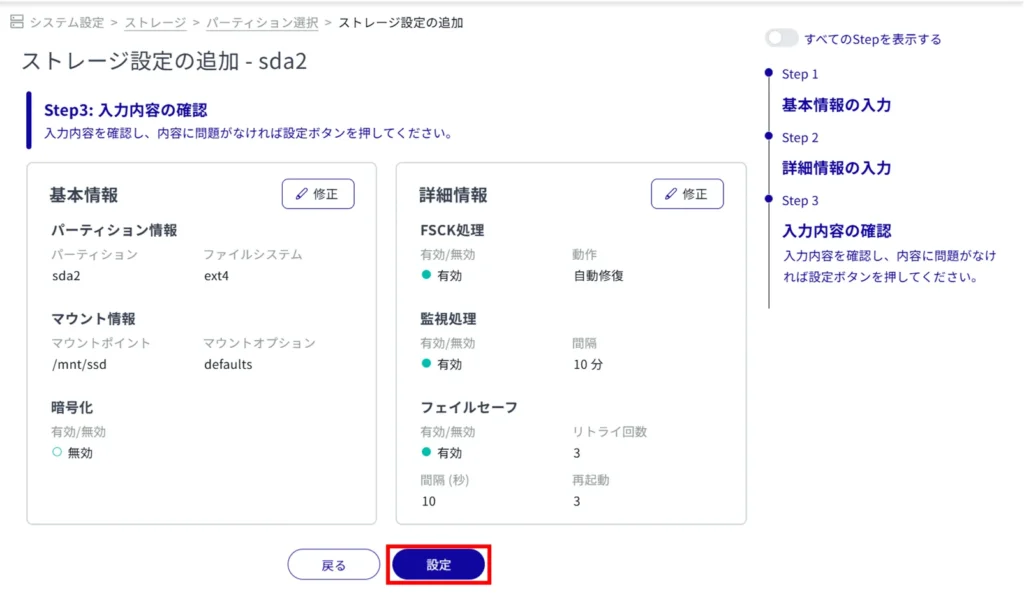
Additional storage settings will be added.