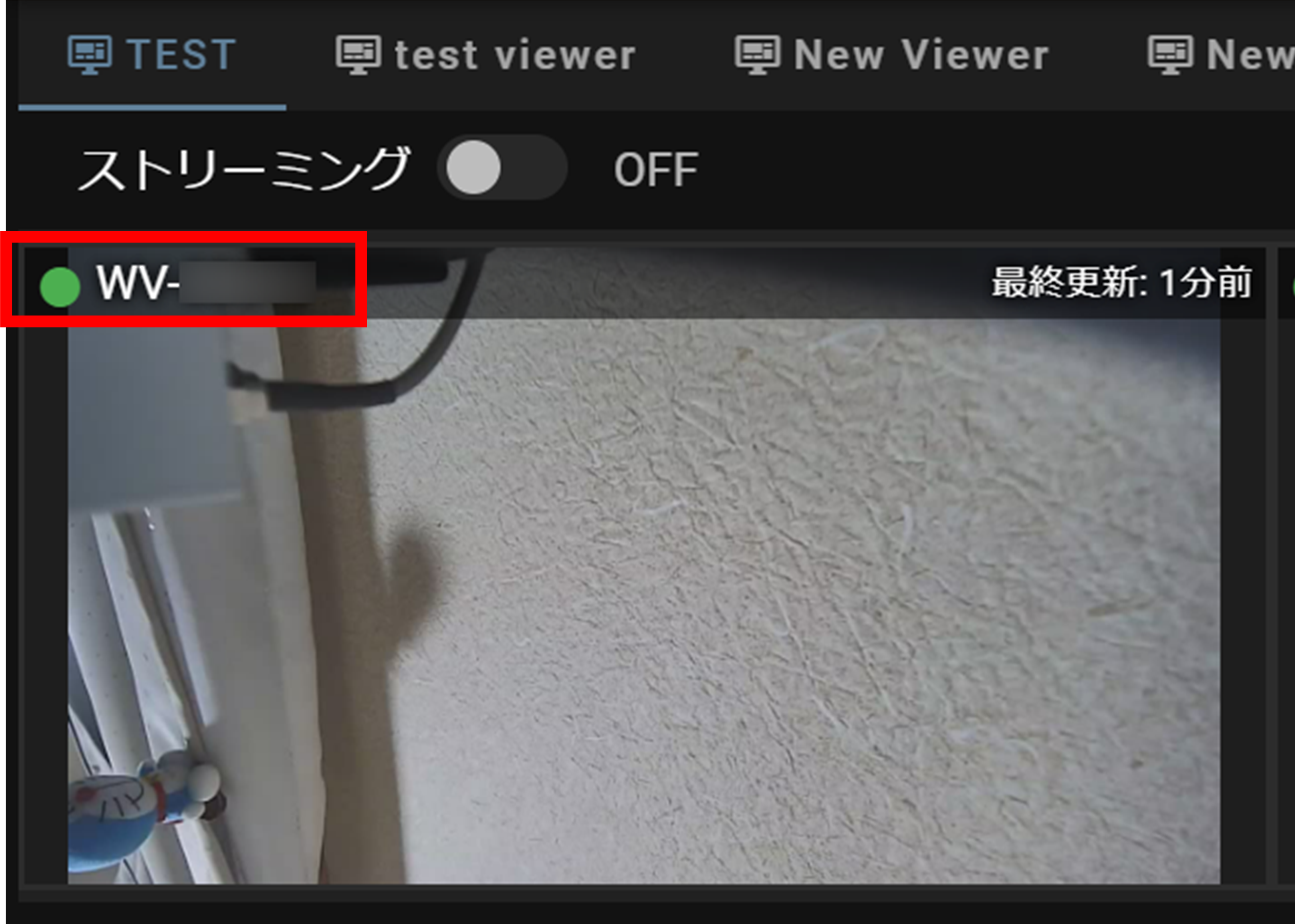
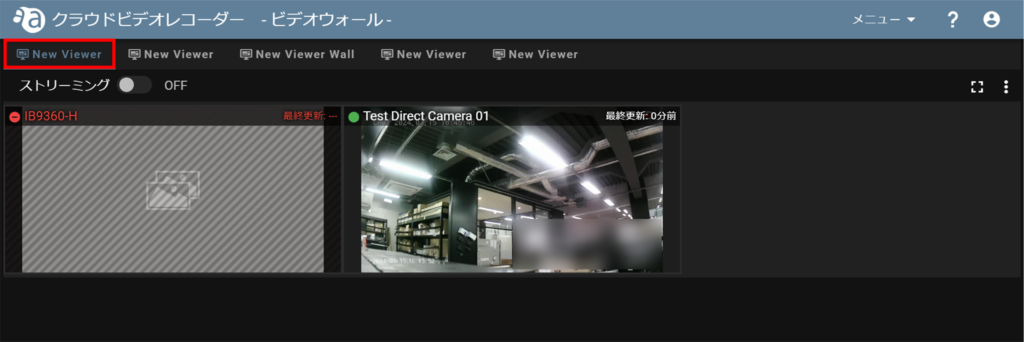
The video wall screen allows the user to view the camera image.
Add a viewer #
The video wall can have a number of viewers based on the number of cameras.
| Number of cameras | Maximum number of viewers |
|---|---|
| Less than 100 units | 5 |
| More than 100 units | 10 |
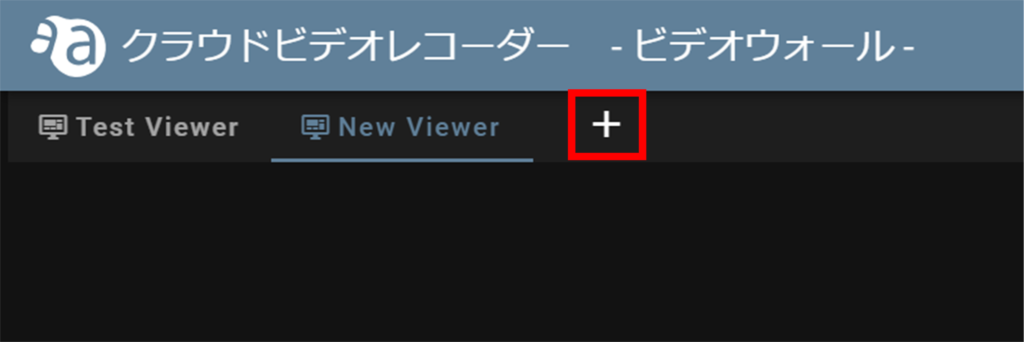
Open the Video Wall screen and click on  on the screen.
Once the viewer is added, a tab will be added as [ New Viewer ].
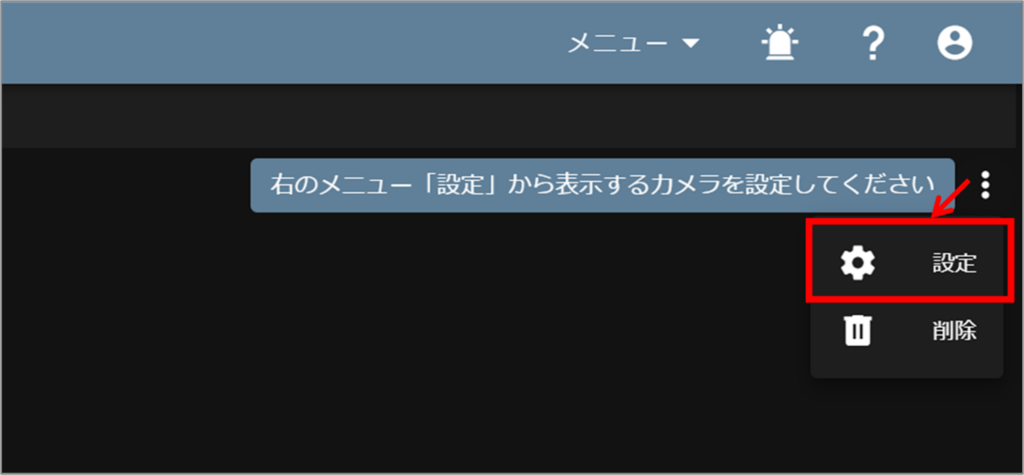
Configure viewer settings (including adding cameras) #
Similarly, dragging a camera from "Show Cameras" to "Do Not Show Cameras" or clicking on the - icon will cause the image of the selected camera to disappear from the viewer.
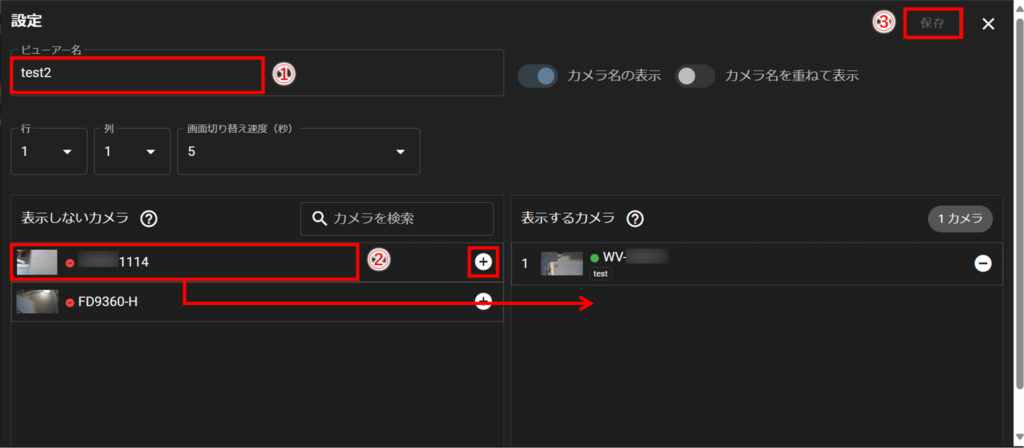
The cameras to be displayed can be rearranged by dragging.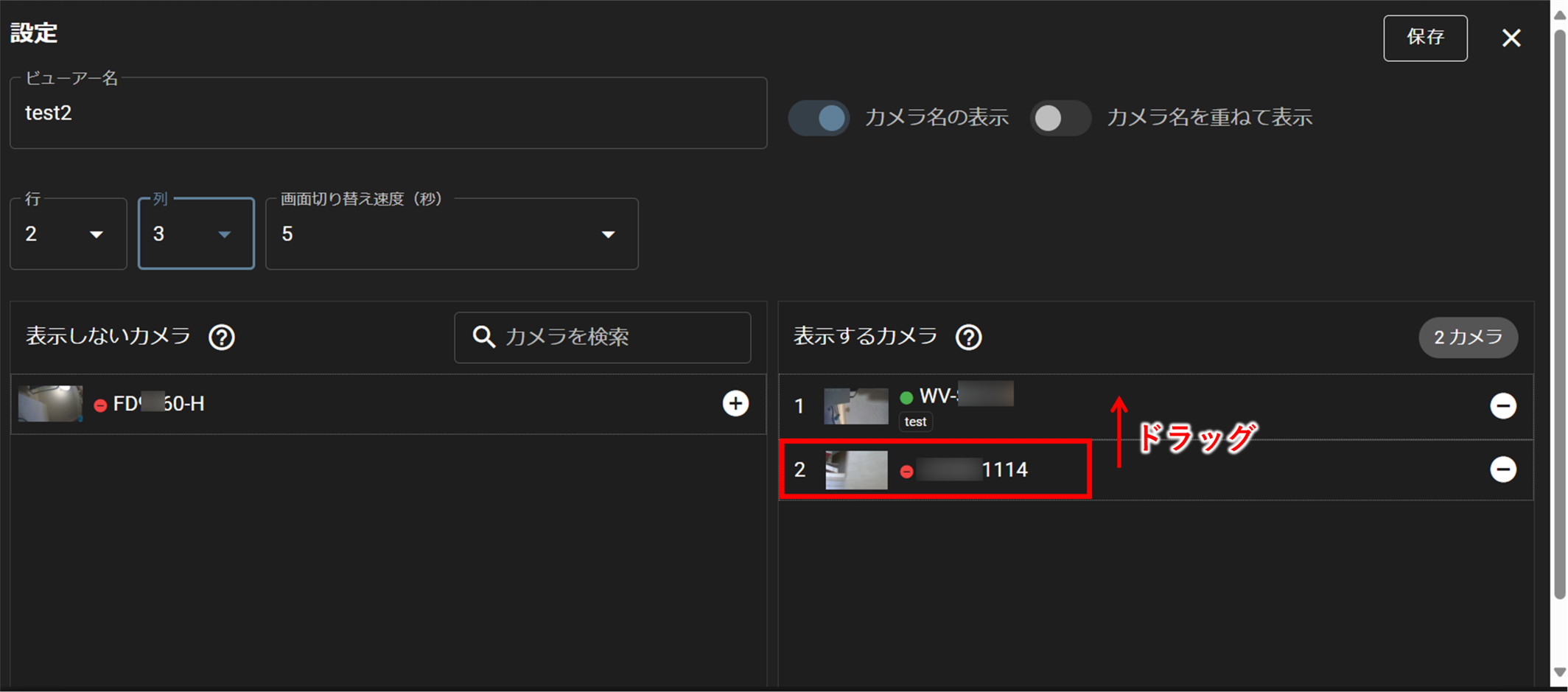
Click the "Show Camera Name" toggle to display the camera name at the top of the viewer image.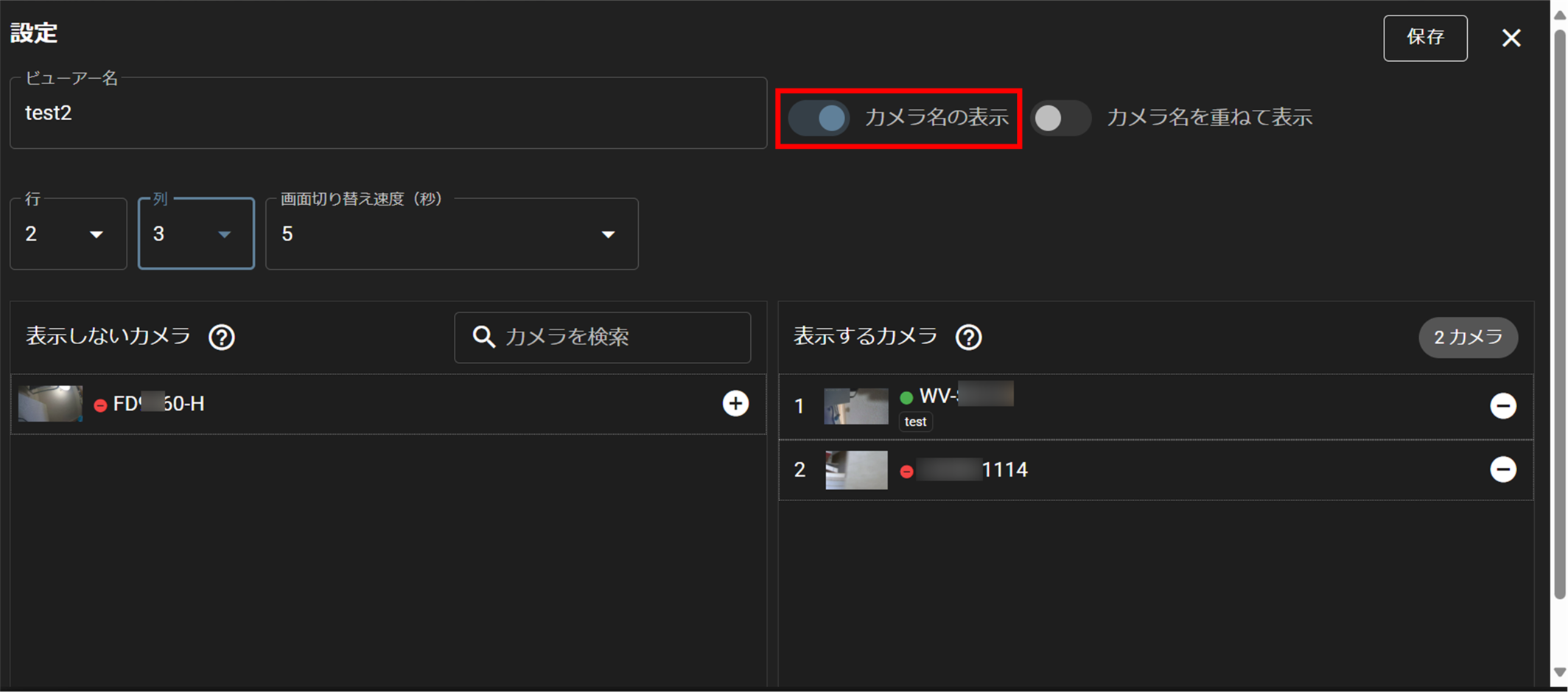
When the camera name is displayed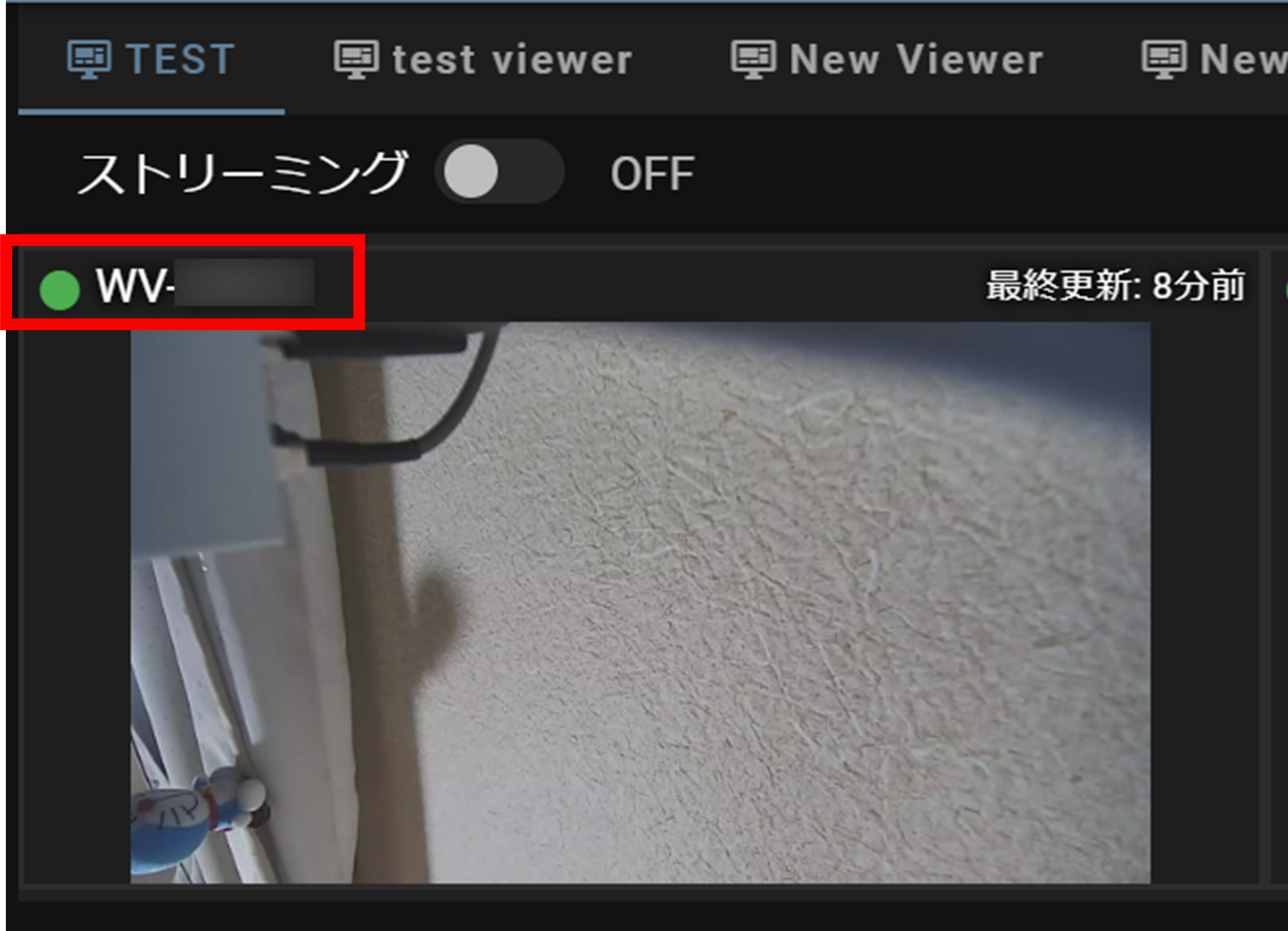
Click on the "Show Camera Names" toggle to display the "Overlay Camera Names" toggle. Clicking on this toggle will display the camera name overlaid on the viewer image.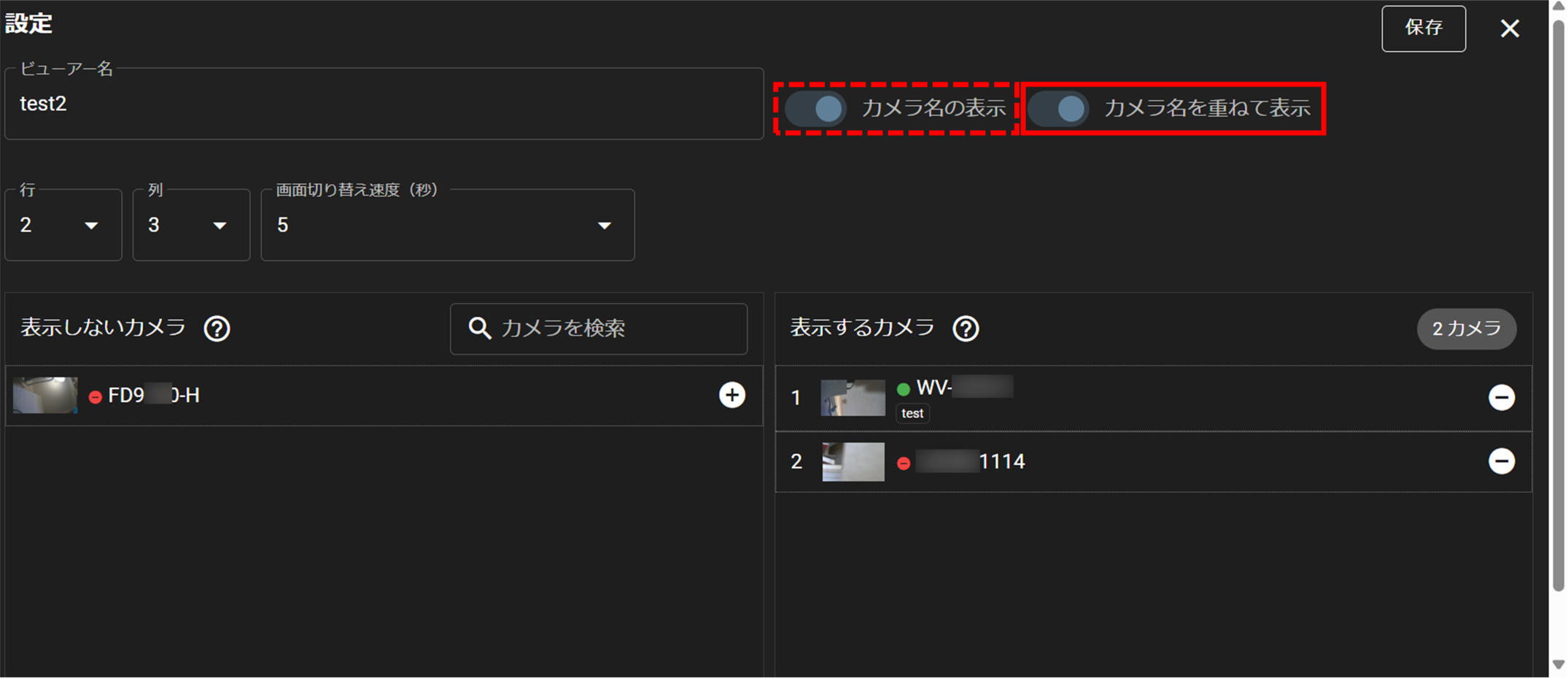
When the camera name is overlaid