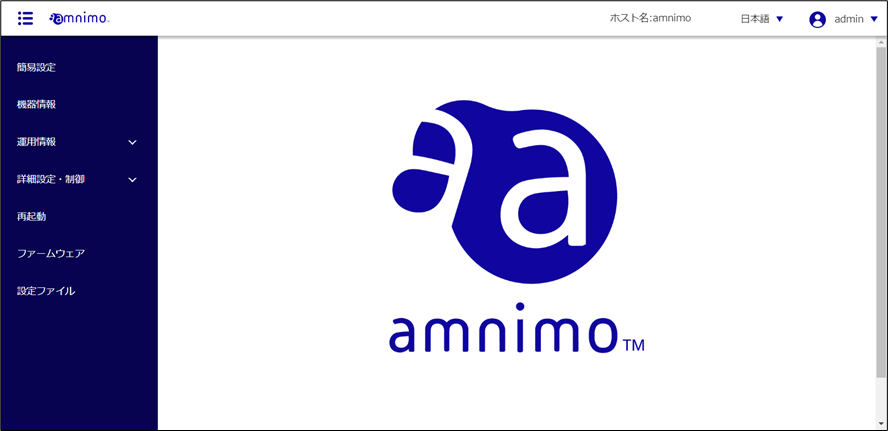
This section describes the sign-in procedure via the Graphic User Interface (GUI).
NOTE
The GUI makes it easy to configure the compact router from a browser.
Sign in #
If this is the first time signing in with the GUI, sign in after setting the password for the administrator account (admin).
NOTE
The following environments have been tested for GUI functionality.
| OS | (web) browser | Verified Version |
|---|---|---|
| Windows 10 Pro2004(64bit) | Google Chrome Microsoft Edge Firefox | 115.0.5790.110 (64bit) -* -* |
| mac OS big Sur 11.2.3 | Safari Google Chrome Firefox | -* -* -* |
Start a browser and access the URL of the GUI configuration screen of the product.
http://192.168.0.254
The "Password Registration" screen appears.
Enter the password you wish to set for admin in the "Password" and "Password (Confirm)" fields and click "Register".
NOTE
The password must be a string that meets the following conditions. The string can be "password" as defined in RFC1738.
- 8 characters or more
- Includes at least two types of uppercase and lowercase letters, numbers, and symbols
WARNIGN
You may not set a password that meets any of the following conditions
- Words in the dictionary (e.g., test)
- Words with regularity, such as number or alphabet keyboard sequences (e.g., 1234, abcde, qwert)
- Combination of the above (e.g., test1234)
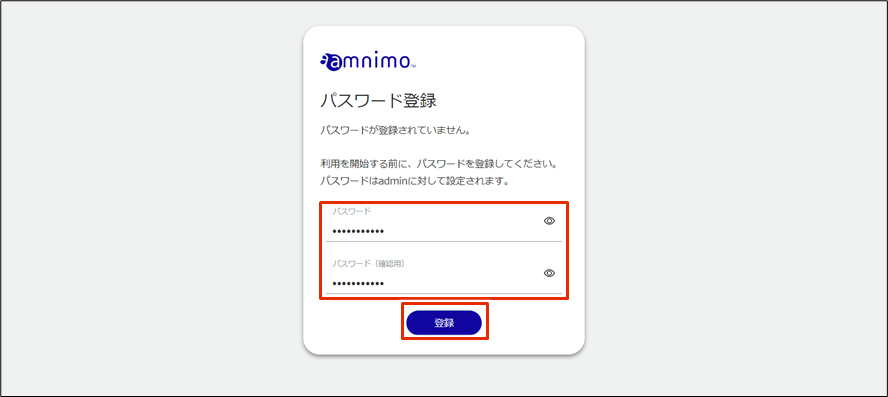
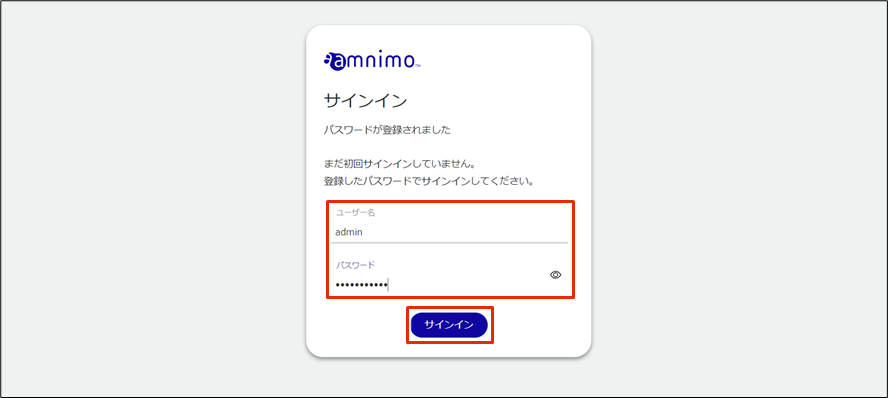
The admin password will be set and the "Sign In" screen will appear.
Enter "admin" in "User Name" and the password set in step 2 in "Password", and click "Sign In".
After signing in to the product, the following logo screen will appear.